Read the statement by Michael Teeuw here.
MMM-MyGarbage
-
MMM-MyGarbage
This a module for MagicMirror².
This displays the schedule for your Garbage pickup. It supports multiple types of garbage bins.
You can show the schedule using a CSV file (garbage_schedule.csv) of by using an ical URL.Installation
Clone this repository in your modules folder, and install dependencies:
cd ~/MagicMirror/modules
git clone https://github.com/htilburgs/MMM-MyGarbage.git
cd MMM-MyGarbage
npm install
Update
When you need to update this module:
cd ~/MagicMirror/modules/MMM-MyGarbage
git pull
npm install
Configuration
Go to the MagicMirror/config directory and edit the config.js file.
Add the module to your modules array in your config.js.{ module: 'MMM-MyGarbage', position: 'top_right', header: "My Garbage Calendar", disabled: false, config: { weeksToDisplay: 4, limitTo: 99, dateFormat: "dddd LL", alert: true, alertThreshold: 5, fade:true, fadePoint: 0.25, dataSource: "csv", // csv (schedule_garbage.csv | ical (put URL in icalUrl) icalUrl: "PLACE_HERE_PUBLIC_ICAL_URL", // only used if dataSource is "ical" debug: false, // Only set on true for debugging binColors: { // Define custom Bin Colors and match with the Bin Names "GreenBin" : "#00A651", "PaperBin" : "#0059FF", "GarbageBin" : "#787878", "PMDBin" : "#FFFF00", "OtherBin" : "#B87333" }, } },Module configuration
Here is the documentation of options for the modules configuration:
Option Description weeksToDisplayHow many weeks into the future to show collection dates.
Number
Default:2limitToLimit the display to the spcified number of pickups
Number
Default:99dateFormatFormat to use for the date of events
Default:dddd D MMMM(e.g. January 18)
Possible values: See https://momentjs.com/alertShow alert, if remaining entries in CSV file fall under threshold
Default:false
Possible values:trueorfalsealertThreshold(optional) Threshold entries left in CSV file
Number
Default:5fadeFade the future events to black. (Gradient).
Default:true
<Possible values:trueorfalsefadePointWhere to start fade
Default:0.25
Posibble values: Between0(top of the list) and1(bottom of list)dataSourceSelect the datasource you’re using
Default:csv
Possible values:csvoricalicalUrlFill in your (public) ical URL
Only use in combination with dataSource:icaldebugFor debugging the module when failure or testing
Default:false
Possible values:falseortruebinColorsDefine your own Bin Colors - Bin names have to EXACTLY match you’re names from CSV or iCAL. Creating and using your Garbage Schedule for use with dataSource CSV
You can use this module by creating your own Garbage Schedule file with the name
garbage_schedule.csv
An example filegarbage_schedule.csvis added.Create a CSV based on the following template:
WeekStarting,GreenBin,GarbageBin,PaperBin,PMDBin,OtherBin
03/07/18,1,0,1,0,0
03/14/18,1,1,1,0,0
03/21/18,1,0,1,0,1
03/28/18,1,1,1,1,0
Default there are 5 bins defined. If you need more garbage bins, simply add an extra column in the
garbage_schedule.csvfile, with the name of the extra bin. If you only need 3, then simply remove them. When the module is started, it reads the names and will try them to match to thebinColors.
As of v3.0.0 of the module you can add custom names in the CSV of rename current names. As long as you change yourbinColorsinconfig.jswith the correspending names, you will see the information with the correct colors.Remark
Any Bin name that is not or not correct matched with the name in binColors, will be shown as a purple binAdd lines for each garbage pickup date as needed.
The date format needs to be specified asMM/DD/YY(e.g.: 05/28/18 for 28-May-2018)
Colors can be defined in the config.js file:- Legacy Values:
- GreenBin (defaults to #00A651)
- GarbageBin (defaults to #787878)
- PaperBin (defaults to #0059ff)
- PMDBin (defaults to #ffff00)
- OtherBin (defaults to #F542CE)
- Any CSS color string (red, chocolate, cornflowerblue, etc…)
- Any HEX-Color (#FF0000, #8c8c8c, etc)
- Any rgb, rgba or hsl value if in double quotes (“rgb(128,65,98)”, “rgba(134,56,32,0.5)”, “hsl(0, 100%, 50%)”, etc.)
The following is VERY important:
- The CSV file MUST be delimited using commas
- The date format MUST to be specified as
MM/DD/YY(e.g.: 05/28/18 for 28-May-2018) - The remaining fields of each line specify whether the particular waste product is scheduled to be picked up on the given date. A value of
0means no pick up. A value of ANYTHING ELSE means the product will be picked up. Using the first pick up date entry in the template above,1,0,1,0,0means thatgreenandbluewill be picked up on that date, while the others will not be picked up.
Save the file as
garbage_schedule.csvin theMMM-MyGarbagedirectory and restart Magic Mirror²License
The MIT License (MIT)
Copyright © 2019-2026 Harm Tilburgs
Permission is hereby granted, free of charge, to any person obtaining a copy of this software and associated documentation files (the “Software”), to deal in the Software without restriction, including without limitation the rights to use, copy, modify, merge, publish, distribute, sublicense, and/or sell copies of the Software, and to permit persons to whom the Software is furnished to do so, subject to the following conditions:
The above copyright notice and this permission notice shall be included in all copies or substantial portions of the Software.
The software is provided “as is”, without warranty of any kind, express or implied, including but not limited to the warranties of merchantability, fitness for a particular purpose and noninfringement. In no event shall the authors or copyright holders be liable for any claim, damages or other liability, whether in an action of contract, tort or otherwise, arising from, out of or in connection with the software or the use or other dealings in the software.
Note
The original script is from Jeff Clarke
MMM-MyWastePickupand only for the Toronto area.
Now it has become a general script, to use in all areas all over the world.Versions
v3.1.1 (28-03-2026)
- list itemFix weeksToDisplay For example: 2 weeks are 14 days so this could end up showing 3 weeks. Now fixed to ISO weeks.
- list itemNormalized all dates to ISO strings
- Improve CSV bin filtering (avoid garbage data)
v3.1.0 (21-03-2026)
- Add support for combined multiple same day pickups into 1 ICS event (thanks to @PlatinumPenguin)
- Clean up code to prevent crashes
v3.0.0 (07-03-2026)
- Add support for flexible numbers of Bins
- Bin names are automaticly detected
- Match bin colors to bin names for csv and ical
- Error message instead of “Loading…” when the CSV or ICAL is in wrong format
- Better debug information in console and in module
- Clean up code
v2.1.2 (02-03-2026)
- Update for rare AxiosError [AggregateError] when loading iCal
v2.1.1 (17-02-2026)
- Bugfix for the
alertTreshold
v2.1.0 (16-02-2026)
- Update for CSV file and
alertThreshold(add to config.js!)
v2.0.1 (2025)
- Update for Streamline date parsing and allow for recurring events in ical (thx to @thepagan)
v2.0.0 (2025)
- Changed for use with CSV or with iCal Calendar
v1.0.0 (Initial Release 2019)
- Legacy Values:
-
@htilburgs
Is there a way to change the can colors? Ours here are Blue, Green, and Yellow. -
@pugsly
This is possible, follow the next steps.Go to the MagicMirror CSS directory
cd ~\MagicMirror\css\Edit (or create) the custom.css file
sudo nano custom.cssAdd the next section at the bottom of the custom.css file
/* MMM-MyGarbage CSS Modification */
.MMM-MyGarbage .garbage-container .garbage-icon-container .garbage-icon.greenbin {
  fill: #00A651;
}
.MMM-MyGarbage .garbage-container .garbage-icon-container .garbage-icon.garbagebin {
  fill: #787878;
}
.MMM-MyGarbage .garbage-container .garbage-icon-container .garbage-icon.paperbin {
  fill: #0059ff;
}
/* End MMM-MyGarbage */
Now you can modify the colors for your Garbage Bins. In your case, you would like the grey bin to be yellow. The code should be:
.MMM-MyGarbage .garbage-container .garbage-icon-container .garbage-icon.garbagebin {
  fill: #fffa00;
}
Save and quit the nano editor and restart your MagicMirror.
Now you should have a yellow trashbin instead of a grey trashbin.
Succes! -
Do you know if it is also possible to change the icon with CSS? E.g. using a “paper” icon from FontAwesome?
-
Currently this is not possible, because the icons are embedded in file ‘garbage_icons.svg’. You can create you’re own garbage_icons.svg file. Keep in mind that the icons are 24x24 pixels.
-
Hi,
I would really like to use this module. However, despite following the install instructions, and without changing any of the defaults other than the header (we usually say rubbish in the UK, rather than garbage), I get two instances of the module loading. Also, when I open the default csv file in Excel for instance, the dates do not all seem to be the same. Some are formatted left and some are formatted right in the cell. Surely they should all be the same. I have not altered this file at all but when the module loads in MM2, (twice as mentioned) I just get an entry for ‘Today’ and a grey bin icon.
Chris
-
@Chris62 can you post a picture and the config.js?
-
I have done everything as described but the module keeps on indicating Loading Loading, what am I doing wrong?
Regards, Marius
-
@werffje I’m sorry to hear that, but if it’a keep saying loading, than there is a configuration error. Can you post your config. js.
Further take a look at the java console in you browser if you can see an error. -
On my TEST System, I just did a fresh install of MM2 and after that a fresh install of MMM-MyGarbage. Copy and Paste the configuration as in the README.md into the config.js and no errors. MMM-MyGarbage displays 2 entries with the garbage_schedule.csv that is installed with the git clone…
@Chris62, @werffje, if you still expirience problems, than:
- add config.js into reply
- look at the javascript console if you see any errors in the Console tab
Open Javascript Console:
Press Command+Option+J (Mac) or Control+Shift+J (Windows, Linux, Chrome OS) to open the Console- any other information that maybe relevant
I’ll look at it and try to reproduce and/or correct the issue.
-
Hi,
Thanks for your reply. I have fixed it now. I loaded the csv file into excel to alter the dates but something was wrong with the formatting and I just couldn’t get it to work. Anyway, I loaded up MM into a Ubuntu virtual machine and changed the dates in notepad. I sorted out the config issue (I moved the position within the config file to make it easier to read but accidentally did copy rather than cut and paste so I had two loading), fired it up and it worked like a charm. I have now copied everything to my Pi and it now works there too.
Just a quick question, I only have two bins, blue and green, is it possible to remove the column for the other one without mucking it up, or should I just set all the values to zero?
Thanks
Chris
-
@Chris62 Good to hear it’s fixed.
You can do both- Remove the unused column entirly
- Fill the unused column with zero’s
As of version v1.2.0 you can also use you’re own column names, as long as they are color names. The garbage bin is showed in the color of the name of the column.
example
WeekStarting,Green,Brown
04/15/19,1,1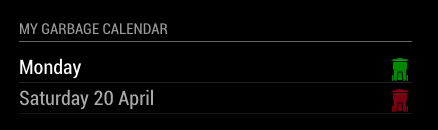
-
OMG I’m such a noob forgive me, I forgot the alert: 4 line in my config.js
It works great now, thanks !!
-
@werffje :thumbs_up_light_skin_tone:
-
best module ever :-)
-
@rvanuden :hugging_face: :thumbs_up_light_skin_tone:
-
Hi,
We have 4 garbage bins. (Green,Black, Bleu and Yellow), is it possible to use 4 types instead of 3?
-
@RdP
You can use this module by creating your own Garbage Schedule file with the name garbage_schedule.csv An example file garbage_schedule.csv is added.Create a CSV based on the following template:
WeekStarting,green,gray,blue
03/07/18,1,0,1
03/14/18,1,1,1
03/21/18,1,0,1
03/28/18,1,1,1Default there are 3 bins defined (green, gray and blue) If you need more garbage bins, simply add an extra column in the garbage_schedule.csv file. The name is the color you like the bin to have. In you case ‘yellow’.
Add lines for each garbage pickup date as needed. The date format needs to be specified as MM/DD/YY (e.g.: 05/28/18 for 28-May-2018)
Succes!
-
-
@RdP, great it worked out for you!

Hello! It looks like you're interested in this conversation, but you don't have an account yet.
Getting fed up of having to scroll through the same posts each visit? When you register for an account, you'll always come back to exactly where you were before, and choose to be notified of new replies (either via email, or push notification). You'll also be able to save bookmarks and upvote posts to show your appreciation to other community members.
With your input, this post could be even better 💗
Register Login