Read the statement by Michael Teeuw here.
scaling gone wonky
-
@cyclonej correct, the calendar module supplied with MagicMirror.
i understand, just realize the author has stopped making updates, although he may be able to guide you.
-
I went ahead and installed Ext3. This looks just as bad as Ext2. The calendar is occupying the whole screen. I think something has gone arwy in MM. Normal websites look fine. Its just in the MM page that the calendar is too big and i guess the date/time and weather information seem larger/wider than they should be.
In case I forgot to mention earlier, I have my display in portrait orientation
.
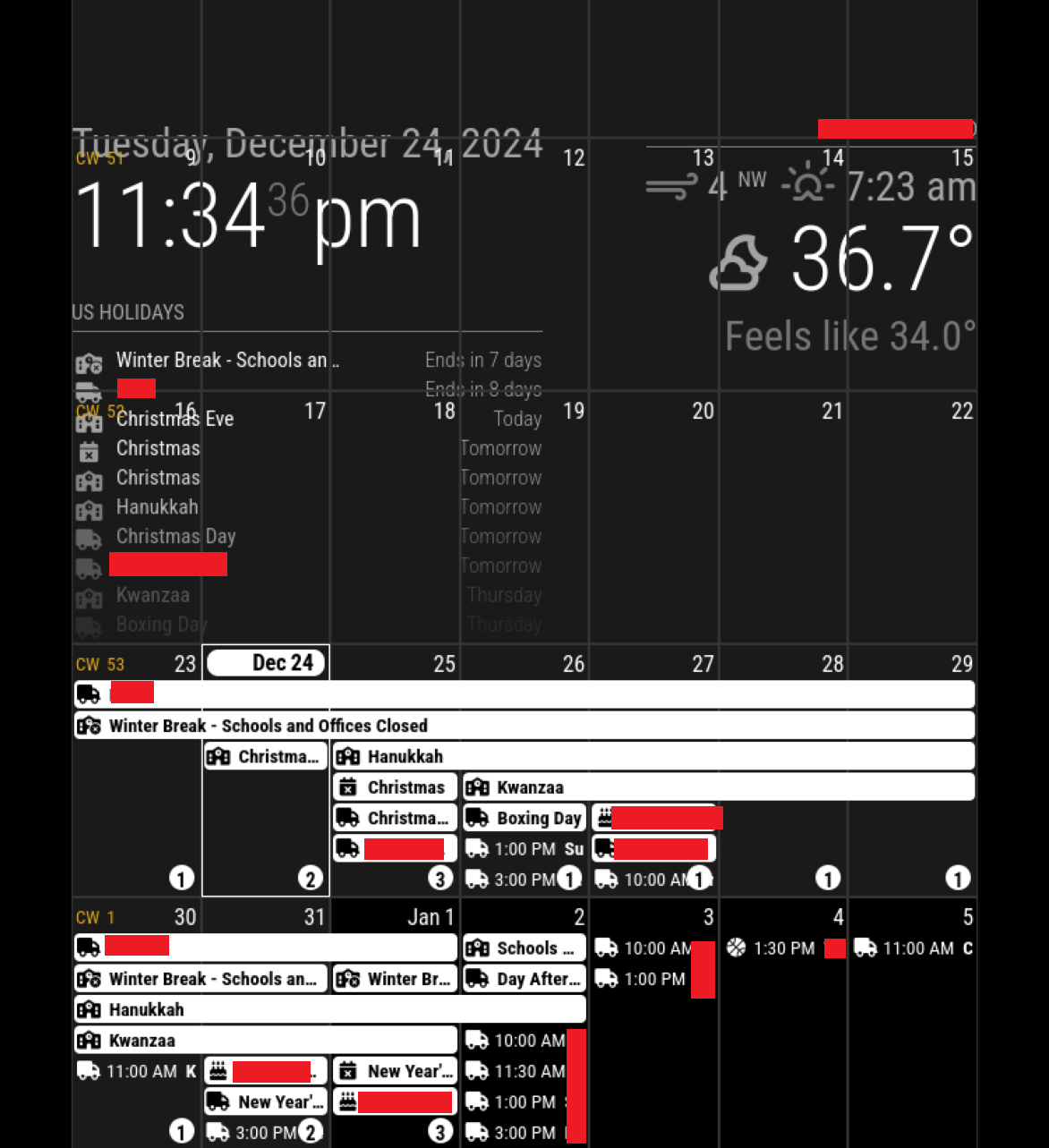
new config.js
/* Config Sample * * For more information on how you can configure this file * see https://docs.magicmirror.builders/configuration/introduction.html * and https://docs.magicmirror.builders/modules/configuration.html * * You can use environment variables using a `config.js.template` file instead of `config.js` * which will be converted to `config.js` while starting. For more information * see https://docs.magicmirror.builders/configuration/introduction.html#enviromnent-variables */ let config = { address: "localhost", // Address to listen on, can be: // - "localhost", "127.0.0.1", "::1" to listen on loopback interface // - another specific IPv4/6 to listen on a specific interface // - "0.0.0.0", "::" to listen on any interface // Default, when address config is left out or empty, is "localhost" port: 8080, basePath: "/", // The URL path where MagicMirror² is hosted. If you are using a Reverse proxy // you must set the sub path here. basePath must end with a / ipWhitelist: ["127.0.0.1", "::ffff:127.0.0.1", "::1"], // Set [] to allow all IP addresses // or add a specific IPv4 of 192.168.1.5 : // ["127.0.0.1", "::ffff:127.0.0.1", "::1", "::ffff:192.168.1.5"], // or IPv4 range of 192.168.3.0 --> 192.168.3.15 use CIDR format : // ["127.0.0.1", "::ffff:127.0.0.1", "::1", "::ffff:192.168.3.0/28"], useHttps: false, // Support HTTPS or not, default "false" will use HTTP httpsPrivateKey: "", // HTTPS private key path, only require when useHttps is true httpsCertificate: "", // HTTPS Certificate path, only require when useHttps is true language: "en", locale: "en-US", logLevel: ["INFO", "LOG", "WARN", "ERROR"], // Add "DEBUG" for even more logging timeFormat: 12, units: "imperial", modules: [ { module: "alert", }, { module: "updatenotification", position: "top_bar" }, { module: "clock", position: "top_left" }, { module: "weather", position: "top_right", config: { weatherProvider: "openmeteo", type: "current", lat: REDACTED lon: REDACTED } }, { module: "calendar", header: "REDACTED", position: "top_left", config: { calendars: [ { name: "REDACTED", symbol: "calendar-xmark", coloredBackground: true, bgColor: "white", fetchInterval: 7 * 24 * 60 * 60 * 1000, url: "REDACTED", }, { name: "REDACTED", symbol: "cake-candles", coloredBackground: true, bgColor: "white", fetchInterval: 7 * 24 * 60 * 60 * 1000, url: "REDACTED", }, { name: "REDACTED", symbol: "google", coloredBackground: true, bgColor: "white", fetchInterval: 7 * 24 * 60 * 60 * 1000, url: "REDACTED", }, { name: "REDACTED", symbol: "truck", coloredBackground: true, bgColor: "green", fetchInterval: 7 * 24 * 60 * 60 * 1000, url: "REDACTED", }, { name: "REDACTED", symbol: "basketball", coloredBackground: true, bgColor: "orange", fetchInterval: 7 * 24 * 60 * 60 * 1000, url: "REDACTED", }, { name: "REDACTED", symbol: "school-circle-xmark", coloredBackground: true, bgColor: "red", fetchInterval: 7 * 24 * 60 * 60 * 1000, url: "REDACTED", }, { name: "REDACTED", symbol: "school", coloredBackground: true, bgColor: "blue", fetchInterval: 7 * 24 * 60 * 60 * 1000, url: "REDACTED", }, { name: "REDACTED", symbol: "school-circle-exclamation", coloredBackground: true, bgColor: "white", fetchInterval: 7 * 24 * 60 * 60 * 1000, url: "REDACTED", }, ] } }, { module: "MMM-CalendarExt3", position: "bottom_bar", title: "", config: { mode: "month", instanceId: "basicCalendar", locale: 'en-US', maxEventLines: 7, firstDayOfWeek: 1, calendarSet: [], } } ] }; /*************** DO NOT EDIT THE LINE BELOW ***************/ if (typeof module !== "undefined") { module.exports = config; } -
@cyclonej Seems like a default screen resolution issue for me as some of the other modules are overlapping as well and they look unusually big. Suggest you try a different resolution setting and see if that resolves?
-
@cyclonej
Show me the whole screen capture. And what resolution the screen has? -
-
@cyclonej horizontal/landscape mode, MagicMirror is designed for 1920x1080
so in portrait mode it should be 1080x1920
-
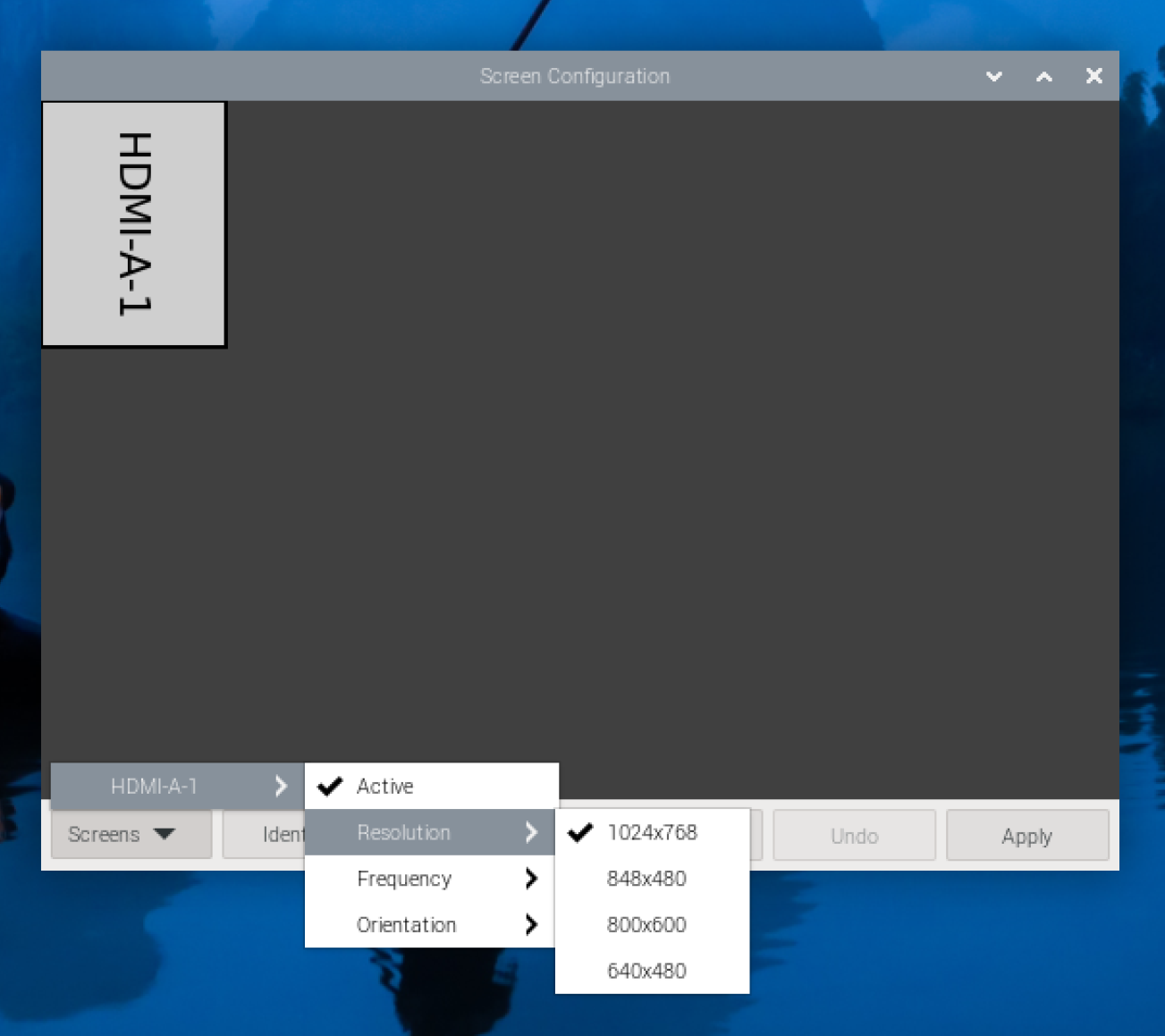
I am marking this as solved. I think when I first booted up the Raspberry Pi, the resolution was 1920x1080. I am not sure what is preventing from going to that resolution now. That is where I will focus my troubleshooting.
Thanks all for the assistance.
-
C cyclonej has marked this topic as solved on
-
@cyclonej said in scaling gone wonky:
I am marking this as solved. I think when I first booted up the Raspberry Pi, the resolution was 1920x1080. I am not sure what is preventing from going to that resolution now. That is where I will focus my troubleshooting.
Thanks all for the assistance.
I spent another couple hours trying things in the preferences, display settings, even tried to modify the /boot/config to no avail. I then reseated the HDMI cable and the OS started allowing resolutions up to 1920x1080. MM looks great again!
Thanks again everyone for your help.
-
@cyclonej always amazed at how the simple this cause so much trouble
-
C cyclonej has marked this topic as solved on
-
@cyclonej said in scaling gone wonky:
@cyclonej said in scaling gone wonky:
I am marking this as solved. I think when I first booted up the Raspberry Pi, the resolution was 1920x1080. I am not sure what is preventing from going to that resolution now. That is where I will focus my troubleshooting.
Thanks all for the assistance.
I spent another couple hours trying things in the preferences, display settings, even tried to modify the /boot/config to no avail. I then reseated the HDMI cable and the OS started allowing resolutions up to 1920x1080. MM looks great again!
Thanks again everyone for your help.
After I got everything working nicely, I disconnected everything to move to the permanent installation location. Hung everything on kitchen wall, then reconnected everything and powered on… screen resolution stuck back on 1024x768.

-
@cyclonej dang it!
-
I thought I would post the final fix for the screen resolution.
Through many Google searches, I found some commands that would theoretically would force the OS to use 1920x1080 resolution. (https://forums.linuxmint.com/viewtopic.php?t=274540)
However, I was receiving errors on execution of the cvt command.cvt 1920 1080More Google searches revealed that I had to install cvt.
sudo apt-get install xcvtnext, I was getting errors on the last xrandr command (setting the current output mode).
xrandr --newmode "1920x1080_60.00"  173.00  1920 2048 2248 2276  1080 1083 1088 1120 -hsync +vsync
xrandr --addmode WAYLAND1 1920x1080_60.00
xrandr --output WAYLAND1 --mode "1920x1080_60.00"
More Google searches indicated WAYLAND output is enabled when VNC is enabled for remote connections. More searches lead me to the raspi-config, where I found the display was set to ‘WAYLAND’. I had to change the display setting to X11. Now the commands could all succeed.
xrandr --newmode "1920x1080_60.00"  173.00  1920 2048 2248 2276  1080 1083 1088 1120 -hsync +vsync
xrandr --addmode HDMI-1 1920x1080_60.00
xrandr --output HDMI-1 --mode "1920x1080_60.00"
However, the resolution setting would not persist through a reboot. I started exploring how to set these xrandr commands to execute at startup. Google searches lead me to try modifying config files, which failed due to access denied. Then I remembered that MM uses pm2 to auto start when OS starts. So I created a .sh file to execute the xrandr commands and followed the same steps in MM (https://docs.magicmirror.builders/configuration/autostart.html#using-pm2) , replacing file names as needed, to launch my Set_Resolution.sh at startup.
Viola!
My raspberry pi 5 now boots up and sets screen to 1920x1080 right away!
It took a great deal of searching and learning how Raspberry Pi works. In the end, I got there.

-
@cyclonej woohoo!!..
the ‘permissions’ are because the files are in the root owned space
you can use
sudo nano filename
to edit and save changes therebut you accomplished the same thing… awesome
Hello! It looks like you're interested in this conversation, but you don't have an account yet.
Getting fed up of having to scroll through the same posts each visit? When you register for an account, you'll always come back to exactly where you were before, and choose to be notified of new replies (either via email, or push notification). You'll also be able to save bookmarks and upvote posts to show your appreciation to other community members.
With your input, this post could be even better 💗
Register Login