Read the statement by Michael Teeuw here.
PIR / MQTT - Presence sensor(s) revived
-
@rkorell
Hi Ralf, I don’t agree with your argument about Issue 2.
When my MagicMirror starts and it does not detect any movement, the screen will stay on and on until movement is detected. Let’s say I’m not around for 2 hours, the screen is on for 2 hours.My other PIR modules I tested, do this as aspected (both MMM-Pir and MMM-Universal-Pir). So maybe you can consider to change this.
The other issue still exists after the update.
I don’t have a wayfire.ini file in my ~/.config.
My previous module MMM-Pir puts the screen off and at movement on. It stays off after it goes off.
With MMM-PresenceScreenControl my screen turns off and than after about 6-7 seconds, the screen comes back on again. I don’t make conclusions, but I think it has nothing to do with my system of Wayland settings. Something is triggering that the screen goes on again. -
To update:
cd ~/MagicMirror/modules/MMM-PresenceScreenControl
git pull
rm -rf node_modules package-lock.json
npm installThe better way is first
rm -rf node_modules package-lock.json, otherwisegit pullgives an error that it cannot update because of package-lock.jsonerror: Your local changes to the following files would be overwritten by merge: package-lock.json Please commit your changes or stash them before you merge. -
@htilburgs sure. you’re right. Sorry.
I’ve removed package-lock.json from git-tracking and corrected the README.md installation instruction according your advise.
Instructions in postings above corrected as well.Regards,
Ralf -
Dear @htilburgs
You were right about the startup behavior — I’ve fixed it. The screen now turns off after ~1
second if no presence is detected at startup. No more waiting for the first sensor event.Please update:
cd ~/MagicMirror/modules/MMM-PresenceScreenControl
rm -rf node_modules package-lock.json
git pull
npm installRegarding the remaining issue (screen comes back on after 6-7 seconds): The debug log you shared
earlier shows the off command executing successfully, with no PIR event triggering the screen back
on. The module isn’t causing it — but I need to understand what is. Could you please set debug:
“complex” and share the complete log output from the moment the screen turns off until it comes
back on? That will show every internal state change.Thanks for your testing and feedback — it’s making the module better for everyone.
Warm regards,
Ralf -
@rkorell
First of all, thank you for your time!You were right about the startup behavior — I’ve fixed it. The screen now turns off after ~1 second if no presence is detected at startup. No more waiting for the first sensor event.Ok, nice. But why ~1 second?
Why not the time fromcounterTimeout?
Just my thoughts ;-)Could you please set debug: “complex” and share the complete log output from the moment the screen turns off until it comes back on?I will do this, but it will be tommorow.
I have to get up early and it’s already late.(still trying to learn JS, but not afraid to ask and AI is my best friend) ☺
-
@rkorell you could set a preinstall script in
package.json to erase the lock file -
@rkorell
I did a git pull so I’m sure I’ve the latest version:- Screen stays on until I trigger the sensor, so that is not changed.
- Screen goes off after 30 sec (my setting for testing) and after 6 seconds it comes on again, saying 00:00
I had set debug:“complex” and this is what it gave
[2026-03-09 06:53:11.320] [LOG]   [MMM-PresenceScreenControl] [PresenceScreenControl] [PIR] gpiomon output: 30488.576057914     rising  gpiochip0 17 "GPIO17"
[2026-03-09 06:53:12.466] [LOG]   [MMM-PresenceScreenControl] [PresenceScreenControl] [PIR] gpiomon output: 30489.724051868     falling gpiochip0 17 "GPIO17"
[2026-03-09 06:53:14.974] [LOG]   [MMM-PresenceScreenControl] [PresenceScreenControl] [PIR] gpiomon output: 30492.232041526     rising  gpiochip0 17 "GPIO17"
[2026-03-09 06:53:16.122] [LOG]   [MMM-PresenceScreenControl] [PresenceScreenControl] [PIR] gpiomon output: 30493.380045941     falling gpiochip0 17 "GPIO17"
[2026-03-09 06:55:15.350] [LOG]   [MMM-PresenceScreenControl] [PresenceScreenControl] [PIR] gpiomon output: 30612.608045172     rising  gpiochip0 17 "GPIO17"
[2026-03-09 06:55:16.498] [LOG]   [MMM-PresenceScreenControl] [PresenceScreenControl] [PIR] gpiomon output: 30613.756051231     falling gpiochip0 17 "GPIO17"
I only have a message when I trigger the PIR, but further no messages. For being complete, my config:
{ module: "MMM-PresenceScreenControl", position: "bottom_right", disabled: false, config: { mode: "PIR", pirGPIO: 17, onCommand: "DISPLAY=:0 wlr-randr --output HDMI-A-1 --on --mode 1920x1080 --transform 270", offCommand: "DISPLAY=:0 wlr-randr --output HDMI-A-1 --off", counterTimeout: 30, autoDimmer: false, autoDimmerTimeout: 60, style: 2, colorFrom: "red", colorTo: "lime", colorCronActivation: "cornflowerblue", showPresenceStatus: false, debug: "complex", resetCountdownWidth: false } }, -
@sdetweil Thanks.
I’ve excluded this file from git tracking so the pull should work.
Warm regards,
Ralf -
Dear @htilburgs,
it seems, we are in the same time-zone :-) wouldn’t be surpised even same mother-tongue …Nevertheless, thank you for your patience and the detailed logs — they were extremely helpful in tracking this down.
What we found
The module works perfectly on my system (Pi 5, Debian Trixie, Wayland/labwc, MagicMirror 2.34.0), so we did an intensive
deep-dive comparing your setup, your MMM-Pir configuration, and your MMM-PresenceScreenControl configuration to understand why
the screen comes back after ~6 seconds on your system.The key clue came from your own working MMM-Pir config:
mode: 3
waylandDisplayName: "wayland-0"
MMM-Pir mode 3 uses wlr-randr — the same tool you configured for MMM-PresenceScreenControl. But there’s a critical difference:
MMM-Pir internally sets WAYLAND_DISPLAY=wayland-0 (from your waylandDisplayName parameter) before calling wlr-randr.Your MMM-PresenceScreenControl config, on the other hand, uses:
onCommand: "DISPLAY=:0 wlr-randr --output HDMI-A-1 --on --mode 1920x1080 --transform 270",
offCommand: "DISPLAY=:0 wlr-randr --output HDMI-A-1 --off",
wlr-randr is a Wayland tool — it communicates with the Wayland compositor via the WAYLAND_DISPLAY environment variable.
DISPLAY=:0 is an X11 variable and is meaningless to wlr-randr. Without the correct WAYLAND_DISPLAY, wlr-randr falls back to
guessing the socket, which results in the unstable behavior you’re seeing: the screen turns off but comes back after ~6
seconds.This also explains why your system info shows WAYLAND_DISPLAY: undefined — MagicMirror/Electron doesn’t have it set, so any
screen command executed from the module needs to provide it explicitly.The fix
Replace DISPLAY=:0 with WAYLAND_DISPLAY=wayland-0 in your config. You have two options:
Option A: wlr-randr (matching your working MMM-Pir setup)
onCommand: "WAYLAND_DISPLAY=wayland-0 wlr-randr --output HDMI-A-1 --on --mode 1920x1080 --transform 270",
offCommand: "WAYLAND_DISPLAY=wayland-0 wlr-randr --output HDMI-A-1 --off",
This is the minimal change — same tool, same parameters, just the correct environment variable.
Option B: wlopm (recommended, more robust)
wlopm is purpose-built for display power management on Wayland. Unlike wlr-randr --off (which removes the output from the
compositor layout), wlopm --off uses the Wayland power management protocol (DPMS-level) — it turns the display hardware off
without affecting window layout. This is what I use on my system.First install it (it’s in the Trixie repos):
sudo apt install wlopmThen configure:
onCommand: "wlopm --on HDMI-A-1",
offCommand: "wlopm --off HDMI-A-1",
Note: wlopm doesn’t need WAYLAND_DISPLAY explicitly — the default fallback to wayland-0 works reliably on Trixie. And since
wlopm controls hardware power state, it doesn’t need --mode or --transform on the on command — the display simply wakes up with
its previous settings intact.For reference, the https://github.com/Jopyth/MMM-Remote-Control/blob/master/docs/guide/monitor-control.md documents wlr-randr
as the recommended Wayland screen control option, including the hint to set WAYLAND_DISPLAY if needed.About the startup behavior (screen stays on)
You mentioned the screen stays on after MagicMirror starts until you trigger the PIR. The startup fix from commit 39d28d6 does
work — it turns the screen off ~1 second after startup. But since your offCommand wasn’t working correctly (the DISPLAY=:0
issue), the screen appeared to “stay on.” Once you fix the command, the screen should turn off shortly after startup if nobody
is in front of the PIR.You also asked: “Why not the time from counterTimeout?” — That’s a fair point. On my system, counterTimeout is 600 (10
minutes), so turning off after 1 second is the desired behavior — I want to see that the restart worked, but not wait 10
minutes. For your setup with counterTimeout: 30, having 30 seconds of screen-on after startup would make more sense.I’m planning a new config parameter startupGracePeriod that lets you define how long the screen stays on after module start
before the presence logic kicks in. This way each user can choose independently of their counterTimeout. I’ll include this in a
future release.Upcoming improvement: cronMonitor efficiency
While investigating your issue, I discovered that the internal cron monitor (which checks for always-on/ignore time windows)
sends updates to the frontend every second, even when nothing has changed and the screen is off. This causes unnecessary DOM
rebuilds and is inefficient, though it’s not the cause of your screen-comes-back problem. I’ll fix this in the next release to
make the module quieter after screen-off.About the debug logging
Now that we’ve identified the root cause, you can set debug: “off” in your config again. The debug output you saw (gpiomon
lines in pm2 logs) comes from the PIR library and goes to the console. The module’s own debug logging (updatePresence,
startCounter, updateScreen, etc.) intentionally writes to a separate log file (MMM-PresenceScreenControl_local.log in the
module directory) rather than to pm2 logs. This keeps the debug output focused and separated from the noise of all other
modules — much easier to analyze when troubleshooting a specific issue. If you ever need to debug the module again, check that
file instead of pm2 logs.Summary
- Screen comes back after 6 seconds: Replace DISPLAY=:0 with WAYLAND_DISPLAY=wayland-0 (Option A), or switch to wlopm (Option
B) - Screen stays on after startup: Should be fixed once Option A or B is applied. A startupGracePeriod parameter is planned for
a future release. - Log prefix [MMM-Pir]: Already fixed in your version ✓
Please let me know if Option A or B resolves the screen-comes-back issue!
Warm regards,
Ralf - Screen comes back after 6 seconds: Replace DISPLAY=:0 with WAYLAND_DISPLAY=wayland-0 (Option A), or switch to wlopm (Option
-
@rkorell
I live in the Netherlands.I’m Currently at the office, but I Will test it this evening and give you the results.
-
@htilburgs :-) OK, nearby - Germany …
Thanks for testing/feedback!Ralf
-
@rkorell
Oke, done some testing:
With the ‘new’ strings, I get:onCommand: "WAYLAND_DISPLAY=wayland-0 wlr-randr --output HDMI-A-1 --on --mode 1920x1080 --transform 270", offCommand: "WAYLAND_DISPLAY=wayland-0 wlr-randr --output HDMI-A-1 --off",[ERROR] [MMM-PresenceScreenControl] [updateScreen] ERROR: Error: Command failed: WAYLAND_DISPLAY=wayland-0 wlr-randr --output HDMI-A-1 --on --mode 1920x1080 --transform 270 unknown output HDMI-A-1Why this message, I don’t know.
After a reboot this message didn’t show again.Then I stopped MagicMirror and did the same command from the commandline
WAYLAND_DISPLAY=wayland-0 wlr-randr --output HDMI-A-1 --offAfter 6 seconds my display comes on again.
So it isn’t coming from MagicMirror, but from my system.
I created a simple Python3 script to turn off and on my monitor. Same problem.Next step:
I took a new SD Card and installed a fresh copy of Trixie.
Didn’t do anything else, no updates or something else and tried again withWAYLAND_DISPLAY=wayland-0 wlr-randr --output HDMI-A-1 --offfrom the command prompt.
Display goes off and after 6 seconds back on again.
So I excluded MagicMirror. What else can it be?Next step:
I took an other RPI4b with the new SD Card from previous step. Repeated the test, but still same result. Monitor goes on after 6 seconds. So it is not MagicMirror, not the RPI. But why it works with MMM-PIR and not with MMM-PresenceScreenControl. It is still a riddle for me.Next step:
Original RPI with original SD Card and installed MMM-Universal-Pir. Same result, after 6 seconds screen on.
So I excluded MagicMirror, SD Card, Trixie installation and RPI. It must have something to do with my monitor?!?
Did something happen? Not that I know.After doing a search on the big WWW, I found an interesting article that described exact the same issue I was having.
https://forums.raspberrypi.com/viewtopic.php?t=363966So I searched for my RemoteControl and search for a setting
that automatically scan its input sources (not easy if your MagicMirror screen is rotated 270° ;-)
And I found this setting and indeed it was standing on auto scan. I put it on HDMI as only source and tried it again:YES, IT IS WORKING!!!
And even better than before, now my monitor turns completly off after 15 min. of no signal. So instead of using 75W when on, 26W in standby, it now uses 0W after 15 minutes (it’s a setting on the monitor).
Activating the PIR, it turns back on!So with this I hope that if somebody else has this problem, they can solve it to.
Ralf, thanks for all the help and trying to solve it with me.
I’m looking forward for the startupGracePeriod parameter and think this is going to make the module fully as I like it.
Thank you for your great work with this module and a grownup replacement for MMM-Pir!!! -
YES, IT IS WORKING!!!
I’m SO happy.
Great news - congratulations…
So at least your stubborn issue leds to several code enhancements - during my investigation regarding your symptoms I had the chance to identify some optimization potential, so code is much cleaner now.
Thanks for this gentle “push”.Warmest regards,
Ralf -
@rkorell your welcome…;-)
-
I’m looking forward for the startupGracePeriod parameter and think this is going to make the module fully as I like it.
Good news — your wish came true faster than expected! 😊
v1.5.0 is released and includes the startupGracePeriod parameter you were looking forward to.
How to update:
cd ~/MagicMirror/modules/MMM-PresenceScreenControl
rm -rf node_modules
git pull
npm install
Then add to your config:
startupGracePeriod: 30, // seconds to keep screen on after startupSet it to however many seconds you want the screen to stay on after a restart — enough time to
verify everything came up correctly. After the grace period, normal presence logic kicks in. If
your PIR detects you during the grace period, it seamlessly switches to the regular countdown
timer.Also included in v1.5.0:
- logFileName parameter — debug output now goes to pm2 logs by default (no more hidden log file)
- Several internal fixes found during a code quality review
Full changelog in the README.
Enjoy! 🎉
Warm regards,
Ralf -
@rkorell
Hi Ralf, I implemented the new version and parameter.
It works great!I’m now playing with the CSS.
Made the bar smaller (50%) rounded edges and alligned the counter at the left of my screen.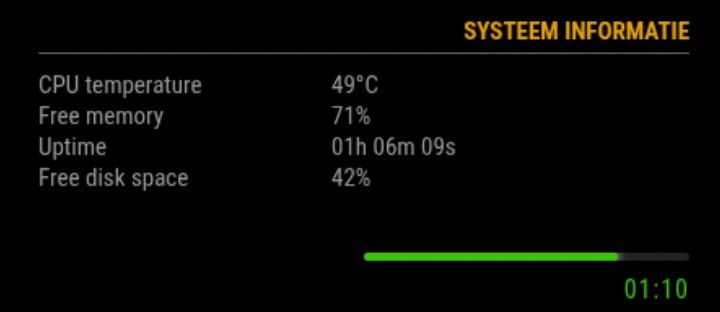
For those who like this setup, just add following in ~/MagicMirror/css/custom.css
/* MMM-PresenceScreenControl */ .psc-linebar { width: 50%; height: 5px; background: #222; border-radius: 4px; margin: 6px 0 6px 0; overflow: hidden; margin-left: auto; margin-right: 0; } .psc-bar { height: 100%; width: 100%; border-radius: 4px; transition: width 0.4s ease, background 0.4s ease; box-shadow: 0 0 6px currentColor; } .psc-timer { font-size: 16px; margin-top: 4px; margin-bottom: 2px; letter-spacing: 1px; text-align: right !important; } -
@htilburgs cool!
happy, that you are satisfied!Warm regards,
Ralfinteresting that you are poistion this counterbar on thr right side of the screen.
For me it feels/looks more natural on the left side.
May this is the reason for my “acceptance” of the colorFrom / colorTo - “mismatch” you had reported … -
@rkorell
My current mirror
This is why I have it on the right. For me this feels better.
On the left side there comes the Spotify information, when I play music.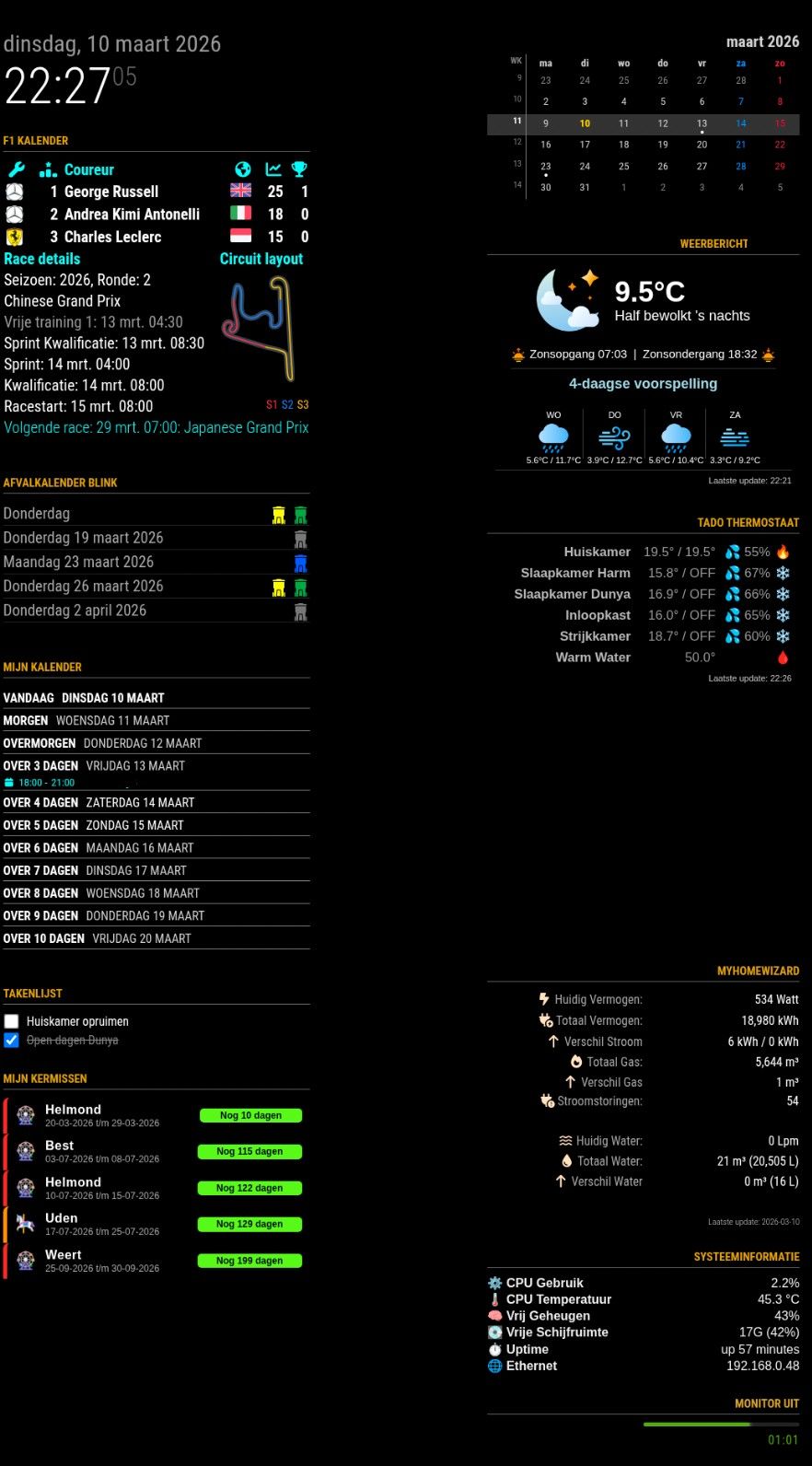
-
@htilburgs

I have a quite similar layout.
My MusicPlayer (Volumio) is on the left side, too but is spreading the region if cover-art is appearing…
Warmest regards,
Ralf -
@rkorell
I see you’re even using one of my Modules (MMM-MyGarbage)My MusicPlayer (Volumio) is on the left side, too but is spreading the region if cover-art is appearing…Did you do something special for this, or is this an option in de Module?
Because when MMM-OnSpotify appears, it just go over everything that is standing there.
So for now I’ve disabled it and looking for a solution.

Hello! It looks like you're interested in this conversation, but you don't have an account yet.
Getting fed up of having to scroll through the same posts each visit? When you register for an account, you'll always come back to exactly where you were before, and choose to be notified of new replies (either via email, or push notification). You'll also be able to save bookmarks and upvote posts to show your appreciation to other community members.
With your input, this post could be even better 💗
Register Login