Why so convoluted? If you’re already using PHP on your page, just have it check for the existence of the file. No need to involve JS to do file system actions, just have it refresh the page at a set interval, let PHP take care of the rest.
K
Offline
A New Chapter for MagicMirror: The Community Takes the Lead
Read the statement by Michael Teeuw here.
Read the statement by Michael Teeuw here.
Posts
-
RE: Run JavaScript if a file is created
-
RE: Unable to install dependencies, NPM install not working
I will try this weekend. Haven’t had much free time lately.
-
RE: Complete Setup Tutorial
Configuring Wireless
Tired of the mile long posts? Well, here’s a short one. As I noted earlier, I will be running my rpi wirelessly. If you are physically connecting it to your network using a cable, you can skip this post.
Step 1
Once your rpi reboots and you’re back at the graphical desktop, launch the Terminal program (it’s a black monitor icon on the menu bar at the top.) Edit thewpa_supplicant.conffile to add your network information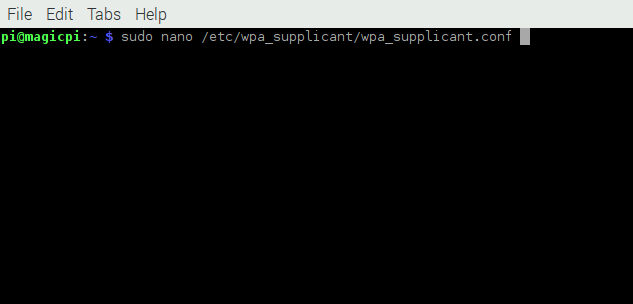
Step 2
At the bottom of the contents, add your network information. Note the quotation marks as this is specially important if you have a space in your wireless network name. Same for the password part. When you’re done editing, pressCTRL-Xto exit, sayingY(es)to saving the changes.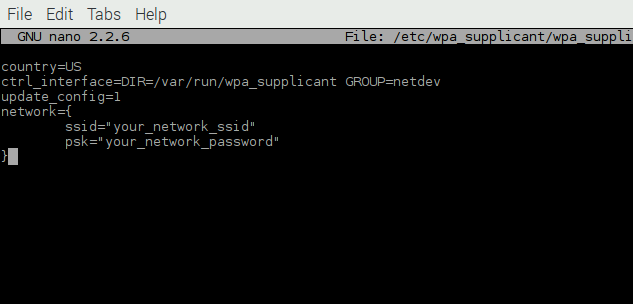
Step 3
Time to reboot and make sure the rpi comes up and successfully connects to your wireless network.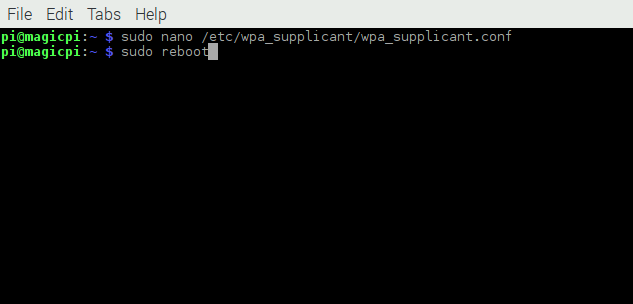
If all went well, when the rpi reboots and comes back to the graphical desktop, in the upper right corner you should see a familiar blue WiFi icon.
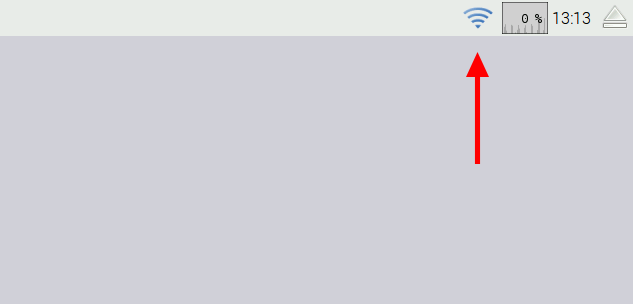
And if you want to make double sure that it connected, you can open a Terminal window again, and type in
ifconfigand look for thewlan0section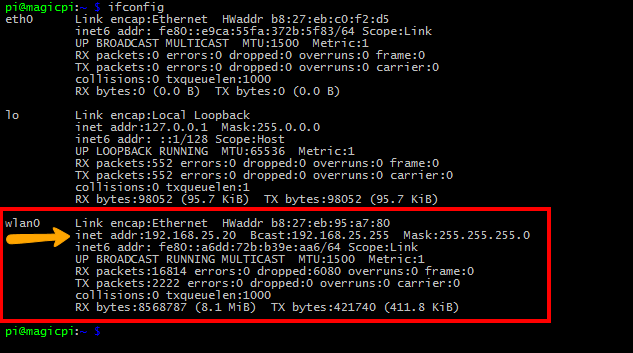
You’re looking for it to have a valid IP that belongs to your network. The specific private network that this rpi is connected to is in the 192.168.25.x range, so this validates that the rpi connected and received an IP from the DHCP server.
If you are physically connecting the rpi to a network hub or router, you need to look at the
eth0section at the top.So what if it failed? Then you’d want to check a few things:
- Did you enter the corect information in the
wpa_supplicant.conffile above? Go back and check again. - Is your wireless router set to block unknown hosts? In a secure environment, it could be (mine is.) Make sure you allow it to connect and receive an IP from the router.
- Are you in range of the wireless router?
- Did you enter the corect information in the
-
RE: Monthly Calendar View
That’s the custom CSS being implemented. By default it doesn’t have any color nor border. The user can edit their CSS and personalize it that way. Essentially the code reads:
// Module defaults defaults: { ... displayMonthyear: true, cssStyle: "default" /* Current options are 'default', 'block', 'custom' */ }, // Required styles getStyles: function() { switch(this.config.cssStyle) { case "block": return ["styleDefault.css", "styleBlock.css"]; break; case "custom": return ["styleDefault.css", "styleCustom.css"]; break; default: return ["styleDefault.css"]; } }, -
RE: Besides your MagicMirror, what are some Maker-projects you worked/working on?
This is an existing design that I modify to get rid of things a laser cutter can not make. Original design calls for dowels in certain spots (axles and such), I modify it to use the same flat sheet material. This’ll be a fun build


And how this compares to the Front End Loader I made last year:

-
$9 C.H.I.P.
I received my $9 C.H.I.P. computer today, with the HDMI module that I added to the Kickstarter campaign. So naturally, I wanted to see if it would run MM. Being that it runs Debian, I figured why not.
The positives:
Hardware is ARM7l …
Installing node v6+: no problem.
Installing the necessary node modules: no problem
Installing electron: no issuesThe negative: Electron won’t run. It’s saying it’s missing one of the prebuilt files. I need to figure out what that is and why. But, it DOES run as a server only setup. I can load it up just fine through a browser. This is actually kinda fun for a tiny little thing. And I do mean tiny, it’s smaller than a Raspberry Pi.
-
RE: Alternating Modules to save on real estate
This would be a crude way of doing it, by creating another module to manipulate the ones you want swapping. It’s crude, but it gets the job done. Ideally this would be just a routine that allows you to tell it which modules to swap, as opposed to them being hard coded like they are in this code. But, this is just to show that it’s possible. One caveat is that if one module is wider than the other, you will notice things on your screen jump around a bit. That’s just the way CSS works when an element gets removed, and the nature of the flexible regions that we use.
This code swaps the default
calendarandclockmodules every 10 seconds, with a 2 seconds fade delay. The'config.js'portion is simply:{ module: 'my_swap', },and in
'modules/my_swap/'I have the following file called'my_swap.js':Module.register("my_swap",{ // Default module config. defaults: { }, // Define required scripts. getScripts: function() { return ["moment.js"]; }, start: function() { Log.log("Starting module: " + this.name); this.DOMloaded = 0; this.isHidden = 0; var self = this; setInterval(function() { self.swapModules(); }, 1000); }, notificationReceived: function(notification, payload, sender) { if (notification === 'DOM_OBJECTS_CREATED') { this.DOMloaded = 1; } }, // swapModules. swapModules: function() { var now = moment(); var self = this; if (!(now.seconds() % 10)) { // Update on the tens (00, 10, 20, 30, 40, and 50) if (this.DOMloaded) { if (self.isHidden) { MM.getModules().exceptModule(this).enumerate(function(module) { if (module.name === "clock") { module.hide(2000, function() { MM.getModules().exceptModule(this).enumerate(function(module) { if (module.name === "calendar") { module.show(2000, function() { }); } }); }); } }); self.isHidden = 0; } else { MM.getModules().exceptModule(this).enumerate(function(module) { if (module.name === "calendar") { module.hide(2000, function() { MM.getModules().exceptModule(this).enumerate(function(module) { if (module.name === "clock") { module.show(2000, function() { }); } }); }); } }); self.isHidden = 1; } } } } }); -
RE: Besides your MagicMirror, what are some Maker-projects you worked/working on?
As if I don’t already have a bunch of stuff on my plate, yesterday someone asked me to re-make this for them:
https://www.youtube.com/watch?v=r8PtwqRvVDUAfter calculating all 148 parts, it comes out to 135 hours of printing (24 hours a day, non-stop), $60 worth of material, about 175 meters of it. If I were to print it at high quality, it’s 190 hours of printing (24 hours a day, non-stop.)
Then you need to add 20 minutes of cooling time between prints (the print bed has to cool down before you can remove the parts), set up time, the assumption that there will be not a single failed print job, assembly time, machine time, and that pesky electric bill.
-
Skywriter for the RPI
Another toy to play with for motion gestures: https://shop.pimoroni.com/products/skywriter-hat
-
RE: Alternating Modules to save on real estate
Yep, what you did is pretty much the idea. You figured it out and used your modules in the code. It needs to be rewritten a bit to allow for configurable module names. Possibly also allow more than just 2 modules to be swapped. There are some other things I can think of but it’s not something that’s at the top of the list for me. It is sitting in my dev repository, but it’ll be a bit before I focus on it. I’m glad what I wrote is helping you out though.
-
RE: Besides your MagicMirror, what are some Maker-projects you worked/working on?
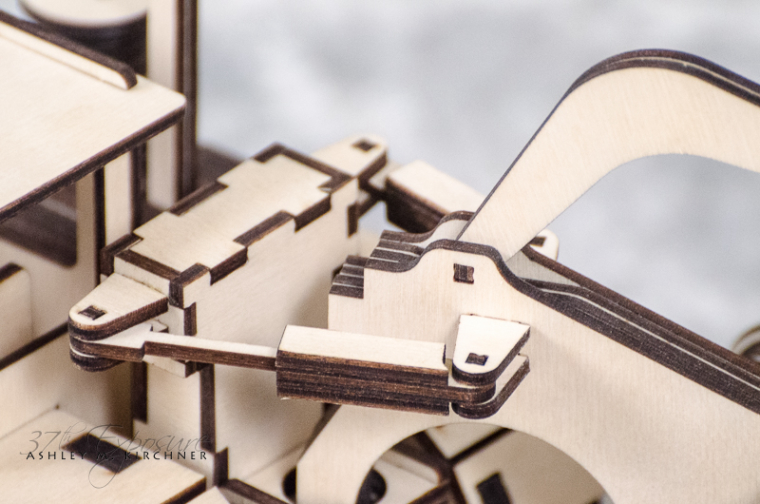
The above post on Arcus … it’s being printed. Some of the pieces, when printed all at once, take 30+ hours.
In the mean time, this “rolled off of the assembly line” today:




-
RE: Analog + Digital Clock module
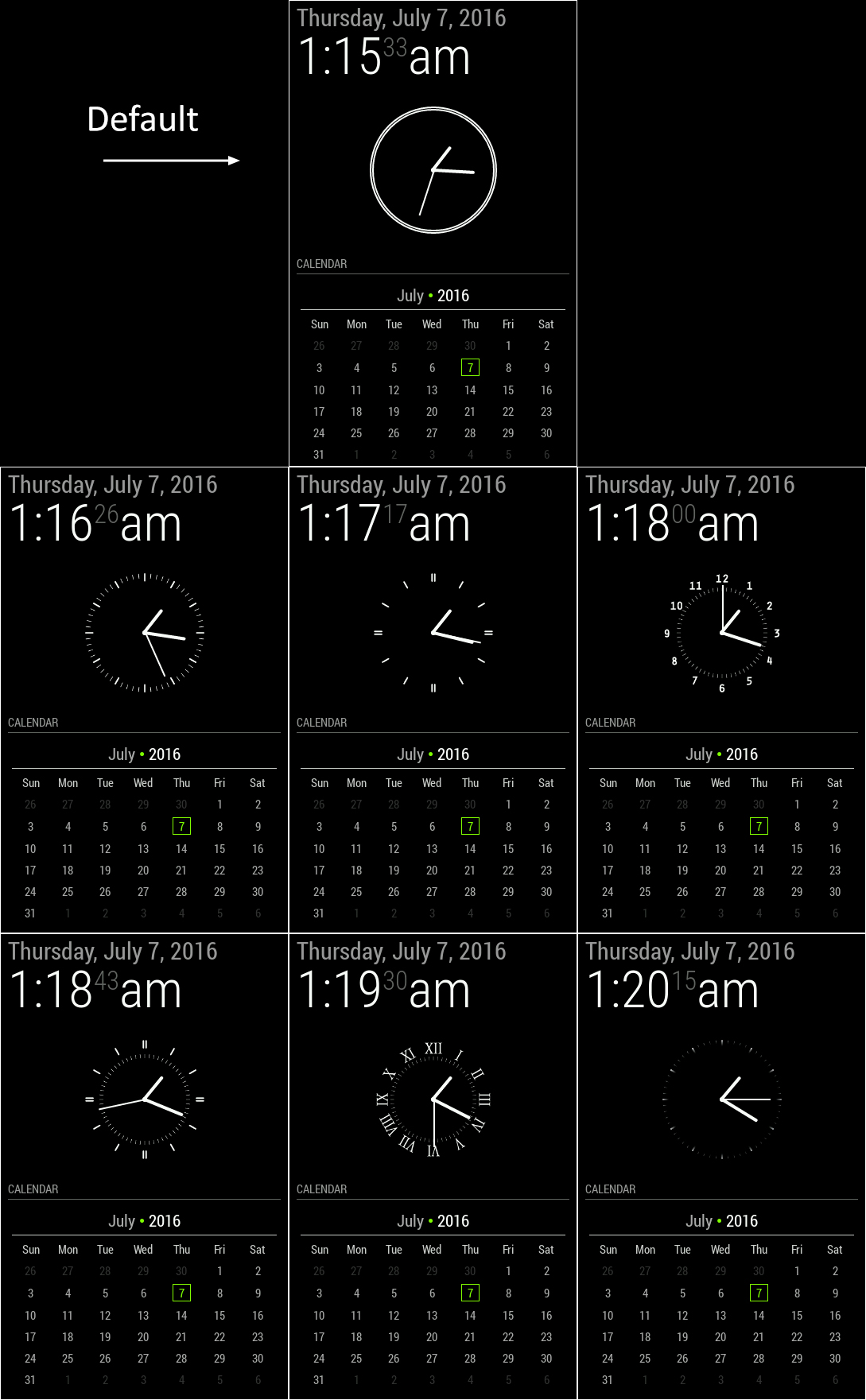
Myah, found a few bugs in both the JS and CSS, which are now fixed. (Also found a conflict with same name CSS files across different modules.) Tomorrow I’ll start working on incorporating it with the default one, and see how to make it work so both can be displayed, or one of them while allowing for everything else to reflow gracefully. Adding some config features at the moment … which means I get to play a bit:
-
RE: Besides your MagicMirror, what are some Maker-projects you worked/working on?
@loribeeinca said in Besides your MagicMirror, what are some Maker-projects you worked/working on?:
I built a HomeKit garage door opener with sensor …
'Hey Siri, open the garage door"
Siri, “Sorry HAL, that is not your car. I will not open the garage door.”
-
RE: RPI Update
I probably won’t, at least not on my production mirror. I will on my test mirror, but that won’t happen this weekend … maybe next.
-
RE: RSS News Feeds (Viewing Content)
Thought of something like this since day one for me … but I shoved it to the back (where it fell off now) for a few reasons:
a) if this is in my bathroom, I don’t want to be standing there reading news, so I’d never use it there
b) if this is in the living room, I’m just walking by and glancing at it, again, not going to stop to read
c) as above, if I’m in the living room, I can just turn on my TV and watch the news, all day if I wanted to (who has time for that?!)
c) if I’m at the computer, I can always pull up the news siteIn the end it ended up being a ‘nice idea, but won’t get used’, at least not in my house hold. It’s practicality for me.
That said, I understand everyone’s situation is different. Perhaps you do like to stand at your bathroom sink and read the news. Or perhaps your mirror is in a place where people do stop and read. No one is saying you can’t do that.
Just something to chew on …
-
RE: Calendar modification
@MagicCrumps1, perhaps you were using the wrong URL? There’s both a public and a private one. If you use the public URL, then you must also set your calendar to public view. But the private URL has the authentication key in it. No need to make the calendar public.
-
RE: Weekly Calendar
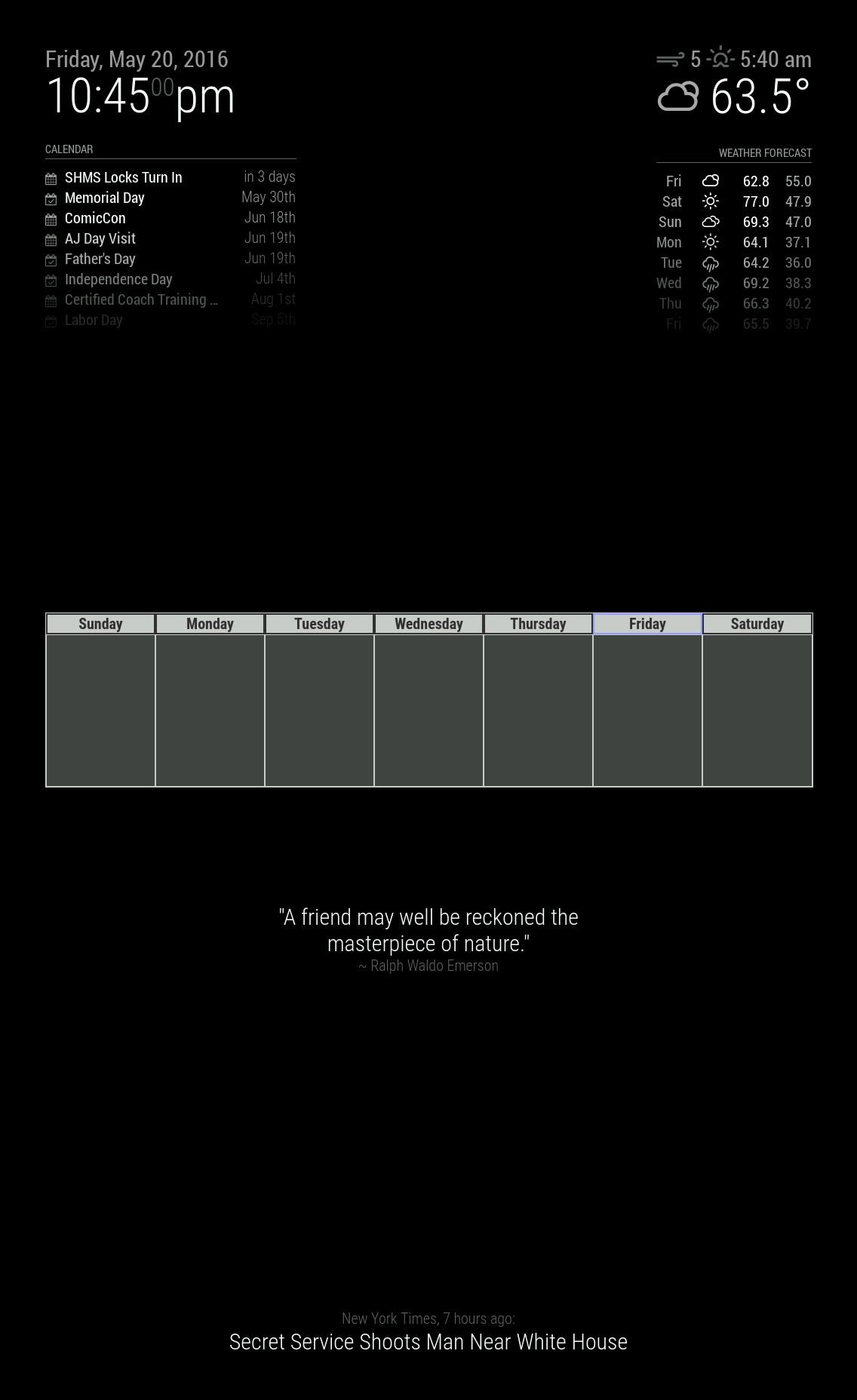
And so the mayhem commences … Next up is parsing the data returned and populating the specific boxes. Don’t no one remind me how much I detest Javascript, mkay?
-
RE: Configuring autostart with pm2
- the rPi should not reboot when you first start the process - are you sure it’s actually rebooting, as opposed to you just seeing a gray screen flash, then black, before MM starts displaying the elements on screen? If the rPi reboots, you should see the full log of it starting up, with 4 raspberry icons at the top.
- Issuing the
pm2 savecommand is best done through a remote connection. One way is to setup VNC on the rPi, and use something such as RealVNC (http://www.realvnc.com/) on Windows to remotely access the rPi. Another method is to use an SSH client like PuTTY (http://www.putty.org/) to log into the rPi. Once logged in, you can issuepm2commands such as:
pm2 save- save the current process list so they automatically relaunch
pm2 stop mm- stop the Magic Mirror process and exit back to desktop
pm2 show mm- show the current status of the Magic Mirror processPS: the default login on an rPi is:
username:pi
password:raspberryI strongly recommend you change the password once you’re logged in by issuing the
passwdcommand. Remember the new password you set.