Read the statement by Michael Teeuw here.
MM current version on Raspberry Pi 5 cannot turn off monitor
-
Anyone using MM on a Raspberry Pi 5 or running a Raspberry Pi 5 in general know how to turn off the monitor now?
I have been using MMM-Remote-Control and turning off/on the monitor using the following requests
http://<MagicMirrorIPAddress>:8080/remote?action=MONITOROFF

http://<MagicMirrorIPAddress>:8080/remote?action=MONITORON
Which ultimately issue the commands
vcgencmd display_power 0

vcgencmd display_power 1
but these commands, no longer work and are generating errors and not Turing the monitor off/on
[30.12.2023 12:15.44.921] [ERROR]
[30.12.2023 12:15.44.927] [ERROR] Error: Command failed: vcgencmd display_power 0

    at ChildProcess.exithandler (node:child_process:430:12)
    at ChildProcess.emit (node:events:513:28)
    at maybeClose (node:internal/child_process:1091:16)
    at Process.onexit (node:internal/child_process:302:5) {
  code: 255,
  killed: false,
  signal: null,
  cmd: 'vcgencmd display_power 0'
}
[30.12.2023 12:15.47.731] [ERROR]
[30.12.2023 12:15.47.732] [ERROR] Error: Command failed: vcgencmd display_power 1

    at ChildProcess.exithandler (node:child_process:430:12)
    at ChildProcess.emit (node:events:513:28)
    at maybeClose (node:internal/child_process:1091:16)
    at Process.onexit (node:internal/child_process:302:5) {
  code: 255,
  killed: false,
  signal: null,
  cmd: 'vcgencmd display_power 1'
}
This is the command line result from outside of MM
MMUser@MagicMirror:~ $ vcgencmd display_power 0
vc_gencmd_read_response returned -1
error=1 error_msg="Command not registered"
Web searches for a solution have been unsuccessful.
Thanks for any help you might be able to provide.
-
untested:
wlr-randr --output HDMI-A-1 --off
wlr-randr --output HDMI-A-1 --on
instead of
vcgencmdcommands.See e.g. https://forums.raspberrypi.com/viewtopic.php?t=358689
-
@karsten13 said in MM current version on Raspberry Pi 5 cannot turn off monitor:
wlr-randr --output HDMI-A-1 --off
@karsten13, I did try those commands and I receive this response to both
MMUser@MagicMirror:~ $ wlr-randr --output HDMI-A-1 --off failed to connect to display -
may wrong display, don’t no how the syntax is for the other HDMI port instead of
HDMI-A-1… -
@karsten13 I was not able to get any commands using the wlr-randr to show anything other than “failed to connect to display”, however, after much searching, I did find a command that was able to turn the screen off and on
MMUser@MagicMirror:~ $ DISPLAY=:0.0 xrandr --output HDMI-1 --off

MMUser@MagicMirror:~ $ DISPLAY=:0.0 xrandr --output HDMI-1 --mode 2560x1440 --rate 60 --rotate left
Although I’m not sure how to get this into something that can be called from MagicMirror itself so that it can be run as a menu command in MMM-Remote-Control or some other way that it can be called from outside of MagicMirror
-
@vvrangler
You have to have MMM-Remote-Control installed, and in the config.js file you can put several custom commands that point to scripts on your machine.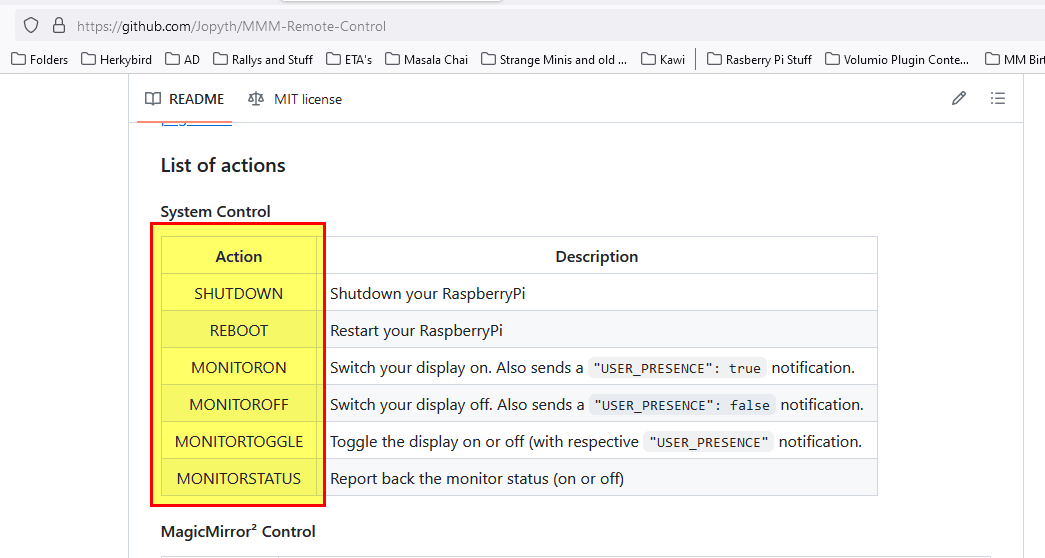
Here is an example for two of them in my config.js.
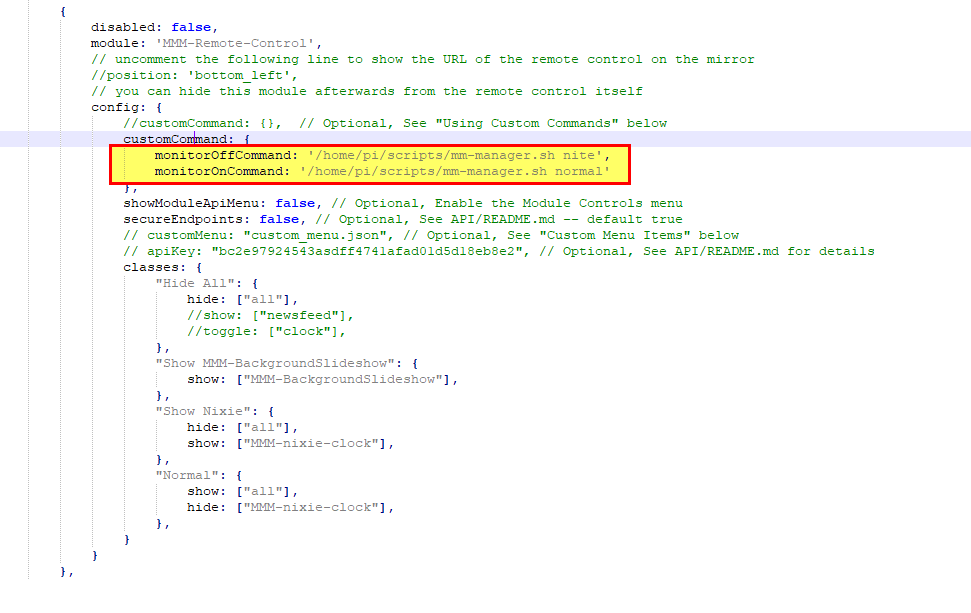
mm-manager.sh, is just a script I wrote to do things to my magic mirror, you scripts can be named what you want and just have the commands you want.
-
@jbat66 , @karsten13 , thank you for the help, I was able to get it going using the custom commands in MMM-Remote-Control
-
I’m having the same issues… I recently built a new MagicMirror instance using the latest Raspbian OS, and the commands I have used in prior instances don’t work in the new OS.
None of the commands listed above work for me. I have also tried the following in the crontab. While it DOES turn off the monitor display, the display turns itself back on in about 10 seconds…
display_off >/dev/null 2>&1Any help will be greatly appreciated, as the MagicMirror is in a location where running the display all night is disrupting people’s sleep, and having to manually turn it on and off is very inconvenient.
-
@JohnGalt I have a Pi 4, but have the latest OS, and I never have found a way to turn off the monitor. I have the same problem of the screen being too bright, so what I did was write a bash script, to turn off the background slide show, and to dim all the modules via the api into MMM-remote. I also have in my script just a hide all, and the screen goes blank, even tho the monitor is still on.
Here is how you can hide all modules
curl -X GET “$API_URL/api/module/all/hide” -H “accept: application/json”
the $API_URL, is your IP address. I use “http://localhost:8080”I also wrote a script that will get the sunrise sunset times for the day and shut off my screen by hiding or diming all the modules at sunset, and then reverse that at sunrise.
let me know if you are interested. I need to put some of my stuff up on github. I’m just getting familiar with github, and have fixed a couple of modules for folks in the last week.
-
@JohnGalt Side note, I will buy someone a pizza, if I can get working commands to actually turn off and turn on my HDMI display. I think I have tried everything on the internet with no luck. I’m serious about the pizza!
:-) -
@jbat66 you have to use the CEC client and have a CEC enabled display/monitor/tv.
the energy star standard forces the big blue screen when u turn off the HDMI port output.
all of the monitors since 2016 support the energy star std
I can turn off my TV, but it won’t turn on. so the CEC support is broken.
I hide all the modules. I use a web cam for motion detection
I consider the glow to be the nightlight
my pi3 doesn’t support using CEC client. nor odroid, Jetson nano, or my amd desktop or my Mac mini , or Chromebox running ubuntu
pi 4 and 5 do
haven’t tried on pi0w2HDMI port has to be bidirectional
-
By the way - I do this with my monitors (One CEC, one not using bookworm):
Off:
pm2 stop all
DISPLAY=:0 xrandr --output HDMI-1 --off
DISPLAY=:0 xrandr --output HDMI-2 --off
echo 'standby 0' | cec-client -s -d 1
On:
echo 'on 0' | cec-client -s -d 1
sleep 20
DISPLAY=:0 xrandr --output HDMI-1 --auto
sleep 1
DISPLAY=:0 xrandr --output HDMI-2 --auto --right-of HDMI-1
sleep 1
pm2 restart all
I have to stop and start the mirror(s) because if I don’t, they’ll move on top of each other.
-
@sdetweil I’m just dimming all my modules and doing with the ‘nightlight’ effect. lol
The Vilros Magic Mirror is using hdmi, but looks like CEC doesn’t work.
https://www.amazon.com/gp/product/B0BJXD68JV -
@BKeyport Thanks. I tried these on my Vilros Magic Mirror, and nothing happened, just errors. I tried them on my Raspberry PI 4 running older rasbian, and it work on there. except my monitor just went to flashing blue white pink. I guess that is the default no input screen. lol
I think turning off the monitors have more to do with the version of rasbian, than with the hardware. IMHO
-
@jbat66 yeh, probably the monitor they use behind the glass doesn’t support CEC
-
@jbat66 said in MM current version on Raspberry Pi 5 cannot turn off monitor:
I guess that is the default no input screen. lol
just unlug the hdmi cable, then u should see the default no input screen
-
@jbat66 Oh, Wait, I just realized - I switched bookworm into X11 mode rather than Wayland - you may need to do that as well (I couldn’t get some operations I wanted to do to work in Wayland, yet - setting in raspi-config/advanced if you’re using RasOS)
If you don’t mind the monitor running but just want a blank screen, turn off the background picture, set the color to black, and remove the taskbar, then turn off MM and let it be. Might still get a mouse cursor, but there’s tools for that (Unclutter?)
-
@BKeyport Thanks, I’m already turning off my background pictures, and just dimming (could also just hide all) modules. The problem is that I want to turn off the screen but leave the pi running, because one of my MM will be in an RV and when boondocking (running on batteries) you want to use as little power as you can, so it is silly to run the screen at night.
I am using wayland, didn’t know I could goto X11, and not have a problem with MM. I may look into that, thanks!!
As a side note I couldn’t get unclutter to remove the mouse in wayland as it does in X, but I found ydotool using this command works well in wayland to move the mouse to the bottom right corner, so it only shows one pixel. :-)
ydotool mousemove -x 5000 -y 5000right now, I have installed physical buttons, so I can shut the screen and pi down manually. I may crontab a shutdown of the pi, and then use yo-link (home automation switch) to kill the power after the crontab shutdown is done.
-
@jbat66 the mouse pointer should not show on the mm screen by default.
the main.css sets cursor to display:none;
-
@sdetweil Should is the key word. Some bug somewhere is causing the system to come up background to various things - sometimes mouse is on screen, sometimes the pi menubar is in front of the window (rare, but does happen). I had to use unclutter to fix one, and hide the menubar to fix the other. I know it’s not us, so it’s not reported to MM github issue.


Hello! It looks like you're interested in this conversation, but you don't have an account yet.
Getting fed up of having to scroll through the same posts each visit? When you register for an account, you'll always come back to exactly where you were before, and choose to be notified of new replies (either via email, or push notification). You'll also be able to save bookmarks and upvote posts to show your appreciation to other community members.
With your input, this post could be even better 💗
Register Login