Read the statement by Michael Teeuw here.
MMM-Remote-Control
-
Hey all,
After troubleshooting the calendar module with the help of Sam I stumpled upon a new “problem”.
I installed the MMM-Remote-Control module to be able to use motion sensors and HASS to turn on/off the screen/monitor.
The module works flawlessly exept for the monitor on and off command. I can start, restart and turn off the pi with the module.
I’m using a Pi4 with 2 micro hdmi ports, monitor isd plugged in hdmi0 (left port) Already tried on a different monitor for testing purose.Also already changed the output commands to
'xrandr -d :0 --output HDMI-1 --auto',{ module: 'MMM-Remote-Control', // uncomment the following line to show the URL of the remote control on the mirror // position: 'bottom_left', // you can hide this module afterwards from the remote control itself config: { customCommand: { // Optional, See "Using Custom Commands" below monitorOnCommand: 'xrandr -d :0 --output HDMI-1 --auto', monitorOffCommand: 'xrandr -d :0 --output HDMI-1 --off' }, showModuleApiMenu: true, // Optional, Enable the Module Controls menu secureEndpoints: true, // Optional, See API/README.md // uncomment any of the lines below if you're gonna use it // customMenu: "custom_menu.json", // Optional, See "Custom Menu Items" below // apiKey: "", // Optional, See API/README.md for details // classes: {} // Optional, See "Custom Classes" below } }, -
Thanks for figuring all of this out. I also reverted back to the X11 window driver.
For completeness, just add --rotate right to the command:customCommand: { // Optional, See "Using Custom Commands" below monitorOnCommand: 'xrandr -d :0 --output HDMI-1 --auto --rotate right', monitorOffCommand: 'xrandr -d :0 --output HDMI-1 --off' }, -
@Dennis-010 pi4 bookworm uses the new Wayland display system instead of x11…
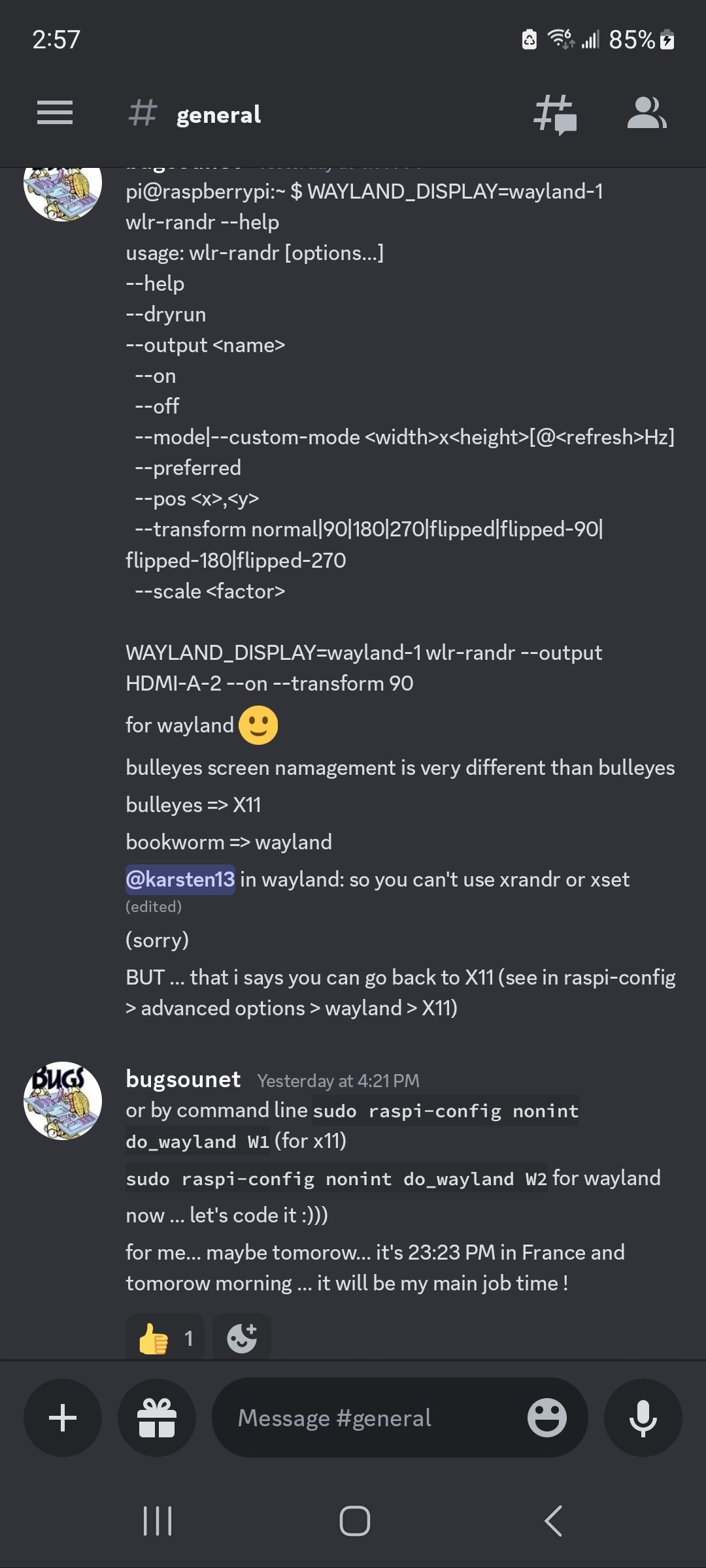
xrandr doesn’t workfrom discord last night
-
Ah have not found that on Google yet,
Is there a custom line available to have this fixed? -
@Dennis-010 sorry, don’t know what you mean ‘custom line’
i don’t know if any of us know what to do yet… wayland right now is only setup on pi4… apparently there is a setting in raspiconfig to got back to x11…
-
@sdetweil said in MMM-Remote-Control:
@Dennis-010 sorry, don’t know what you mean ‘custom line’
Well, I started with:
monitorOnCommand: "echo 'on 0.0.0.0' | cec-client -s -d 1",Then changd it to:
monitorOnCommand: 'xrandr -d :0 --output HDMI-1 --auto',So I was wondering if there was a new “custom” line of code I can use. But u already said thast there might be no solution yet.
-
@Dennis-010 he had another post
yeah ! just found for wayland [3:58 PM] for turn on: pi@raspberrypi:~ $ WAYLAND_DISPLAY=wayland-1 wlr-randr --output HDMI-A-2 --on [3:58 PM] for turn off: pi@raspberrypi:~ $ WAYLAND_DISPLAY=wayland-1 wlr-randr --output HDMI-A-2 --off -
@sdetweil Saw this and I maybe putting out old news because most people do
sudo raspi-configand then hit enter. Saw some text that appear to type in
sudo raspi-config nonint do_wayland <W1/W2>withW1 - Use the X11 backend
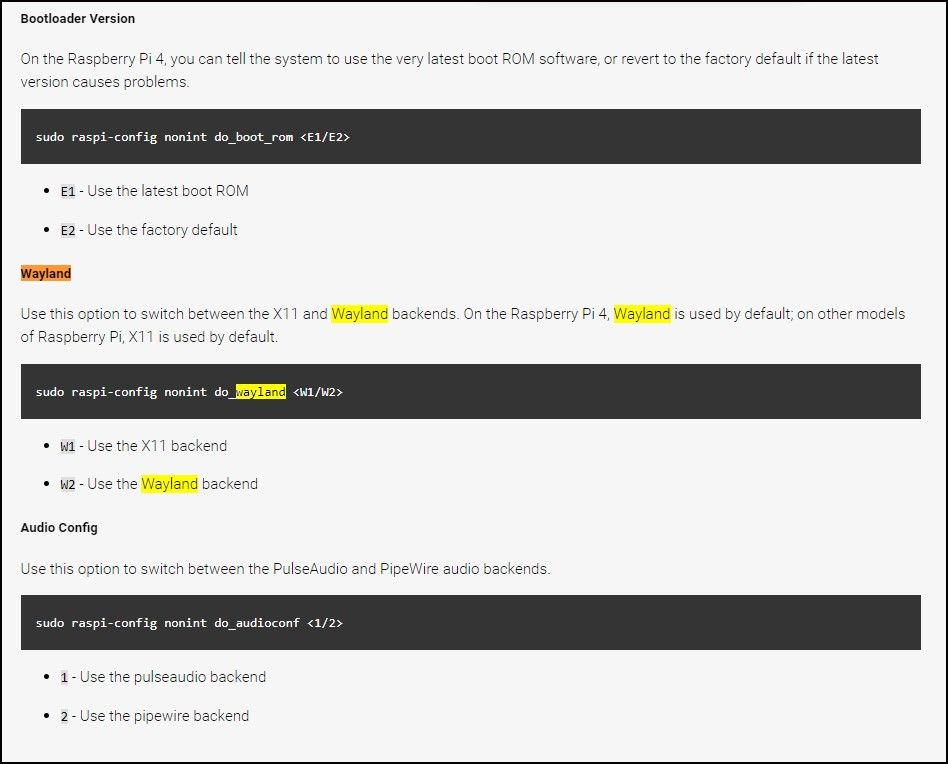
W2 - Use the Wayland backend -
That line infortunatly did not do the trick.
I used the revert option from @ankonaskiff17 to revert back to X11 and now the commands are working again.
Only thing now is: when monitor turns back on it’s set back to landscape instead of 90 degrees right portrait.I remember seeing a fix for that somewhere, so I’ll be looking for that.
-
Thanks for figuring all of this out. I also reverted back to the X11 window driver.
For completeness, just add --rotate right to the command:customCommand: { // Optional, See "Using Custom Commands" below monitorOnCommand: 'xrandr -d :0 --output HDMI-1 --auto --rotate right', monitorOffCommand: 'xrandr -d :0 --output HDMI-1 --off' },

Hello! It looks like you're interested in this conversation, but you don't have an account yet.
Getting fed up of having to scroll through the same posts each visit? When you register for an account, you'll always come back to exactly where you were before, and choose to be notified of new replies (either via email, or push notification). You'll also be able to save bookmarks and upvote posts to show your appreciation to other community members.
With your input, this post could be even better 💗
Register Login