Read the statement by Michael Teeuw here.
Default Weather Module Icon Position
-
@svenpisa as I said, confused.
in custom.css do
html {
   cursor: default;
}
to turn on the mouse pointer over the mm content
then easier to see to select correct content
-
@sdetweil said in Default Weather Module Icon Position:
html {
cursor: default;
}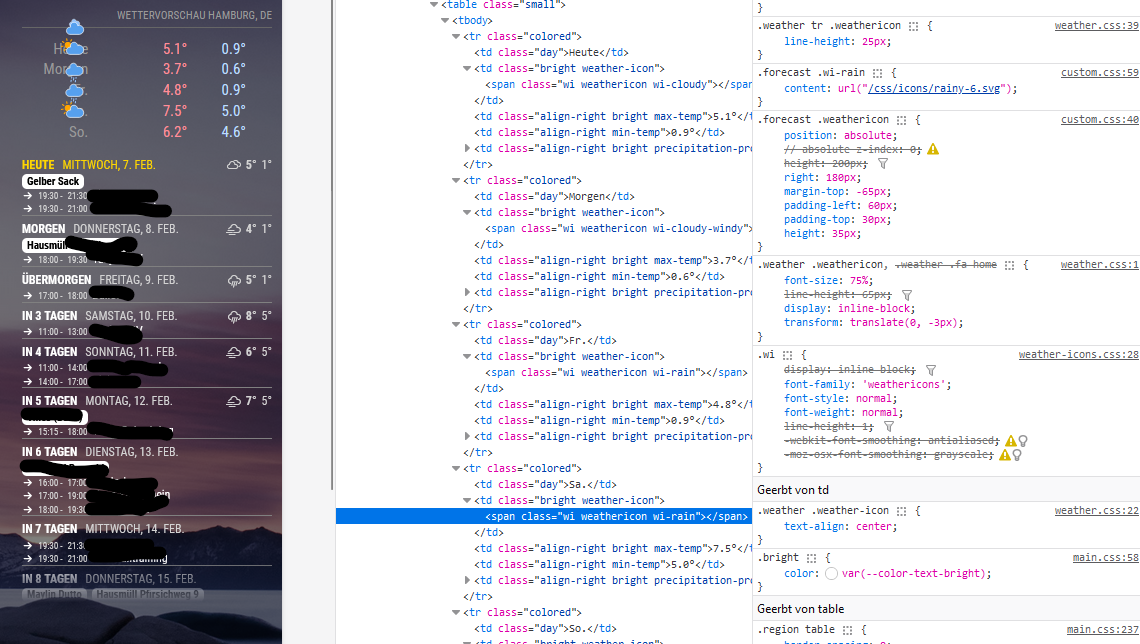
Is the screenshot better?
-
@svenpisa yes, better.
so that stuff for .weathericon from custom.css, I would click off each and see the effect.
as you mouse over the settings in the right column a checkbox will appear, that u can check to disable a setting
note .weather-icon applies to ALL of the icons.
the css selector clause (stuff before the {) WILL ALWAYS match every such item on the page. you can make it more specific to get fewer elements.
-
Thank you very much for your help.
I first had to read through your messages at my leisure and at the same time I tried to understand the messages parallel to the developer tool.And lo and behold, it worked.
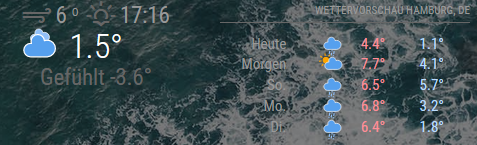
I have now split the weather module into two classes.
		{
			module: "weather",
			classes: "forecast",
			position: "top_right",
			header: "Wettervorschau",
			config: {
				weatherProvider: "openweathermap",
				type: "forecast",
				location: "Hamburg",
				locationID: "2911xxx", //ID from http://bulk.openweathermap.org/sample/city.list.json.gz; unzip the gz file and find your city
				apiKey: "c64bb3321848fe4e76163xxxxxxxxxc"
			}
		},
		{
			module: "weather",
			classes: "wetter",
			position: "top_center",
			config: {
				weatherProvider: "openweathermap",
				type: "current",
				location: "Hamburg",
				locationID: "2911xxx", //ID from http://bulk.openweathermap.org/sample/city.list.json.gz; unzip the gz file and find your city
				apiKey: "c64bb3321848fe4e76163xxxxxxxxx"
			}
		},
You could then play around really well with each class in the developer tool and then find the right position.
For those who are interested. I have now made the following entries in the Custom.css so that it looks like this:
.forecast .weathericon {
position:absolute;	// absolute
z-index: 0;
height: 200px;
right: 120px;
margin-top: -65px;
padding-left: 60px;
padding-top: 50px;
height: 35px;
}

.forecast .wi-day-sunny {
content: url("/css/icons/day.svg");
}

.forecast .wi-day-cloudy {
content: url("/css/icons/cloudy-day-1.svg");
}

.forecast .wi-rain {
content: url("/css/icons/rainy-6.svg");
}

forecast .wi-night-clear {
content: url("/css/icons/night.svg");
}

.forecast .wi-night-cloudy {
content: url("/css/icons/cloudy-night-2.svg");
padding-right: 15px;
padding-top: 10px;
}

.forecast .wi-cloudy {
content: url("/css/icons/cloudy.svg");
}

.forecast .wi-showers {
content: url("/css/icons/rainy-7.svg");
}

.forecast .wi-thunderstorm {
content: url("/css/icons/thunder.svg");
}

.forecast .wi-snow {
content: url("/css/icons/snowy-6.svg");
}

.forecast .wi-cloudy-windy {
content: url("/css/icons/cloudy-day-3.svg");
}

.forescast.wi-night-rain {
content: url("/css/icons/rainy-6.svg");
}

.forecast .wi-night-snow {
content: url("/css/icons/snowy-6.svg");
}

.forecast .wi-night-thunderstorm {
content: url("/css/icons/thunder.svg");
}

.forecast .wi-night-showers {
content: url("/css/icons/rainy-7.svg");
}

.forecast .wi-fog {
content: url("/css/icons/cloudy.svg");
}

.forecast .wi-night-alt-cloudy-windy {
content: url("/css/icons/cloudy-night-1.svg");
}

/* Aenderungen Wettervorhersage */
.wetter .weathericon {
position: absolute;
z-index: 1;
margin-top: -33px;
padding-top: 20px;
left: 60px;
}

.wetter .wi-day-sunny {
content: url("/css/icons/day.svg");
padding-left: 6px;
padding-top: 5px;
height: 50px;
}

.wetter .wi-day-cloudy {
content: url("/css/icons/cloudy-day-1.svg");
}

.wetter .wi-rain {
content: url("/css/icons/rainy-6.svg");
padding-left: 8px;
padding-top: 5px;
height: 45px;
}

.wetter .wi-night-clear {
content: url("/css/icons/night.svg");
}

.wetter .wi-night-cloudy {
content: url("/css/icons/cloudy-night-2.svg");
height: 50px;
padding-left: 5px;
padding-top: 7px;
}

.wetter .wi-cloudy {
content: url("/css/icons/cloudy.svg");
}

.wetter .wi-showers {
content: url("/css/icons/rainy-7.svg");
}

.wetter .wi-thunderstorm {
content: url("/css/icons/thunder.svg");
}

.wetter .wi-snow {
content: url("/css/icons/snowy-6.svg");
}

.wetter .wi-cloudy-windy {
content: url("/css/icons/cloudy-day-3.svg");
height: 45px;
padding-left: 8px;
padding-top: 7px;
}

.wetter .wi-night-rain {
content: url("/css/icons/rainy-6.svg");
padding-left: 8px;
padding-top: 5px;
height: 45px;
}

.wetter .wi-night-snow {
content: url("/css/icons/snowy-6.svg");
}

.wetter .wi-night-thunderstorm {
content: url("/css/icons/thunder.svg");
}

.wetter .wi-night-showers {
content: url("/css/icons/rainy-7.svg");
}

.wetter .wi-fog {
content: url("/css/icons/cloudy.svg");
}

.wetter .wi-night-alt-cloudy-windy {
content: url("/css/icons/cloudy-night-1.svg");
height: 50px;
padding-left: 5px;
padding-top: 7px;
}
We can therefore close the entry here
Thanks all again
-
@svenpisa awesome! thanks for the feedback.
-
I have this issue too, the dev window says they’re the same class

but the classes are already different/labeled as forecast and weather in config
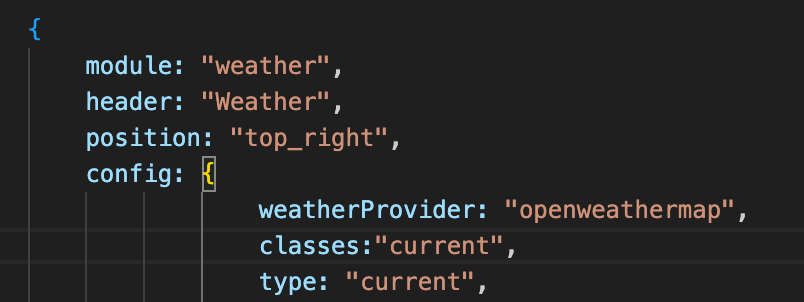
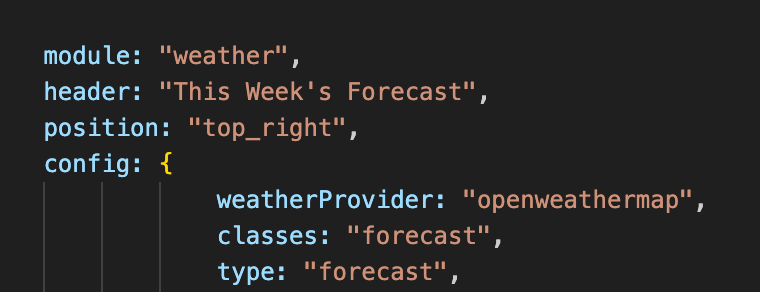
when I open everything in the developer window,
this is the one that highlights the icon I want to move “</span> == $0”
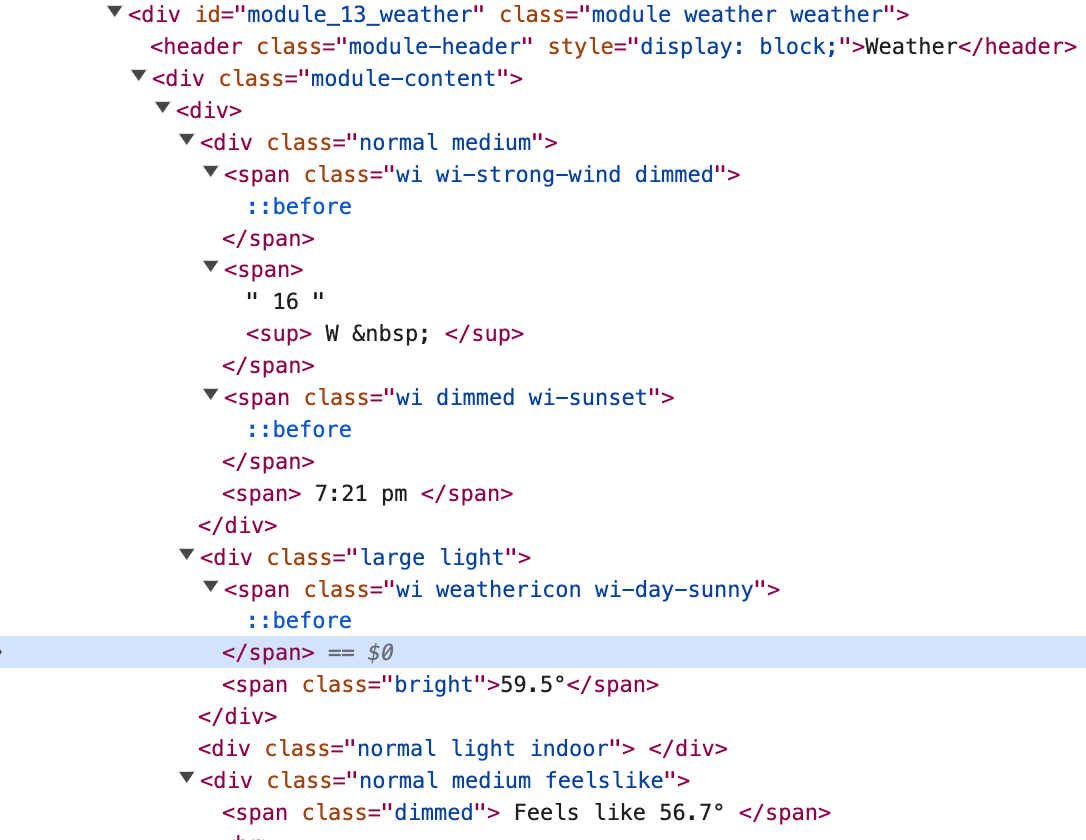
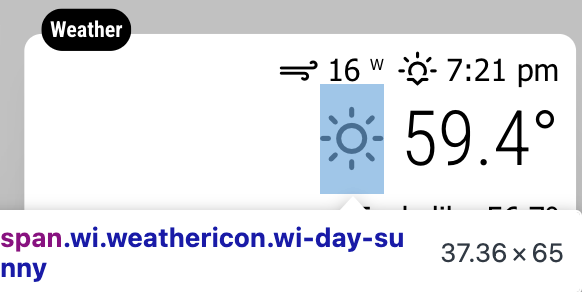
the current weather “sun” icon in the top module is the one I want to move,
but its labeled as the current weather condition, NOT the icon I want to move
when I uncheck the one I need, both icons from current weather and “today” from forecast both change
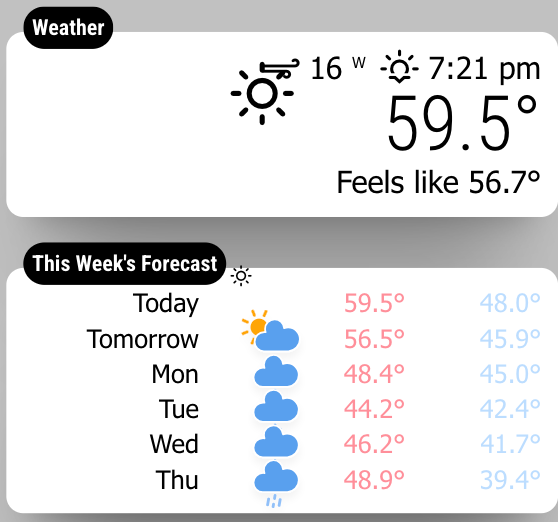
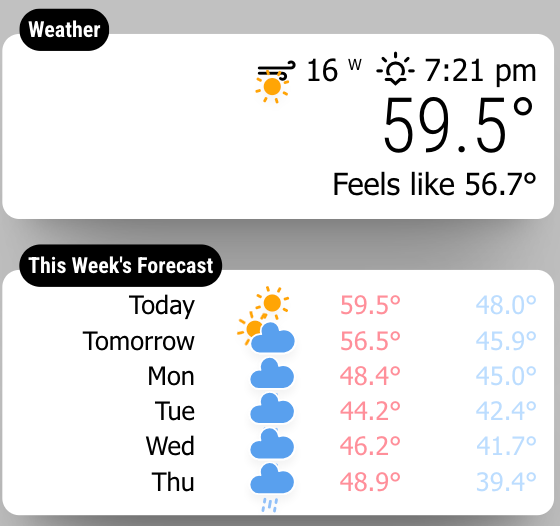
it’s labeled as “weather weather” , when I change that, they both change (current weather and forecast)
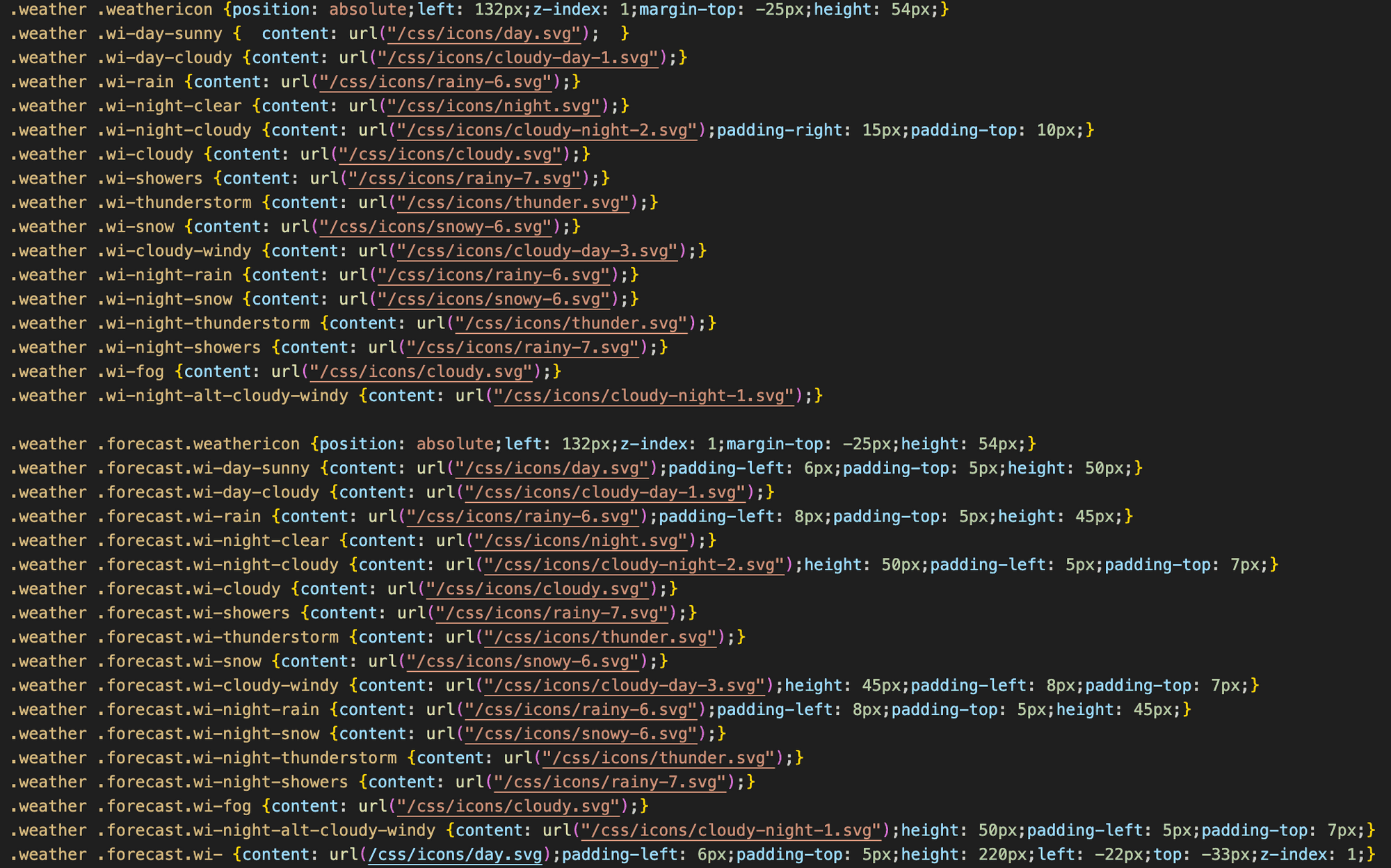
what am I doing wrong?
-
-
@greedyvegan yes, they are the same, that is why you need to add unique classes per my previous post, OR use the id value in custom css as the primary selector
#module_{number}_module-name
-
ok, so since this isn’t working, do I change the item “classes” or “type” ?
let’s say I change it to “weatherDAY” and “weatherWEEK”
in the css do I change it to.weatherDAY .weathericon { .weatherWEEK .weathericon {so on and so forth?
-
@sdetweil said in Default Weather Module Icon Position:
@greedyvegan yes, they are the same, that is why you need to add unique classes per my prvious post, OR use the id value in custom css as the primary selector
#module_{number}_module-name
I also saw you say IF you choose the module number, be careful when adding modules because the number will change.
-
@greedyvegan sorry i posted to an issue
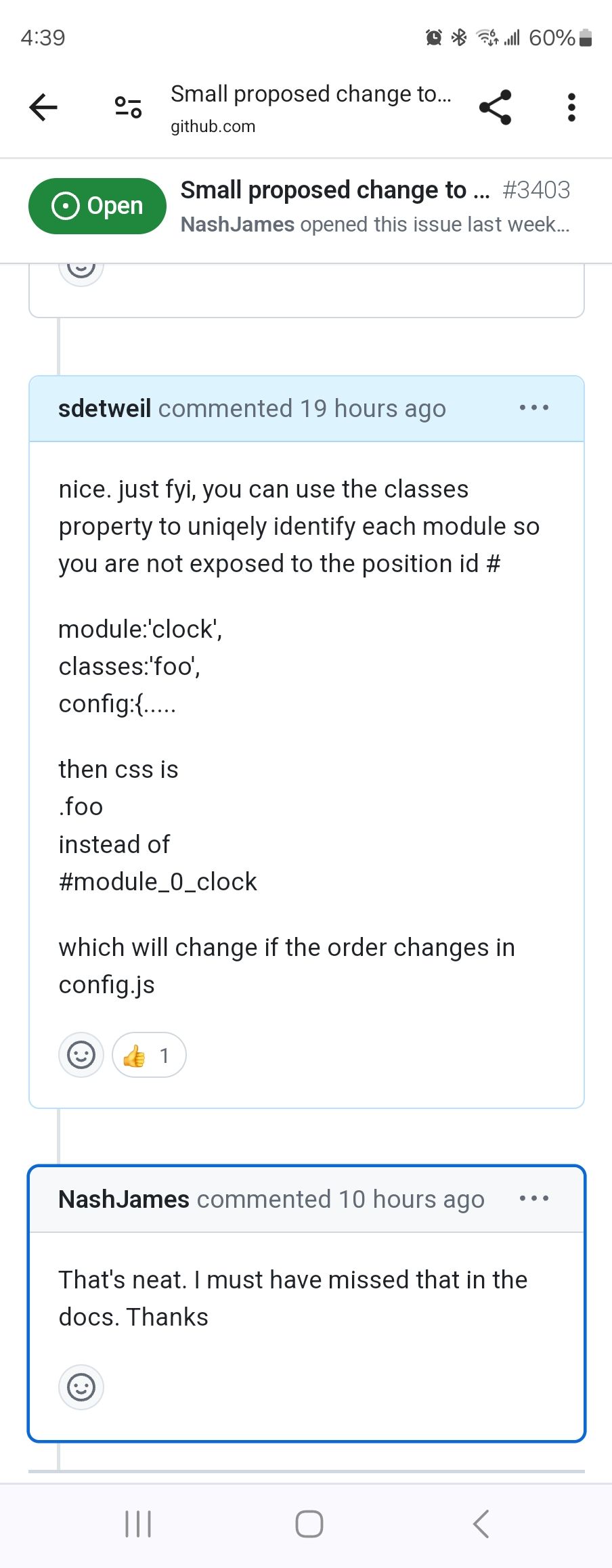
-
@sdetweil thank you very much
-
that didn’t work, I’m going to try something else
-
@greedyvegan what didnt work?
remember the thing before the {
is the selector clause,it selects the elements the stuff after the { will apply to
i use this cheatsheet to help me build the selector clause
https://www.w3schools.com/cssref/css_selectors.php -
@sdetweil changing the classes name didn’t work for me, my custom name gets ignored
@sdetweil said remember the thing before the {
is the selector clause,
it selects the elements the stuff after the { will apply to
i use this cheatsheet to help me build the selector clause
https://www.w3schools.com/cssref/css_selectors.phpI’m going to try that
-
 B bugsounet referenced this topic on
-
@greedyvegan said in Default Weather Module Icon Position:
changing the classes name didn’t work for me, my custom name gets ignored
you noticed the dot in front of the class name , right?
. means element class (html class="foo", .foo)
# means element id  (html id="module_0_clock", #module_o_clock)
nothing means html element (html img, body, div...)
in MM if you want to select elements in A module, then you would select the content starting with its id (#module_…) its classname (.modulename) or one of the classes specified in the classes:“xxx yyy”, property for that module
-
@sdetweil said
you noticed the dot in front of the class name , right?
yes, other modules are easier to me because it’s only one focus
nothing means html element (html img, body, div…)
this confused me
believe me, I’m trying to understand.
I’m also trying everything I read/see for hours before reaching out for helpin config, I chose to uniquely identify the two weather “classes”
however the developer window mentions “class”
it also says “class=module weather weather” for both weather modules.
 I think THIS is why modifying one modifies both.
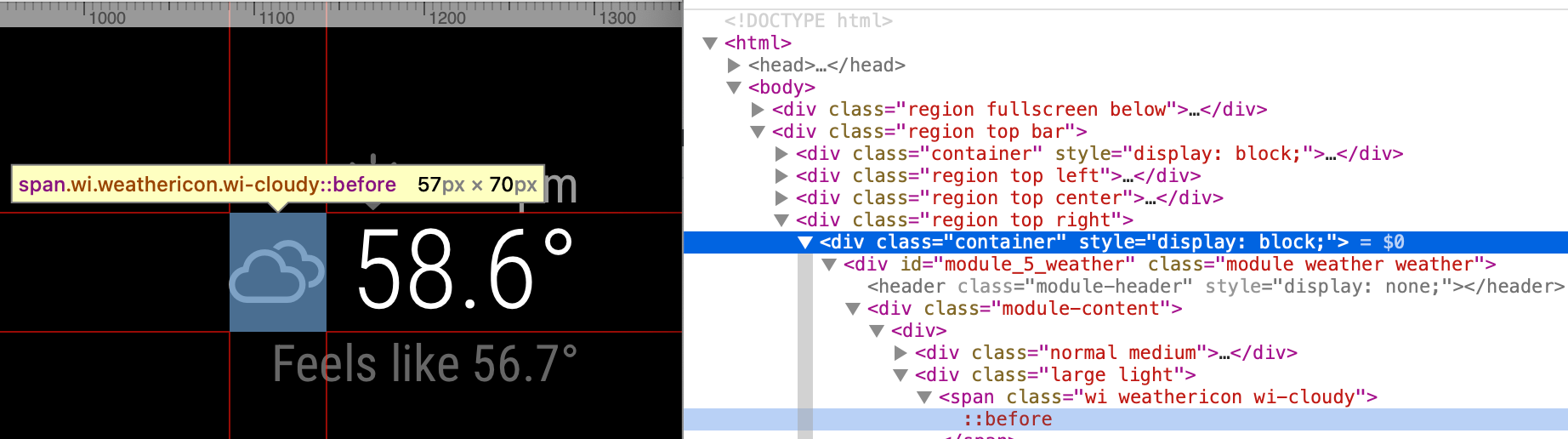
the weather.js file says .currentWeather & .forecastWeather
the weather.css file doesn’t differentiate current & forecast classes. I’ve even read the current & forecast njk files for individual class indicators…in custom.css I’m trying any and everything I see to individually identify and separate #module_5_weather from #module_6_weather
I feel like my focus is in the wrong place(s) and i’m overlooking something extremely simple
-
@greedyvegan show me the config for the two modules , xxx out the api key
copy paste, dont change anything else
-
-
@greedyvegan ok, the ‘classes’ property in this case is an mm config option NOT a module config option.
so it goes outside of the config:{} section, along with position and header
see these options in the doc
https://docs.magicmirror.builders/modules/configuration.html#example
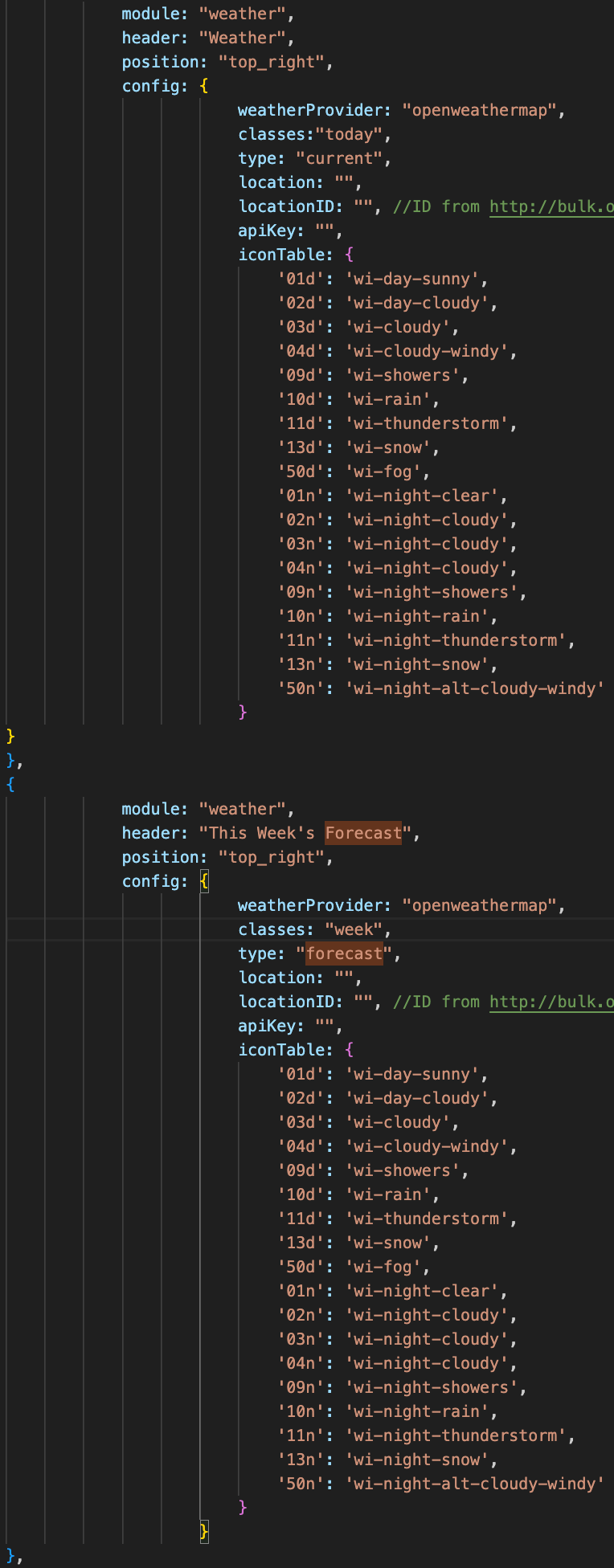
Hello! It looks like you're interested in this conversation, but you don't have an account yet.
Getting fed up of having to scroll through the same posts each visit? When you register for an account, you'll always come back to exactly where you were before, and choose to be notified of new replies (either via email, or push notification). You'll also be able to save bookmarks and upvote posts to show your appreciation to other community members.
With your input, this post could be even better 💗
Register Login