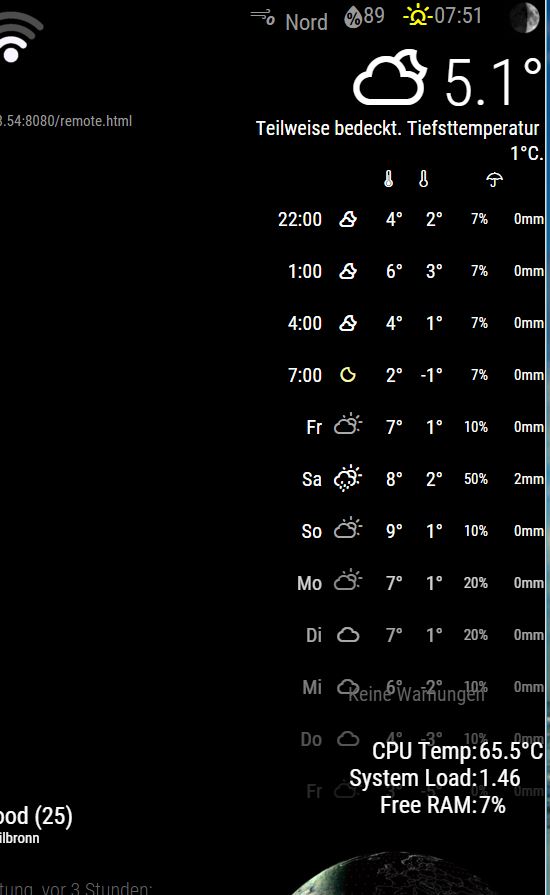
@yawns
here is also a french connection group.
They already have to write in English!
@yawns
here is also a french connection group.
They already have to write in English!
All looks good. Thank you for your fast reaction.
@1m2 that is you decision but i tell you @strawberry-3-141 has helped me in the past, and not only once. He is very gentle and his intention is the only one to help YOU.
We made a connection with TeamViever, he logged in to your raspi with putty and his work began.
Don’t worry, you can see at your monitor what he’s doing.
That will be great.
But on e or more things to this thematic.
It is not the problem to load the movie with iFrame. The problem is if the Frame is loaded, you must simulate a mouse button to start this movie.
This Movie is not like one from YouTube. They can run automatically with the option autoplay=1.
The Stream from the “Tagesschau in 100 Sekunden” needs an initial starting sequence.
@ostfilinchen Niiiiice!
@RedNax : Thank you. Good job. It looks now very good again.
Hello developer @RedNax
Your module update is nice but please don’t waste so many place with the new layout.
Please shrink the space between the lines.
Hello, no sorry. I didn’t find a solution and also no helping hand for that.
Sorry, don’ know who has written this…
Mod-Edit: Please use markdown, otherwise this becomes totally unreadable.
Probably a Moderator.
What please is “markdown” and how to use it?
Hi, if you have installed the jessie plex version, you have to start
sudo raspi-config
At point 3 Boot Options it is possiblr to general disable or enable the splash screen on boot.
If you have an normal jessie without plex the use a custom splash screen
sudo apt-get install fbi
Copy your custom splash image to /etc/ and name it splash.png.
Next, create an init.d script called “asplashscreen” in “/etc/init.d/”.
Create now this script with
sudo nano /etc/init.d/asplashscreen
#! /bin/sh
### BEGIN INIT INFO
# Provides:          asplashscreen
# Required-Start:
# Required-Stop:
# Should-Start:
# Default-Start:     S
# Default-Stop:
# Short-Description: Show custom splashscreen
# Description:       Show custom splashscreen
### END INIT INFO


do_start () {

    /usr/bin/fbi -T 1 -noverbose -a /etc/splash.png
    exit 0
}

case "$1" in
  start|"")
    do_start
    ;;
  restart|reload|force-reload)
    echo "Error: argument '$1' not supported" >&2
    exit 3
    ;;
  stop)
    # No-op
    ;;
  status)
    exit 0
    ;;
  *)
    echo "Usage: asplashscreen [start|stop]" >&2
    exit 3
    ;;
esac

:
Then make that script executable and install it for init:
sudo chmod a+x /etc/init.d/asplashscreen
sudo insserv /etc/init.d/asplashscreen
Reboot and watch your custom splash screen:
sudo reboot
If you want to hide most of the Boot text then follow this step:
sudo nano /boot/cmdline.txt
may look something like this:
tty3: starts with console 3 to hide the boot messages!

dwc_otg.lpm_enable=0 console=ttyAMA0,115200 console=tty3 loglevel=3 logo.nologo root=/dev/mmcblk0p2 rootfstype=ext4 elevator=deadline fsck.repair=yes rootwait
good luck
Mod-Edit: Please use markdown, otherwise this becomes totally unreadable.
No, the IR-Spot is completely at another place. This spot is mounted under the room cover above the mirror.
I use the cam SW to recognize any motion in the front of the mirror named MOTION-MMAL
Take a look for example at
https://embeddedday.com/projects/raspberry-pi/a-step-further/install-motion-mmal/
In the config file you can define how the SW has to work and which commands are executed by the SW.
Se also here in this Forum
https://forum.magicmirror.builders/topic/988/motion-detection-with-raspicam-non-module-version/
It seem to be a mirror. You can see the mirrored Flowers.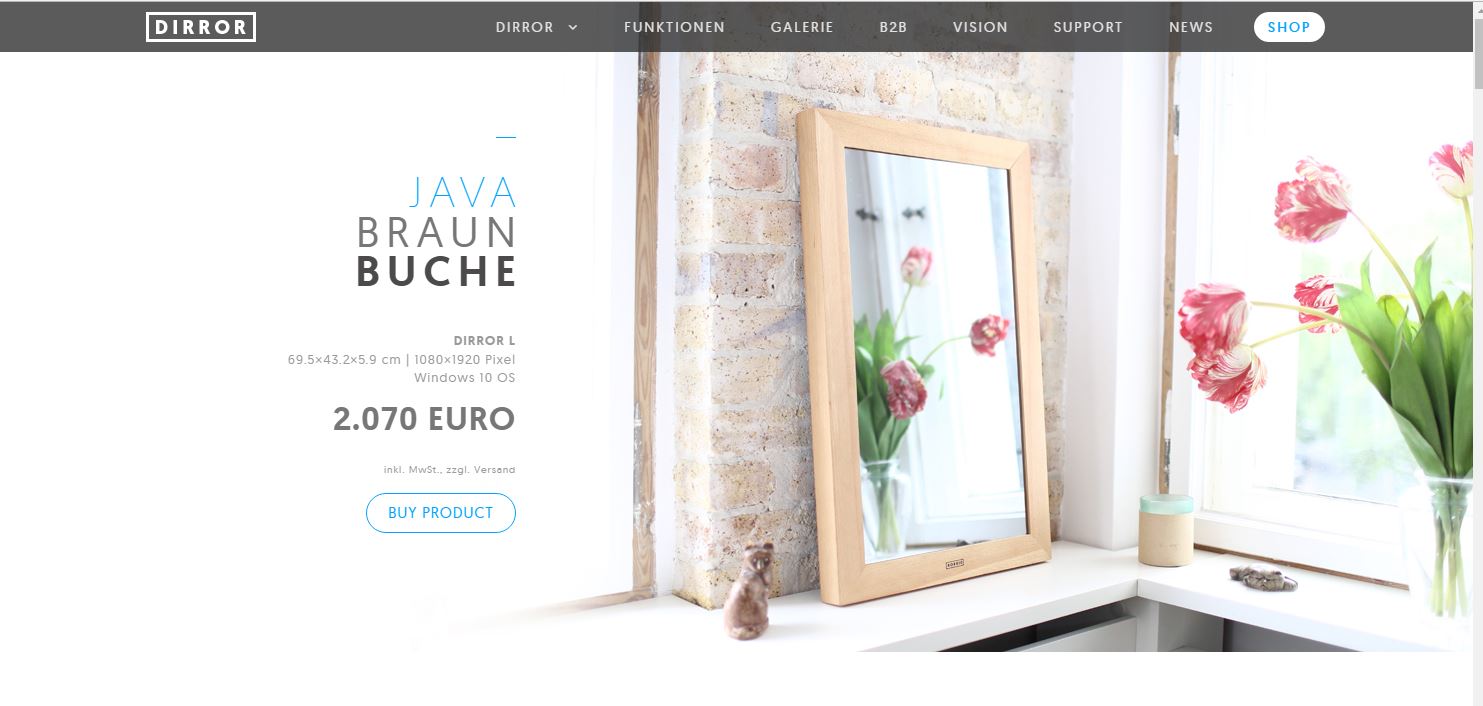
Hello.
My fist step was mounting the IR together with the cam behind the mirror.
Was a disaster. From that point as the IR is starting, no really good picture was available.
After that i mounted the cam without IR and the IR extra outside from the Mirror.
The cam is not visible. The IR has his own power supply.
The mirror is enabled and disabled by the cam.
The blue/white cable is soldered on a switch (Taster) to be capable to make soft reset to the raspi mirror or to shutdown the raspi mirror. You can set the option in a python script.
I planed to install one other switch for a hard reset. I have recognized this switch will also enable the mirror after a shutdown an i didn’t must pull the Raspberry power supply.
The red/white one is also a switch (Taster) to enable the "Tagesschau in 100 sek.) with the MMM-Button and the MMM-Podcast modules.
Hi, there is already such a module. It’s called alert and part of the default modules package.
https://github.com/MichMich/MagicMirror/tree/develop/modules/default/alert
There are a lot of options you can configure.