Read the statement by Michael Teeuw here.
Changing icons of the modules Current Weather and Weather Forecast
-
@sdetweil ok it’s done and it’s actually much better
-
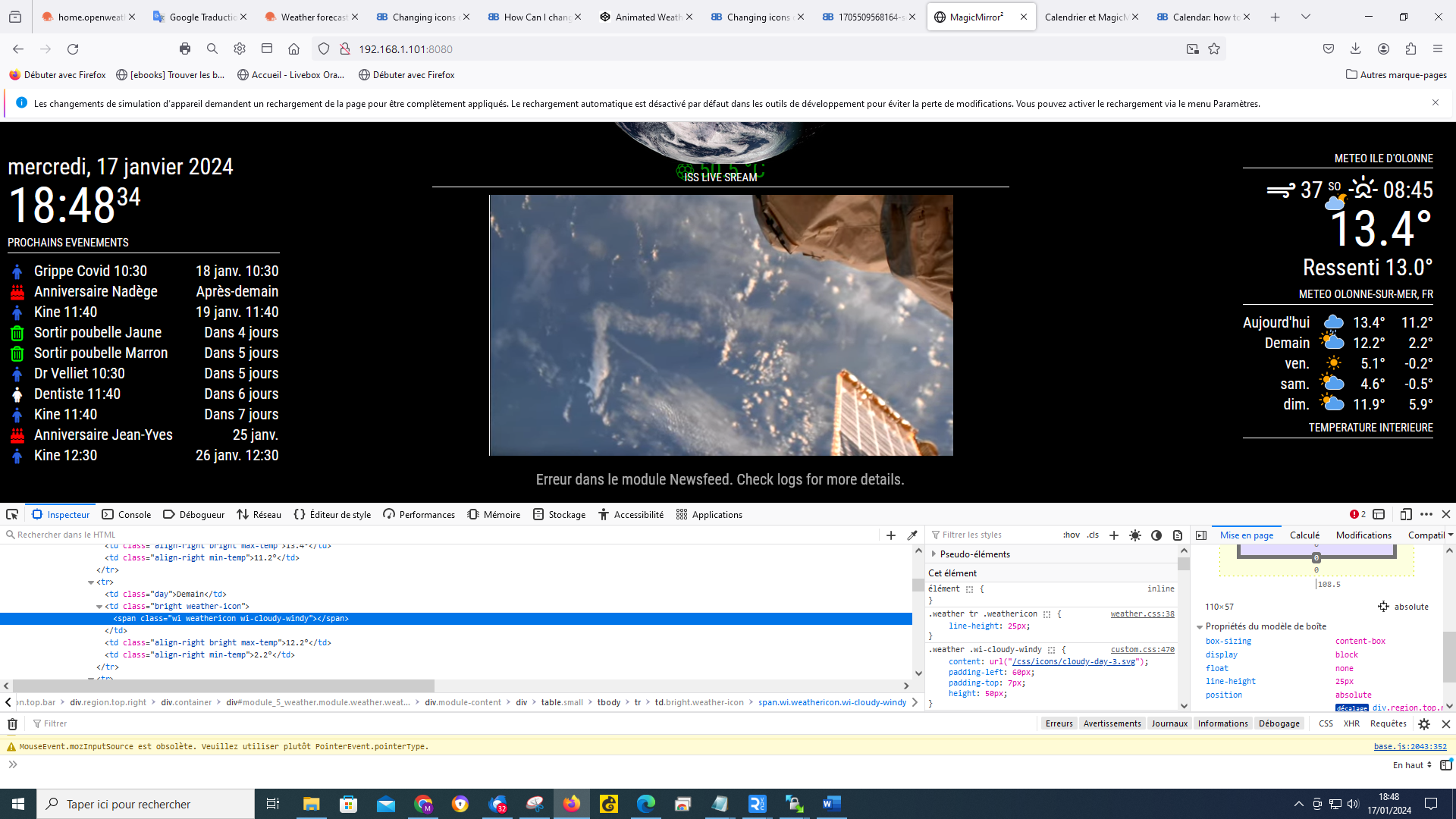
@sdetweil by doing ctrl shift i my window opened like this
-
@Manu85 yes, it just has the developers window docked on the bottom…
helps when trying to do layout… nothing changes
if you want it docked on the right, use the … menu top right of the dev window and change it…
-
@sdetweil
when I position myself on a weather icon, it gives this, I cannot choose several I have a “grid” which follows the mouse and which changes when I move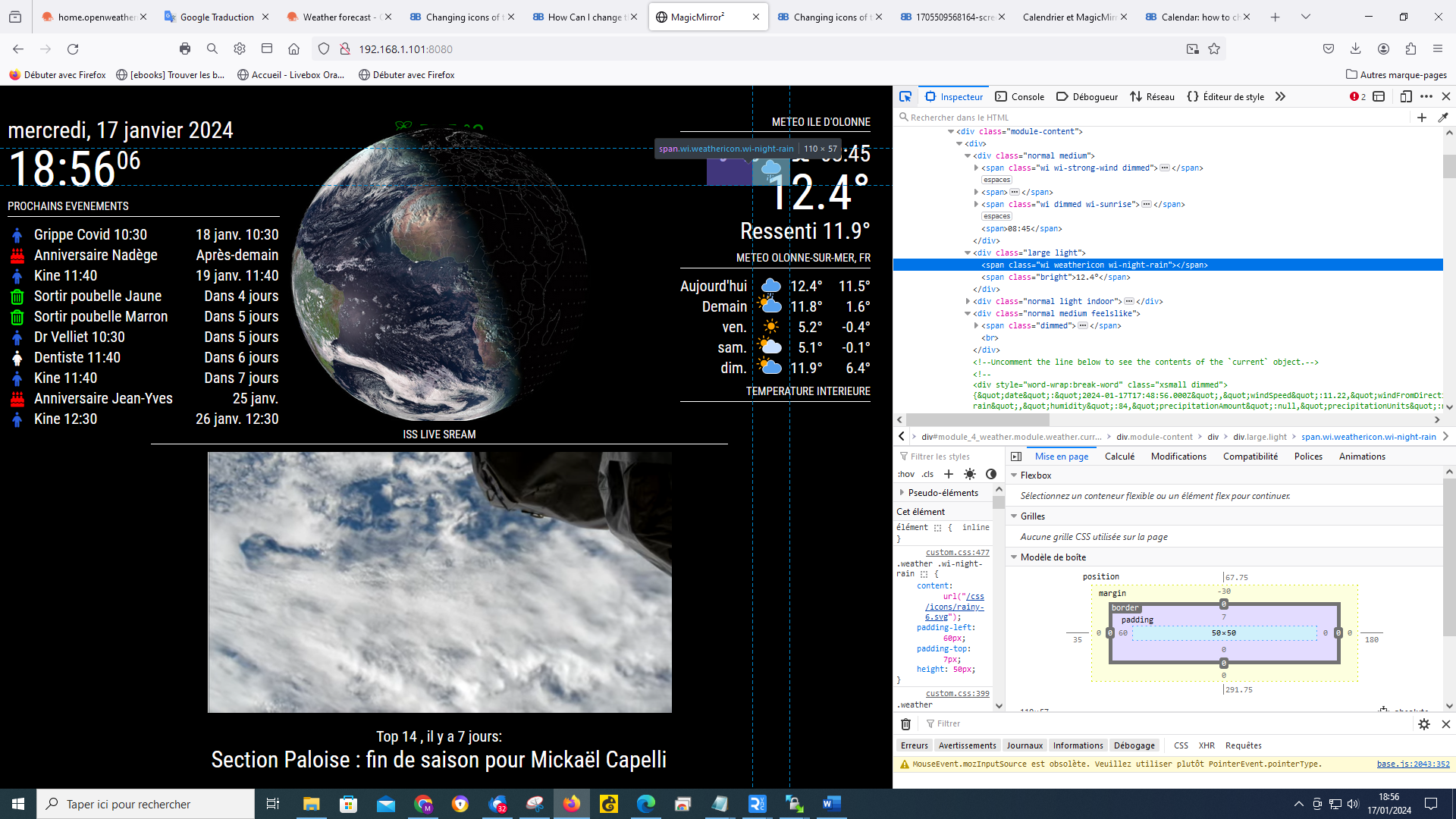
-
@Manu85 yes, you have to drag the windows around/resize them in the developers window
-
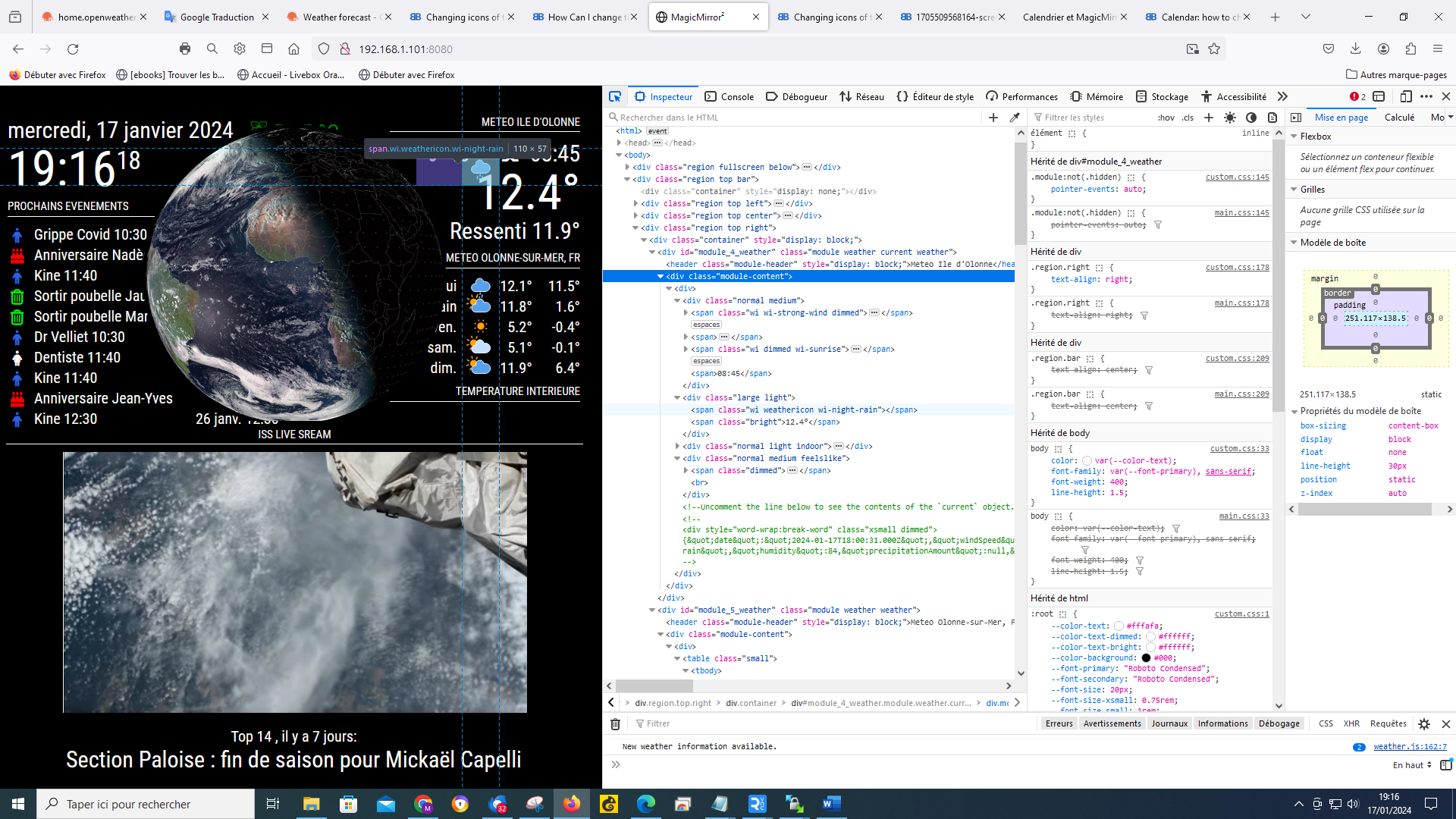
@sdetweil like that ?
-
@Manu85 yes, very good…
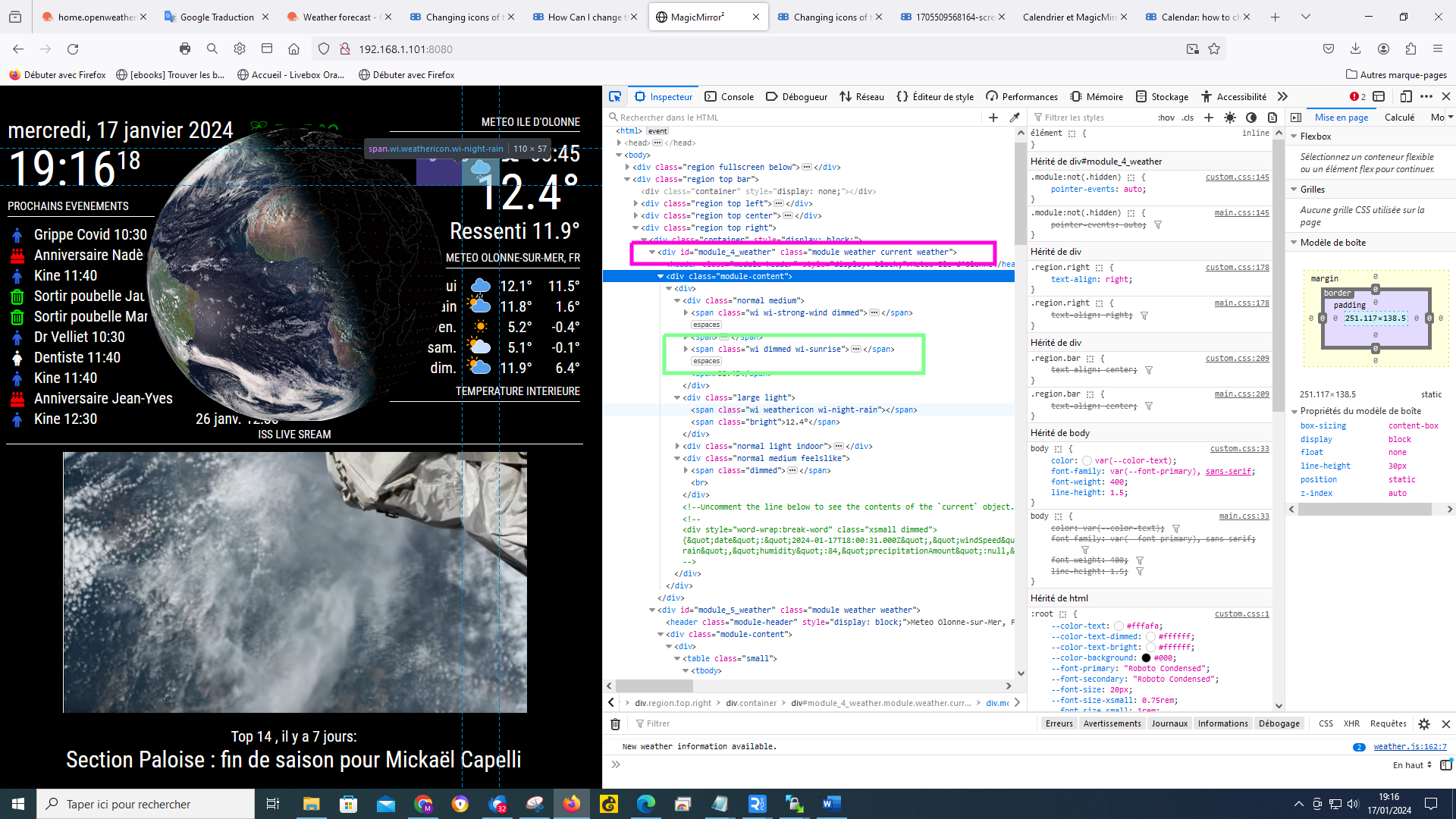
now, up two lines is the module entry in the content,
and you can see that the extra class name has been added
(in pink)
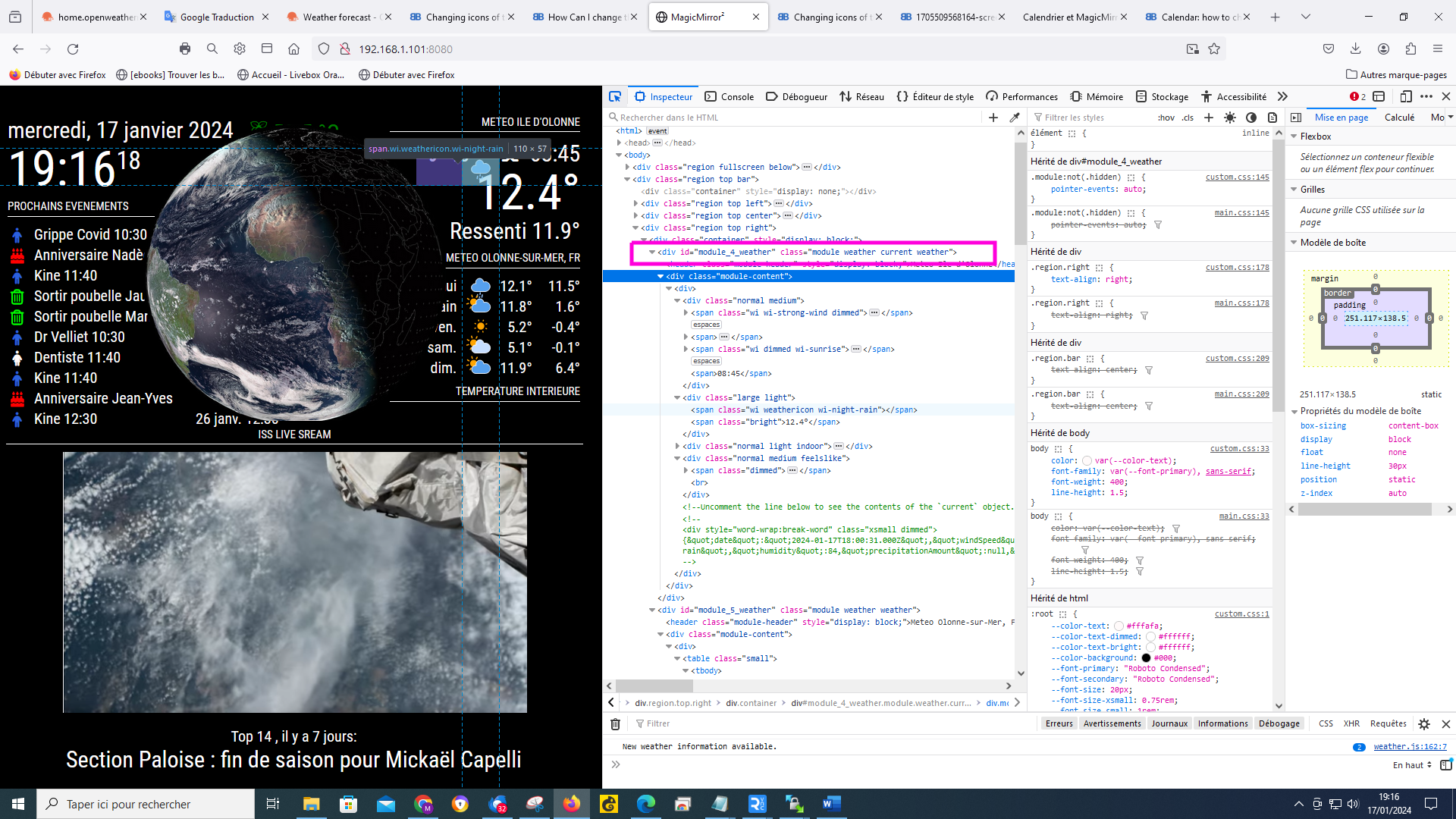
so, in custom.css
.current xxxwill target (select) content in that element tree
if you move down to one of the spans of the content
in green, and expand that , you will see the icon line,
if you select that in the next pane to the right you will see where the info comes from
-
@sdetweil
I do what you tell me, but I must admit that I’m lost :-) I actually saw the “current” in the lines so that means that the icon is in the custom css, it’s that right? if so why can’t I manage it? you are too strong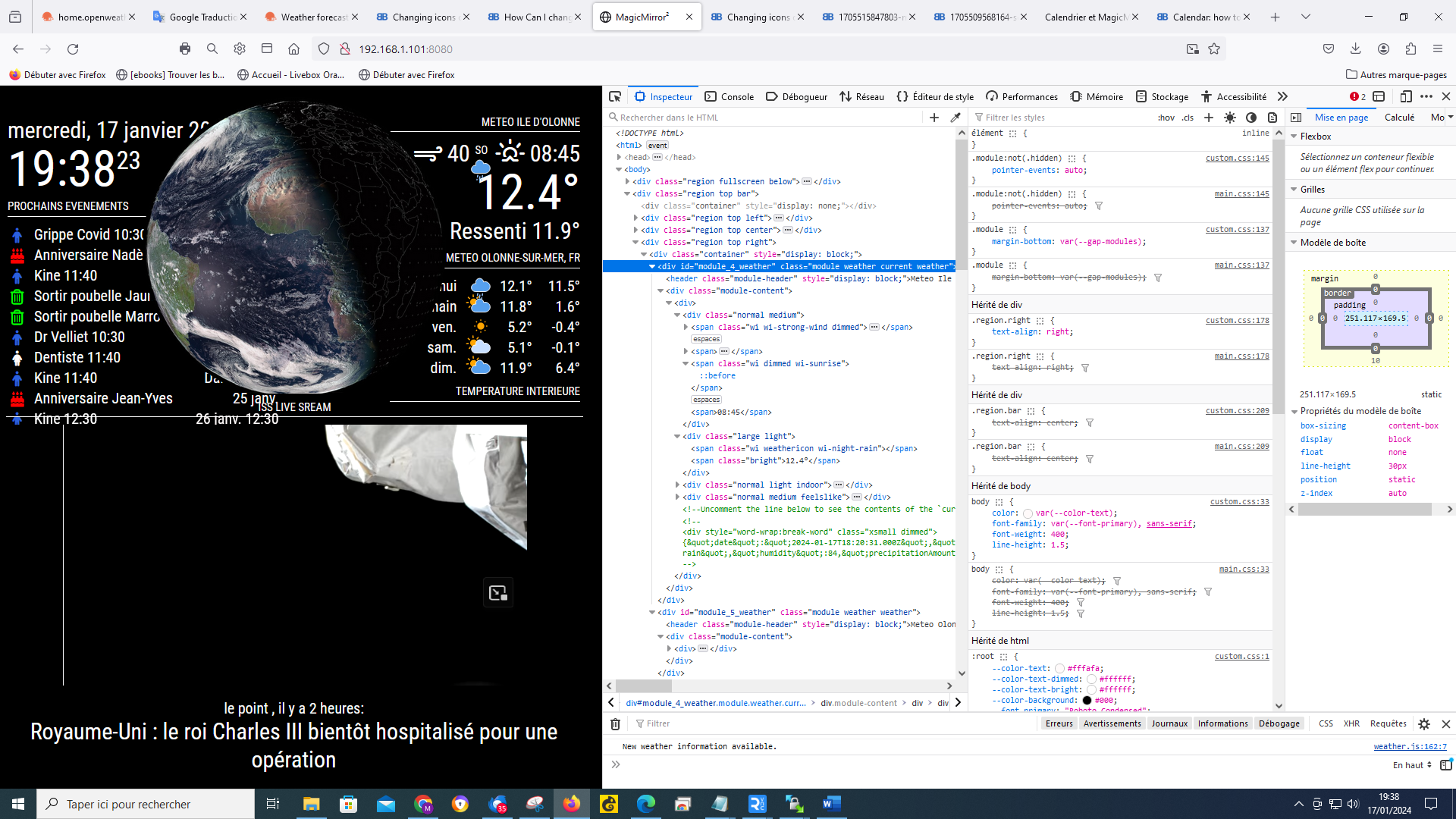
-
@Manu85 so close…
you have to click on the element with the icon name
here you have to expand the span element (gold box)
(the one you expanded below the gold box only has text in it, not an icon)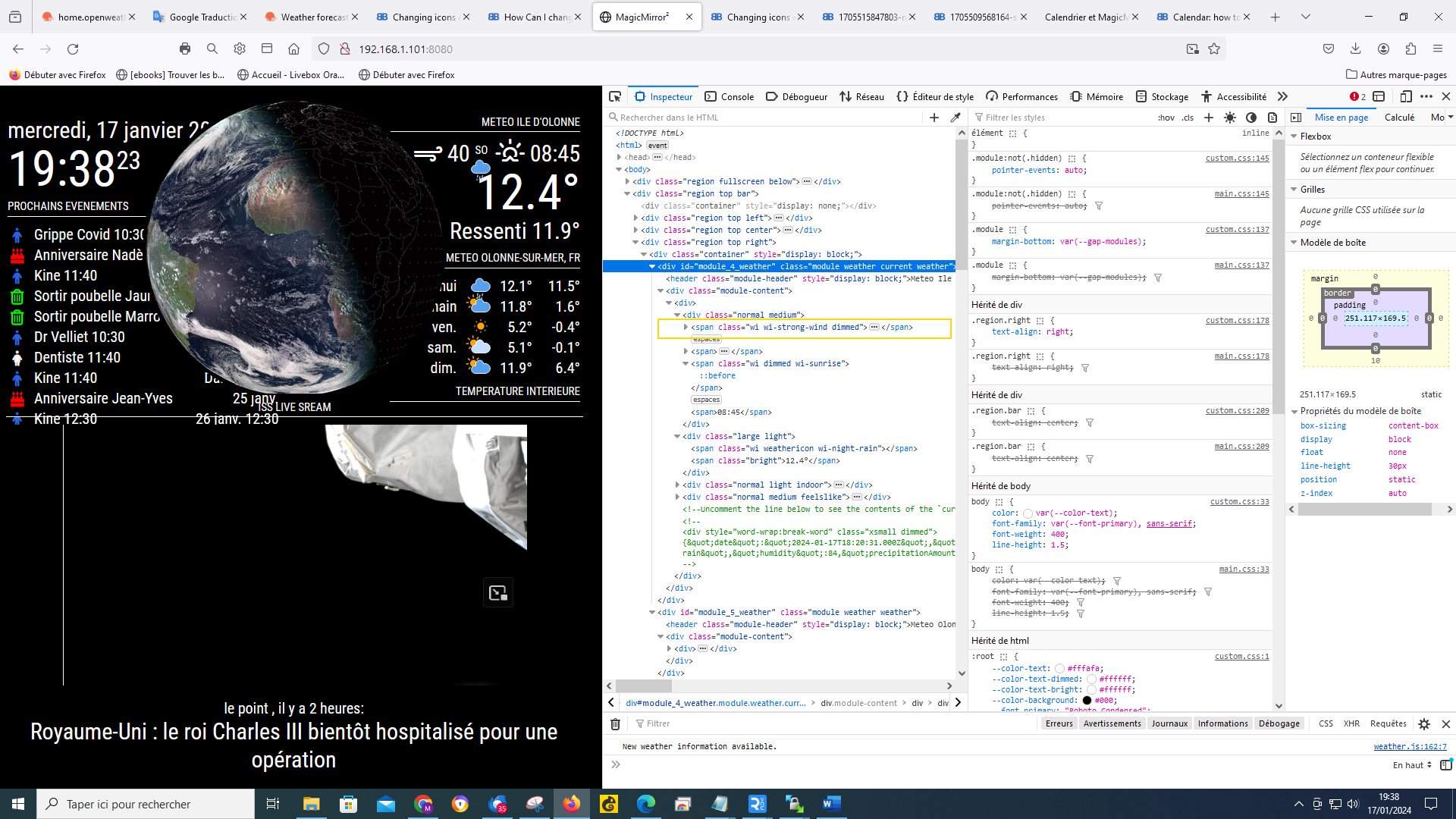
-
@sdetweil
there, am I on it? I’m going to get there, I’m going to get there !!!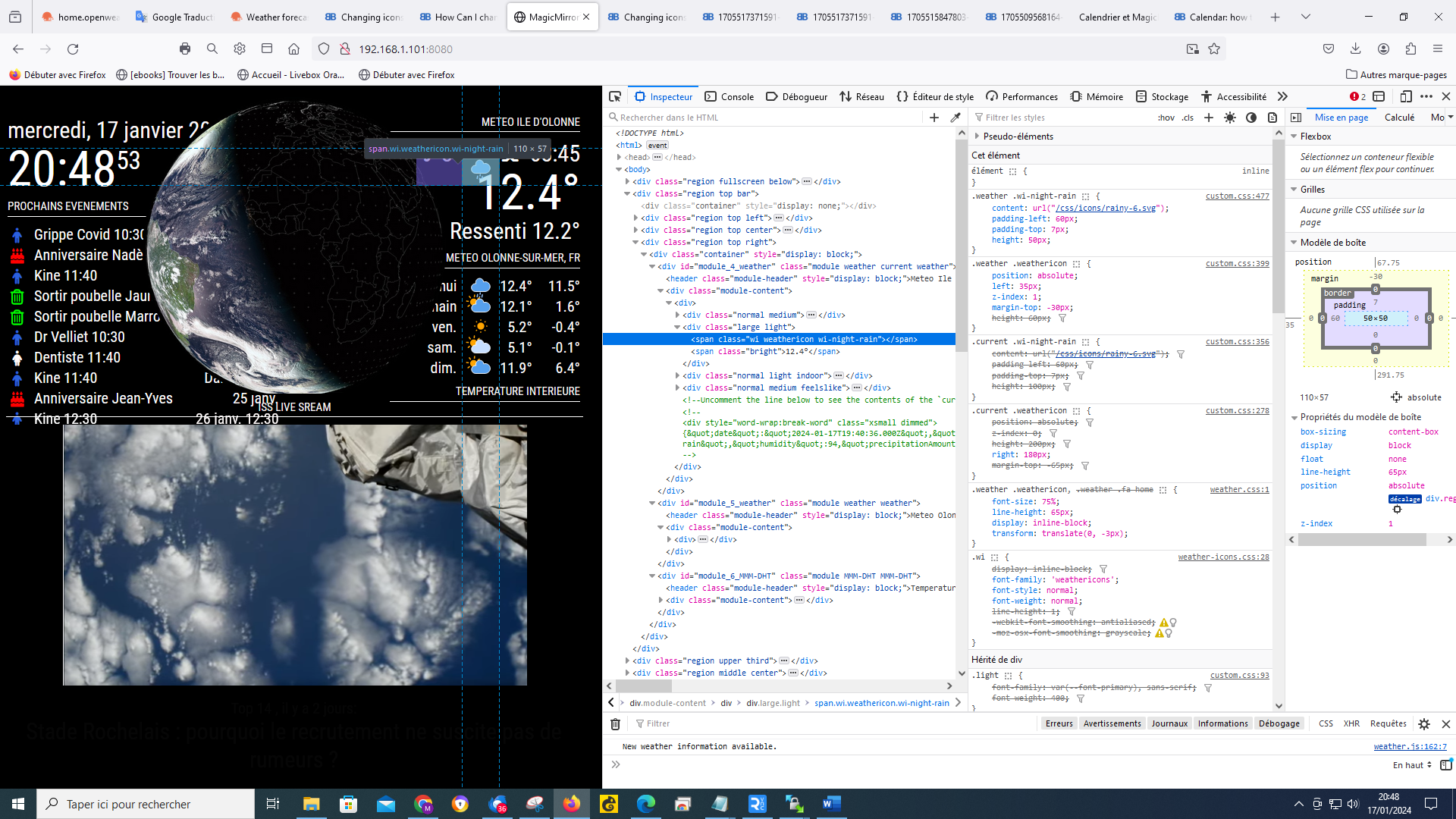
-
@Manu85 now in the second column of the dev windows you can see the icon info and where it came from, custom.css
-
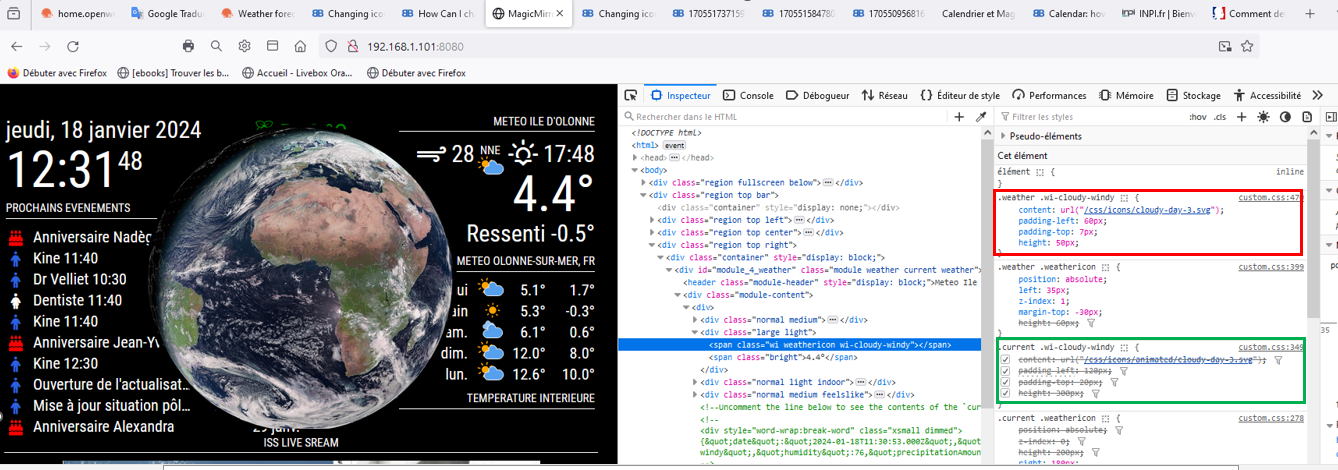
@sdetweil I try to move forward on the folder, I changed the destination folder for the “current” part by directing to a folder in css/icons/animated, but nothing changes, the supported icon is that of css/icons, red square (which keeps the properties, size, positioning of weather) I have the impression that “css/icons/animated” is not supported, green square, I think I am not far from the solution, but without your help I don’t think I’ll get there
-
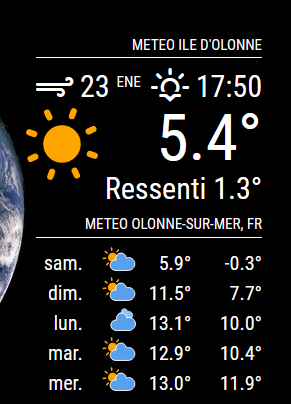
@sdetweil Thanks to you, I finally managed to configure the weather module with animated icons, I finally understood the advantages and the settings possible with the console (ctrl+shift+i) it also allowed me to make other settings on other modules, it’s been 5 years since I did this MM and I learned more with you in 3 days than in 5 years, a big thank you for your help
-
@Manu85 awesome!! glad you got it.
that dev window is amazing for what you can discover and try
-
@sdetweil
I will actually look precisely at the possibilities of this window, a thousand thanks Sam -
@manu85340 the top right window allows you to set styles on the selected element
any style supported by the browser… color, font, icon, padding, border, you name it…
so, you can test out the effect you want and then copy/paste those to the entry for custom.css
one other learning thing…
in css
the stuff before the {
is called the selector clause… it ‘selects’ the elements that that the stuff INSIDE the {} will apply to…the selector clause will ALWAYS select ALL elements that match , ALWAYS ALL
but you can make it very selective…, it can be quite complex…
here I want to hide (display :none) an element generated by a library I used
that didn’t apply to the output it generated.possibly-hidden-tab div:nth-child(2) > div > div >div >ul >li:only-child >a[rel*="Item%201"] { display: none; }I use this page to help me with the selector clause possibilities and syntax
https://www.w3schools.com/cssref/css_selectors.phpsometimes it helps to look at the selector clause from right to left , what element is it, and how does it fit in the content its in.
this selector clause is trying to find an <a (action/link) element with a title of “Item 1”
-
@sdetweil It’s really nice of you to share all these elements, I’m going to look at it while taking my time, I feel like the possibilities are endless
-
@Manu85 no rush… just wanted to give you some base info to use as you explore.
also from the MM doc on css
https://docs.magicmirror.builders/modules/customcss.html#target-a-specific-moduletarget and select mean the same
-
@sdetweil :folded_hands:
-
@Manu85 oh, and html stuff is a lot to know… (I think I know maybe 5%)
https://www.w3schools.com/html/that top box in the developers window elements tab will start dropdowns of selection choices when u start typing
Hello! It looks like you're interested in this conversation, but you don't have an account yet.
Getting fed up of having to scroll through the same posts each visit? When you register for an account, you'll always come back to exactly where you were before, and choose to be notified of new replies (either via email, or push notification). You'll also be able to save bookmarks and upvote posts to show your appreciation to other community members.
With your input, this post could be even better 💗
Register Login