Read the statement by Michael Teeuw here.
MMM-KeyBindings: Control your mirror with Amazon Fire Stick Remote and Generic Keyboard Inputs
-
Description:
MMM-KeyBindings is a Utility Module to accept inputs from an Amazon Fire Stick Remote (or any bluetooth-connected HID device) as well as generic keyboard inputs and pass them to other modules for control.
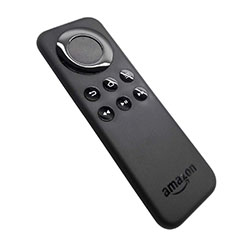
The module can perform basic functions such as turning on/off the screen based on certain remote keys, but the real power is in the ability to send key press notifications to other modules. My plan is to use this to control other plugins such as my fork of @barnabycolby’s MMM-Carousel (Fork w/ Navigation Enabled: MMM-Carousel w/ KeyBindings and MMM-ProfileSwitcher to switch screens based on remote control input. In the future I also plan to add an on-screen menu with functions similar to those found in the MMM-RemoteControl module.
See the README for full details on the features.
Download:
[card:shbatm/MMM-KeyBindings]
Version 1.3.0 - Updated 3-Jan-2019 - [BREAKING CHANGES] See details here
-
Top module ! :trophy:
Unfortunately the slides are only visible on the monitor, and not in the browser.
Have I overlooked something? -
@AgilesChroms First thing I would check: What browser are you using to view the mirror? If using Chrome/Chromium on the browser (or any others with DevTools), please check the console and see if there are any errors (
Ctrl+Shift+I). Also, which modules are you using besides KeyBindings? Could you post or message me a snippet of your config file?I am using this module with my fork of MMM-Carousel on both the monitor connected to the Pi and a separate browser without issue.
-
@shbatm
I am using your modulesIt works with Firefox.
Unfortunately, remote control does not influence the browser///*KeyBindings*/ { module: 'MMM-KeyBindings', //position: "top_bar", config: { // See below for configurable options enabledKeyStates: ["KEY_PRESSED", "KEY_LONGPRESSED"], enableNotifyServer: true, endableRelayServer: true, handleKeys: true, //Array of additional keys to handle in this module above the standard set, Reference Mousetrap API for the available key enumerations. evdev: { enabled: true, //alias: 'Amazon Fire TV Remote', bluetooth: 'A0:02:DC:9B:78:6E', eventPath: '/dev/input/event3', disableGrab: false, longPressDuration: 0.7, rawMode: false }, } }, /*Carousel*/ { module: 'MMM-Carousel', position: "bottom_bar", config: { showPageIndicators: true, showPageControls: true, transitionInterval: 1 * 60 * 1000, ignoreModules: ['alert'], mode: 'slides', slides: [ [ { name:'clock', classes:'zoom140', position:"top_center",displayType: "analog",} ], [ { name:'clock', classes:'zoom100', position:"top_left"} , 'MMM-Traffic', 'calendar', 'compliments', 'MMM-WunderGround', 'MMM-Fuel', 'internet-monitor','newsfeed','MMM-DWD-WarnWeather','MMM-FRITZ-Box-Callmonitor'], ['MMM-Globe', 'MMM-WunderGround','MMM-FRITZ-Box-Callmonitor', 'MMM-Callmonitor-Current-Call', 'newsfeed'], [ { name:'clock', classes:'zoom075', position:"top_left"} , 'MMM-WunderGround', 'MMM-DHT-Sensor', 'MMM-FRITZ-Box-Callmonitor', 'MMM-Callmonitor-Current-Call', 'MMM-DWD-WarnWeather'], [ { name:'clock', classes:'zoom100', position:"top_left"} ,'calendar', 'MMM-WunderGround', 'MMM-Fuel', 'MMM-DHT-Sensor', 'MMM-FRITZ-Box-Callmonitor', 'MMM-Callmonitor-Current-Call', 'newsfeed'], ['mmm-weatherchart', 'MMM-Traffic'] //clock calendar MMM-Fuel MMM-DHT-Sensor MMM-WunderGround MMM-DWD-WarnWeather MMM-FRITZ-Box-Callmonitor MMM-Callmonitor-Current-Call newsfeed internet-monitor ], /* slides: [ [ { name:'clock', classes:'zoom140', position:"top_center" } ], [ { name:'clock', classes:'', position:"top_left" }, { name:'calendar', position:'top_right' }, { name: 'MMM-WunderGround', position:"top_center", }, 'newsfeed' ] ],*/ keyBindingsMode: "DEFAULT", keyBindings: { NextSlide: "ArrowRight", PrevSlide: "ArrowLeft", // Slide0: "Return", // Slide1: "Menu", // Slide2: "MediaPreviousTrack", // Slide3: "MediaNextTrack" } } }, -
@AgilesChroms By default, the Carousel module will only respond to remote control keys on the “server’s” screen. This was done so you could pull up the MM in a browser on another computer and navigate separately with a keyboard/mouse. It’s in the plan down the road for multiple remotes on different screens running from one server, but I haven’t made it that far yet.
EDIT: I’m assuming that when you say browser, you’re talking about a browser on a different computer and not just another window on the server/RPi running MM. The suggestions below are based on that assumption.
For now:
First 2 corrections in your config:
- Remove
handleKeys: true,from MMM-KeyBindings, this is for adding extra keyboard keys to bind to. - Add
"MMM-KeyBindings"to theignoreModuleslist in MMM-Carousel (probably doesn’t do anything at the moment, but just future proofing).
Next, 2 options for a fix:
- If you want to control the browser’s slides separately (i.e. from a keyboard attached to that computer):
- In MMM-KeyBindings config section, add:
enableMousetrap: true,which will turn on regular keyboard binding in the browser window. - Keyboard key presses only work when the browser is active and focused – usually have to click in the window and make sure it’s active before it will respond. I also had issues with some media keys not being sent to to browser at all-which is why I went with the evdev path in the first place.
- Optional (and untested, but should work): If you want to use additional keyboard keys other than the standard keys, then in MMM-Carousel config section: add a duplicate entry in the
keyBindingssection:
You’ll also need to add any new “non-default” keys to MMM-KeyBindings:keyBindings: { NextSlide: "ArrowRight", // Remote Key Name NextSlide: "r", // Keyboard Key Name PrevSlide: "ArrowLeft", // Remote Key Name PrevSlide: "l" // Keyboard Key Name },handleKeys: [ 'r', 'l' ],
- In MMM-KeyBindings config section, add:
- If you want the remote to control ALL screens: Remove the following from Line 71 in
modules/MMM-Carousel/MMM-Carousel.js&& payload.Sender === this.instance- This is a temporary test for now. In the future I will add a config option for the remote to control all instances or just the main screen. At the moment there is no good way to synchronize the screens when just using the Previous/Next navigation (e.g. if your main screen is on Slide 2 and you open a browser to Slide 0 and press next, both will move but one will be on Slide 3 and the other Slide 1).
Please let me know if this helps / works – still new to MM2 and just starting development of these modules so any feedback or feature requests are more than welcome! I’m glad someone else is able to make use of the modules.
- Remove
-
@shbatm said in MMM-KeyBindings: Control your mirror with Amazon Fire Stick Remote and Generic Keyboard Inputs:
keyBindings: {
NextSlide: “ArrowRight”, // Remote Key Name
NextSlide: “r”, // Keyboard Key Name
PrevSlide: “ArrowLeft”, // Remote Key Name
PrevSlide: “l” // Keyboard Key Name
},Double definition of keys does not work.
The remote control is ignored!
Extra buttons on the remote control are handled// keyBindings: { NextSlide: "ArrowRight", // Remote Key Name PrevSlide: "ArrowLeft", // Remote Key Name NextSlide: "k", // Keyboard Key Name PrevSlide: "j", // Keyboard Key Name Slide0: "Return", Slide1: "Menu", Slide2: "MediaPreviousTrack", Slide3: "MediaNextTrack" } } -
@AgilesChroms - I’m out of town for business, so bear with me since I’m unable to fully test these suggestions.
To use custom keyboard keys AND the remote, you can also modify the
evdevKeymapandhandleKeysin the MMM-KeyBindings Config. The module tries to “map” the remote’s key names to more standard keyboard key names and this can be tweaked. For example in the MMM-KeyBindings Config:... evdevKeymap: { Home: "KEY_HOMEPAGE", Enter: "KEY_KPENTER", j: "KEY_LEFT", // Change default "ArrowLeft" to "j" k: "KEY_RIGHT", // Change default "ArrowRight" to "k" ArrowUp: "KEY_UP", ArrowDown: "KEY_DOWN", Menu: "KEY_MENU", MediaPlayPause: "KEY_PLAYPAUSE", MediaNextTrack: "KEY_FASTFORWARD", MediaPreviousTrack: "KEY_REWIND", Return: "KEY_BACK" }, handleKeys: ['j','k'] // Add the new keys to the keyboard bindingsIn MMM-Carousel, you can now use:
keyBindings: { NextSlide: "k", PrevSlide: "j", Slide0: "Return", ... }Side note:
Something you may also find useful: the evdevKeymap tries to standardize keys, but if it receives a key that isn’t in the map, it will still pass it along. I use this to also control my Mirror via my home automation system using GET requests.
For example: if you add a keybinding to MMM-Carousel likeSlide1: "SomeSlideTitle", you can jump to that slide with a GET request to the following URL:http://mirror_ip:8080/MMM-KeyBindings/notify?notification=KEYPRESS&payload=%7B%22KeyState%22%3A%20%22KEY_PRESSED%22%2C%20%22Duration%22%3A%200.0%2C%20%22KeyName%22%3A%20%22SomeSlideTitle%22%7D // payload parameter is a url-encoded JSON string: {"KeyState": "KEY_PRESSED", "Duration": 0.0, "KeyName": "SomeSlideTitle"} -
@shbatm
I am now satisfied with the behavior. The screen is now syncron with the browser
thank you for your help -
You are welcome. Glad you made it work and happy to see someone can make use of the module!
-
hey thk for module !
i try to use it but i have some problem:
i have put that on my conf file .
	{
            module :  'MMM-KeyBindings' ,
            config : {
				enableNotifyServer : false
            }
        },
i just want to use a local keyboard for now and i probably change after for remote.
and on my module of pages organisationi have put your config :
Module.register("Print_text_from_txt",{
	curentPage: -1,
	defaults: {
		updateInterval:  1000,// 30 * 60 * 1000 //reads the file every 30 mins


    /*** defaults ***
     *
     *   Add items below to your moduleName.js's `defaults` object
     *
     */
        /*** MMM-KeyBindings STANDARD MAPPING ***/
        /* Add the "mode" you would like to respond to */
        keyBindingsMode: "DEFAULT",
        keyBindings: {
            /* Add each key you want to respond to in the form:
             *      yourKeyName: "KeyName_from_MMM-KeyBindings"
             */
            Right: "ArrowRight",
            Left: "ArrowLeft",
            /* ... */
        },
    },

/////////////////////////////
	start: function(){
		this.setupKeyBindings(); //key binding test

		this.sendSocketNotification("START", this.config);
	},
/////////////////////////////
notificationReceived: function(notification, payload){
		if (this.validateKeyPress(notification, payload)) { return; }
		if (notification === "PAGE_NUMBER_IS")
		{
			this.curentPage = payload
			this.sendNotification("PAGE_CHANGED", this.curentPage);
		}
///////////////////////////
i have clone directory on my module folder.
i have one error on console but she not cause by the module
TypeError: Failed to execute 'appendChild' on 'Node': parameter 1 is not of type 'Node'.
    at updateModuleContent (main.js:206)
    at main.js:139
    at new Promise (<anonymous>)
    at updateDomWithContent (main.js:137)
    at main.js:119
    at <anonymous>
i have probably miss something but i dont find :(
i haven’t notification on console
sorry for my bad language
and thanks for your helpedit:
i have miss on Line on config filebut notification is not hear and probably never send :(
-
hey i remake all process but nothing new . i am alone in this case ?
just my log when all looks ok
MagicMirror git:(master) ✗ npm start > magicmirror@2.4.1 start /home/pi/MagicMirror > sh run-start.sh Starting MagicMirror: v2.4.1 Loading config ... Loading module helpers ... No helper found for module: alert. Initializing new module helper ... Module helper loaded: updatenotification No helper found for module: clock. No helper found for module: compliments. Initializing new module helper ... Module helper loaded: newsfeed No helper found for module: MMM-EyeCandy. Initializing new module helper ... Module helper loaded: Print_text_from_txt Initializing new module helper ... Module helper loaded: MMM-kalliope Initializing new module helper ... Module helper loaded: MMM-KeyBindings No helper found for module: MMM-pages. All module helpers loaded. Starting server on port 8080 ... Server started ... Connecting socket for: updatenotification Connecting socket for: newsfeed Starting module: newsfeed Connecting socket for: Print_text_from_txt Starting module helper: Print_text_from_txt Connecting socket for: MMM-kalliope MMM-kalliope is started Connecting socket for: MMM-KeyBindings MMM-KeyBindings helper has started... Sockets connected & modules started ... Launching application. Create new news fetcher for url: https://www.tdg.ch/rss_ticker.html - Interval: 300000 MMM-kalliope received a socket notification: CONNECT - Payload: null -
Hello guys,
I cant get the remote connected to the R3B+. I stuck. Searching the web like cracy since yetserday evening with no result.
It seems the pairing fails bc of the message “ServicesResolved: no”
Any clue whats missing?
$ sudo bluetoothctl [NEW] Controller B8:27:EB:DF:FF:D1 raspberrypi [default] [bluetooth]# agent on Agent registered [bluetooth]# scan on Discovery started [CHG] Controller B8:27:EB:DF:FF:D1 Discovering: yes [NEW] Device C4:95:00:6F:19:8A Amazon Fire TV Remote [CHG] Device C4:95:00:6F:19:8A RSSI: -66 [CHG] Device C4:95:00:6F:19:8A RSSI: -74 [CHG] Device C4:95:00:6F:19:8A RSSI: -62 [bluetooth]# scan off Discovery stopped [bluetooth]# pair C4:95:00:6F:19:8A Attempting to pair with C4:95:00:6F:19:8A [CHG] Device C4:95:00:6F:19:8A Connected: yes Request confirmation [agent] Confirm passkey 301420 (yes/no): yes [CHG] Device C4:95:00:6F:19:8A Modalias: usb:v1949p0410d0304 [CHG] Device C4:95:00:6F:19:8A UUIDs: 00001101-0000-1000-8000-00805f9b34fb [CHG] Device C4:95:00:6F:19:8A UUIDs: 00001124-0000-1000-8000-00805f9b34fb [CHG] Device C4:95:00:6F:19:8A UUIDs: 00001200-0000-1000-8000-00805f9b34fb [CHG] Device C4:95:00:6F:19:8A ServicesResolved: yes [CHG] Device C4:95:00:6F:19:8A Paired: yes Pairing successful [CHG] Device C4:95:00:6F:19:8A ServicesResolved: no <<<<< THIS sounds strange to me [CHG] Device C4:95:00:6F:19:8A Connected: no [bluetooth]# trust C4:95:00:6F:19:8A [CHG] Device C4:95:00:6F:19:8A Trusted: yes Changing C4:95:00:6F:19:8A trust succeeded [bluetooth]# devices Device 4F:8A:AE:69:E9:71 4F-8A-AE-69-E9-71 Device 6A:79:D3:6A:17:13 6A-79-D3-6A-17-13 Device C4:95:00:6F:19:8A Amazon Fire TV Remote Device 61:A4:04:D0:5D:66 61-A4-04-D0-5D-66 Device 6E:91:C7:B3:7A:C8 6E-91-C7-B3-7A-C8 [bluetooth]# trust C4:95:00:6F:19:8A Changing C4:95:00:6F:19:8A trust succeeded [bluetooth]# pair C4:95:00:6F:19:8A Attempting to pair with C4:95:00:6F:19:8A Failed to pair: org.bluez.Error.AlreadyExists [bluetooth]# conntect C4:95:00:6F:19:8A Invalid command [bluetooth]# connect C4:95:00:6F:19:8A Attempting to connect to C4:95:00:6F:19:8A [CHG] Device C4:95:00:6F:19:8A Connected: yes Failed to connect: org.bluez.Error.Failed [CHG] Device C4:95:00:6F:19:8A Connected: no [bluetooth]# -
@rak Have you tried pairing the remote using the Bluetooth menu/GUI on the desktop?
-
@jchenaud I am away right now and will take a closer look at your issue when I am back in town.
-
@shbatm Thanks. Much appreciated. No urgent need. Looking forward to your reply.
I tried both. GUI and command line. Both gave the same error message. I even tried a 2nd remote without success. Same error message.
-
@shbatm, did you had a chance to look into this? Thanks for an update.
-
Solved it.
I added “pairable on” to the mix. After that it worked.
Works like a charm. Only thingis that after restarting MagicMirror (pm2 restart MagicMirror) the evdev service ist typically stopped and needs a restart as well (pm2 start evdev).
Not sure whats missing here.
-
Another thing. The evdev “process” stopps working every now and than. A pm2 start evdev, gets it going again. Any clue how I could troubleshoot this?
-
Hi there,
first of all: Great module. You’ve just got a quite major issue in your documentation 😉 In your wiki (https://github.com/shbatm/MMM-KeyBindings/wiki/Integration-into-Other-Modules) you talk about “KeyCode” being a part of the payload.
I wanted to use that in my module to determine which keyboard key has been pressed and react accordingly. More specificly I was intrested in the arrow-keys.
First there was no reaction at all on any of the key presses. I could see that the press itself was recognized but when logging the payload “KeyCode” was always set to “undefined”. It cost me about 3hrs of my life only to find out that in your code you use “KeyName” but in the documentation you refer to “KeyCode”. I was surprised to be the first one to notice it but obiously I am as otherwise somebody else would have flagged it up already 😉
-
ANNOUNCEMENT: Version 1.3.0 - Updated 3-Jan-2019 - [BREAKING CHANGES] Remove server controls in favor of External Modules, Remove Python script in favor of Native Node.JS modules
Here are the highlights from this major change:
- This update had the overall goal of simplifying this module. I made a major philosophy change with this update, shifting from the original goal of this module performing a lot of its own sever-side functions and also relying on other modules to implement listeners to handle key presses-to this module being focused on listening to keys and letting other modules handle the heavy lifting.
- Removed all server-side controls from this module (monitor toggle, external interupts) in favor of declaring actions and sending notifications to other modules instead.
- Instead of this module trying to figure out if it should do something like turn on the screen, before it sent the action out–now it just gets the action and sends it. If you want to control the screen, use a module made to do that, like MMM-Remote-Control.
- Removed Notify Server in favor of extensible REST API being developed for MMM-Remote-Control
- The “notify” server was cumbersome and difficult to properly format. It was only really required as a way for the python script to send notifications back. The new REST API is much simpler and the bluetooth monitoring is now done within Node, so that makes this redundant.
- Added Actions to send notifications on a keypress rather than rely on other modules to actively listen for them.
- Instead of requiring other modules to listen for specific “KEY_PRESSED” notifications, you can now translate key presses to notifications that other modules already understand.
- The module is still extensible by other modules, and in fact, it has been made easier now. Rather than incorporate all of the code into your module, you can get a KeyHandler instance and add a few small functions to handle the key press notifications. The heavy lifting to validate a key press is done in the background. See this wiki page for updated instructions.

Hello! It looks like you're interested in this conversation, but you don't have an account yet.
Getting fed up of having to scroll through the same posts each visit? When you register for an account, you'll always come back to exactly where you were before, and choose to be notified of new replies (either via email, or push notification). You'll also be able to save bookmarks and upvote posts to show your appreciation to other community members.
With your input, this post could be even better 💗
Register Login