MagicMirror Forum
    • Recent
    • Tags
    • Unsolved
    • Solved
    • MagicMirror² Repository
    • Documentation
    • 3rd-Party-Modules
    • Donate
    • Discord
    • Register
    • Login
    1. Home
    2. cruunnerr
    3. Best
    A New Chapter for MagicMirror: The Community Takes the Lead
    Read the statement by Michael Teeuw here.
    cruunnerrC Offline
    • Profile
    • Following 3
    • Followers 7
    • Topics 14
    • Posts 279
    • Groups 0

    Posts

    Recent Best Controversial
    • RE: Want to turn off my monitor

      Easiest way is to use the MMM-Remote-Control module. With that, u were able to turn off and on the monitor with your phone or every other network device.

      Other options are a PIR-Sensor or a button on your mirror. There are many threads about that. Just give the search function a try ;)

      posted in Troubleshooting
      cruunnerrC
      cruunnerr
    • MMM-Wifi_QR-Code

      hey guys,

      what about a module, that shows a QR-Code, which can directly connect visitors to your wifi-network.
      like this: https://lifehacker.com/create-a-qr-coded-easy-access-guest-wi-fi-network-with-1790278590

      that would be a great addition in my opinion, and if someone knows how to do this it would be great :D

      posted in Requests
      cruunnerrC
      cruunnerr
    • RE: [MMM-Buttons] Connect multiple buttons to send configurable notifications

      @Mykle1

      Jap, its called Fritzing
      :)

      posted in System
      cruunnerrC
      cruunnerr
    • RE: {HowTo} turn on/off your monitor (Time based, PIR/Button, App)

      @MadScientist
      sorry, did a mistake. I edited my post above. just edit the *.sh files.

      posted in Tutorials
      cruunnerrC
      cruunnerr
    • RE: Something is wrong ....

      alright. so u used the automatic installer AND did the “how to autostart”-Tutorial from MichMich, too ^^

      no problem, we will try to fix. As u can read here, ninjabreadman wrote how to remove one of the instances.

      so please try:

      cd
      pm2 stop mm && pm2 delete mm && pm2 save
      rm mm.sh

      now there should just be the “MagicMirror” process even when u reboot.

      Better now, to erase all logs and wait, if your problems come up again. So type:

      pm2 flush

      Next time u got any problems, please type:
      pm2 logs MagicMirror
      and post it here

      Hope that will help ;)

      posted in Troubleshooting
      cruunnerrC
      cruunnerr
    • RE: I messed up

      Please correct me if i am wrong.

      What Mykle1 said is right. Have u used the automatic installer and said “YES” when it asked u too start automatically i think the process of pm2 is called MagicMirror. So the commands should be:

      pm2 stop MagicMirror
      pm2 start MagicMirror
      pm2 save MagicMirror (to save the current status (on or off))

      posted in General Discussion
      cruunnerrC
      cruunnerr
    • RE: MMM-Wifi_QR-Code

      0.0

      Ok, i never said a word :D

      Thank you and happy new year

      posted in Requests
      cruunnerrC
      cruunnerr
    • RE: {HowTo} turn on/off your monitor (Time based, PIR/Button, App)

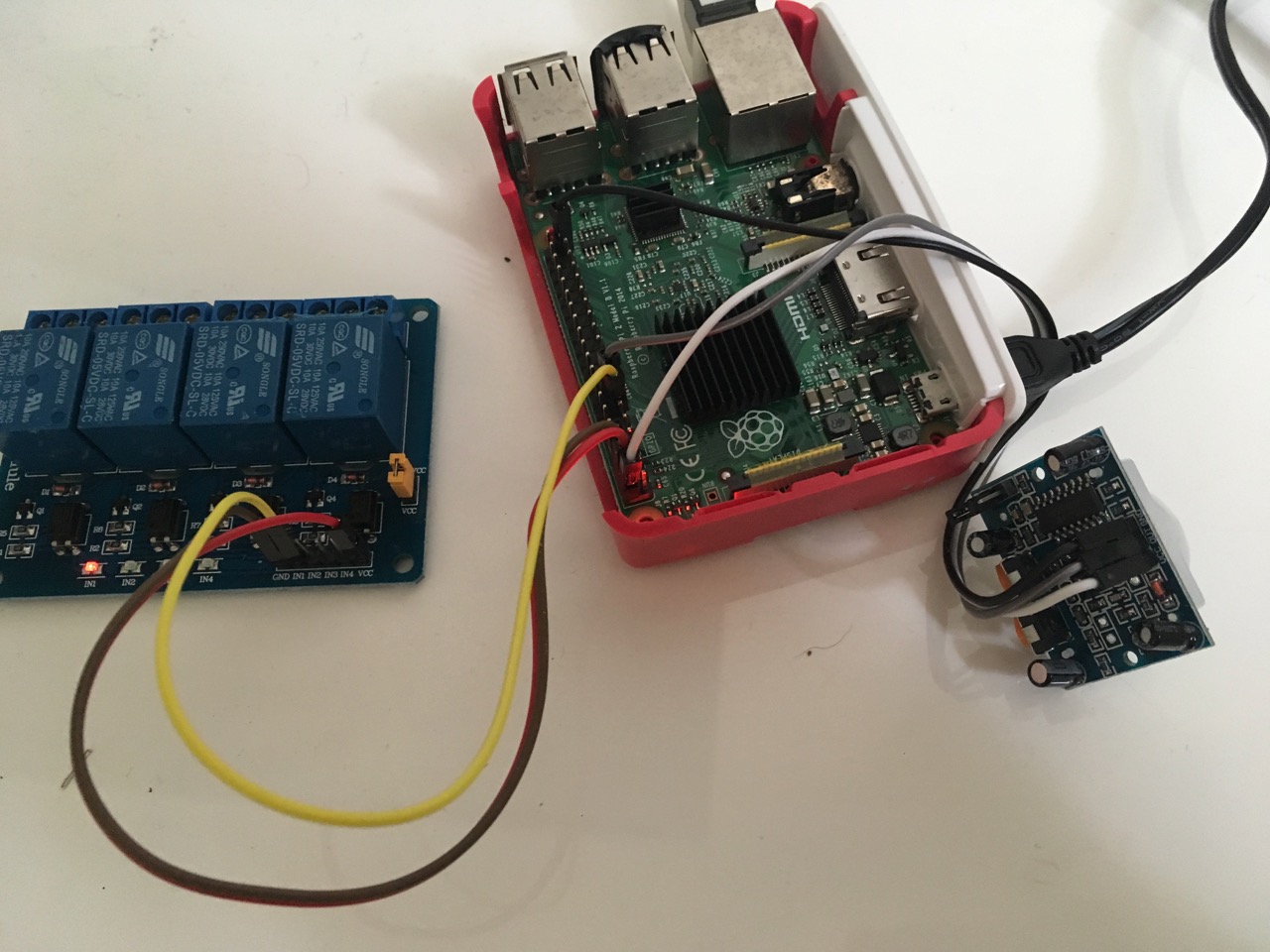
      Thats how i tested and it works like a charm. I just set up a fresh raspbian stretch Desktop.
      There was no need to install wiring-pi! the scripts just ran “out of the box”.

      PIR: https://www.amazon.de/Aukru-HC-SR501-Menschliche-Pyroelektrizität-Bewegungssensor/dp/B00R2U8LLG

      1_1516963577378_IMG_2161.jpg 0_1516963577377_IMG_2159.jpg

      posted in Tutorials
      cruunnerrC
      cruunnerr
    • RE: Want to turn off my monitor

      did u try:

      sudo tvservice -o to turn off your Monitor
      sudo tvservice -p to turn on your monitor
      ?

      If this isn’t working i think your Monitor or your HDMI Cable are not supporting CEC.

      If this works u have several options.
      For example u can create two *.sh files and make them executable. Put these scripts into cronjob file for time based turning on or off the monitor.
      Or u can use a PIR or a simple Button to do that. Let me give you a small software tutorial for this example:

      Tutorial beginning:

      cd
      nano monitor_on.sh (creates the file)

      write this in this file:

      sudo tvservice -p
      

      save with “ctrl+x” and say “y” to save the file.

      nano monitor_off.sh

      write this in this file:

      sudo tvservice -o
      

      save with “ctrl+x” and say “y” to save the file.

      chmod +x monitor_on.sh (to make it executable)
      chmod +x monitor_off.sh

      So now you have two options. Write a python script to automatically start the shell scripts by using a GPIO or just put the Shell scripts into a cronjob.

      Here is the first way:

      nano pir.py (creates a script which executes the *.sh files via PIR or Button)

      write this into the file:

      #!/usr/bin/env python
      
      import sys
      import time
      import RPi.GPIO as io
      import subprocess
      
      io.setmode(io.BCM)
      SHUTOFF_DELAY = 119 # in seconds, how long the monitor will be on until next button press or PIR detection
      PIR_PIN = 25       # 22 on the board (this needn't to be a PIR. Can be a button also)
      LED_PIN = 16      # optional
      
      def main():
          io.setup(PIR_PIN, io.IN)
          io.setup(LED_PIN, io.OUT)
          turned_off = False
          last_motion_time = time.time()
      
          while True:
              if io.input(PIR_PIN):
                  last_motion_time = time.time()
                  io.output(LED_PIN, io.LOW)
                  print ".",
                  sys.stdout.flush()
                  if turned_off:
                      turned_off = False
                      turn_on()
              else:
                  if not turned_off and time.time() > (last_motion_time + 
                                                       SHUTOFF_DELAY):
                      turned_off = True
                      turn_off()
                  if not turned_off and time.time() > (last_motion_time + 1):
                      io.output(LED_PIN, io.HIGH)
              time.sleep(.1)
      
      def turn_on():
      	subprocess.call("sh /home/pi/monitor_on.sh", shell=True)
      
      def turn_off():
      	subprocess.call("sh /home/pi/monitor_off.sh", shell=True)
      
      if __name__ == '__main__':
          try:
              main()
          except KeyboardInterrupt:
              io.cleanup()


      save with “ctrl+x” and say “y” to save the file.

      chmod +x pir.py

      You can check if your button works by simply typing python pir.py. Every time u move through the PIR or press the button it will show you some …
      End the test with “ctrl+c”

      now we editing the rc.local to start the script after booting the Pi:

      sudo nano /etc/rc.local

      write this in the file (above the “exit 0”):

      python /home/pi/pir.py &

      save with “ctrl+x” and say “y” to save the file.

      after all it should look like this:

      #!/bin/sh -e
      #
      # rc.local
      #
      # This script is executed at the end of each multiuser runlevel.
      # Make sure that the script will "exit 0" on success or any other
      # value on error.
      #
      # In order to enable or disable this script just change the execution
      # bits.
      #
      # By default this script does nothing.
      
      # Print the IP address
      _IP=$(hostname -I) || true
      if [ "$_IP" ]; then
        printf "My IP address is %s\n" "$_IP"
      fi
      
      python /home/pi/pir.py
      
      exit 0
      

      Here comes the second way:

      Next steps we will do as root to be sure it works. Maybe not the best way, but i am just a simple guy, who is still learning the stuff. ^^
      Lets say we want to turn on the monitor every day at 6am and turn off at 8pm:

      sudo nano /etc/crontab (to open the crontab)

      write this into the file:
      0 6 * * * /home/pi/monitor_on.sh
      0 20 * * * /home/pi/monitor_off.sh

      this should look like this:

      # /etc/crontab: system-wide crontab
      # Unlike any other crontab you don't have to run the `crontab'
      # command to install the new version when you edit this file
      # and files in /etc/cron.d. These files also have username fields,
      # that none of the other crontabs do.
      
      SHELL=/bin/sh
      PATH=/usr/local/sbin:/usr/local/bin:/sbin:/bin:/usr/sbin:/usr/bin
      
      # m h dom mon dow user  command
      17 *    * * *   root    cd / && run-parts --report /etc/cron.hourly
      25 6    * * *   root    test -x /usr/sbin/anacron || ( cd / && run-parts --report /etc/cron.daily )
      47 6    * * 7   root    test -x /usr/sbin/anacron || ( cd / && run-parts --report /etc/cron.weekly )
      52 6    1 * *   root    test -x /usr/sbin/anacron || ( cd / && run-parts --report /etc/cron.monthly )
      0 6     * * *   root      /home/pi/monitor_on.sh
      0 20    * * *   root      /home/pi/monitor_off.sh
      #
      

      I wrote this just out of my head so i hope i didn’t forget anything.

      Tutorial ending!

      That is just an example of using a GPIO to turn off and on your monitor via HDMI-CEC.
      How i said, if your monitor or cable doesn’t support this u need to choose another way (turn a relays on and off to the power supply of the monitor e.g.)

      edit:

      sorry @mykle1, did not notice that you already answered, because I already started to write while you answered :D

      posted in Troubleshooting
      cruunnerrC
      cruunnerr
    • RE: One more change hopefully

      maybe try this in your custom.css:

      header {
          color: #fff;
      }
      
      posted in General Discussion
      cruunnerrC
      cruunnerr
    • RE: MMM-Wifi_QR-Code

      @Mykle1 said in MMM-Wifi_QR-Code:

      @cruunnerr said in MMM-Wifi_QR-Code:

      yeah, i searched all “noteworthy” developers

      Well, that leaves me out! ;-)

      No way!
      Just fail to see this module ;)
      You are a great developer and such a great teacher

      posted in Requests
      cruunnerrC
      cruunnerr
    • RE: {HowTo} turn on/off your monitor (Time based, PIR/Button, App)

      then u probably connected it wrong and the gpio which is used in the script is set to high (1). u can check this…

      type gpio readall to see the GPIO Breakout.

      pi@MagicMirror_Test:~ $ gpio readall
       +-----+-----+---------+------+---+---Pi 2---+---+------+---------+-----+-----+
       | BCM | wPi |   Name  | Mode | V | Physical | V | Mode | Name    | wPi | BCM |
       +-----+-----+---------+------+---+----++----+---+------+---------+-----+-----+
       |     |     |    3.3v |      |   |  1 || 2  |   |      | 5v      |     |     |
       |   2 |   8 |   SDA.1 |   IN | 1 |  3 || 4  |   |      | 5v      |     |     |
       |   3 |   9 |   SCL.1 |   IN | 1 |  5 || 6  |   |      | 0v      |     |     |
       |   4 |   7 | GPIO. 7 |   IN | 1 |  7 || 8  | 1 | ALT0 | TxD     | 15  | 14  |
       |     |     |      0v |      |   |  9 || 10 | 1 | ALT0 | RxD     | 16  | 15  |
       |  17 |   0 | GPIO. 0 |  OUT | 1 | 11 || 12 | 0 | IN   | GPIO. 1 | 1   | 18  |
       |  27 |   2 | GPIO. 2 |  OUT | 1 | 13 || 14 |   |      | 0v      |     |     |
       |  22 |   3 | GPIO. 3 |   IN | 0 | 15 || 16 | 0 | IN   | GPIO. 4 | 4   | 23  |
       |     |     |    3.3v |      |   | 17 || 18 | 1 | IN   | GPIO. 5 | 5   | 24  |
       |  10 |  12 |    MOSI |   IN | 0 | 19 || 20 |   |      | 0v      |     |     |
       |   9 |  13 |    MISO |   IN | 0 | 21 || 22 | 0 | IN   | GPIO. 6 | 6   | 25  |
       |  11 |  14 |    SCLK |   IN | 0 | 23 || 24 | 1 | IN   | CE0     | 10  | 8   |
       |     |     |      0v |      |   | 25 || 26 | 1 | IN   | CE1     | 11  | 7   |
       |   0 |  30 |   SDA.0 |   IN | 1 | 27 || 28 | 1 | IN   | SCL.0   | 31  | 1   |
       |   5 |  21 | GPIO.21 |   IN | 1 | 29 || 30 |   |      | 0v      |     |     |
       |   6 |  22 | GPIO.22 |   IN | 1 | 31 || 32 | 0 | IN   | GPIO.26 | 26  | 12  |
       |  13 |  23 | GPIO.23 |   IN | 0 | 33 || 34 |   |      | 0v      |     |     |
       |  19 |  24 | GPIO.24 |   IN | 0 | 35 || 36 | 0 | IN   | GPIO.27 | 27  | 16  |
       |  26 |  25 | GPIO.25 |   IN | 0 | 37 || 38 | 0 | IN   | GPIO.28 | 28  | 20  |
       |     |     |      0v |      |   | 39 || 40 | 0 | IN   | GPIO.29 | 29  | 21  |
       +-----+-----+---------+------+---+----++----+---+------+---------+-----+-----+
       | BCM | wPi |   Name  | Mode | V | Physical | V | Mode | Name    | wPi | BCM |
       +-----+-----+---------+------+---+---Pi 2---+---+------+---------+-----+-----+
      

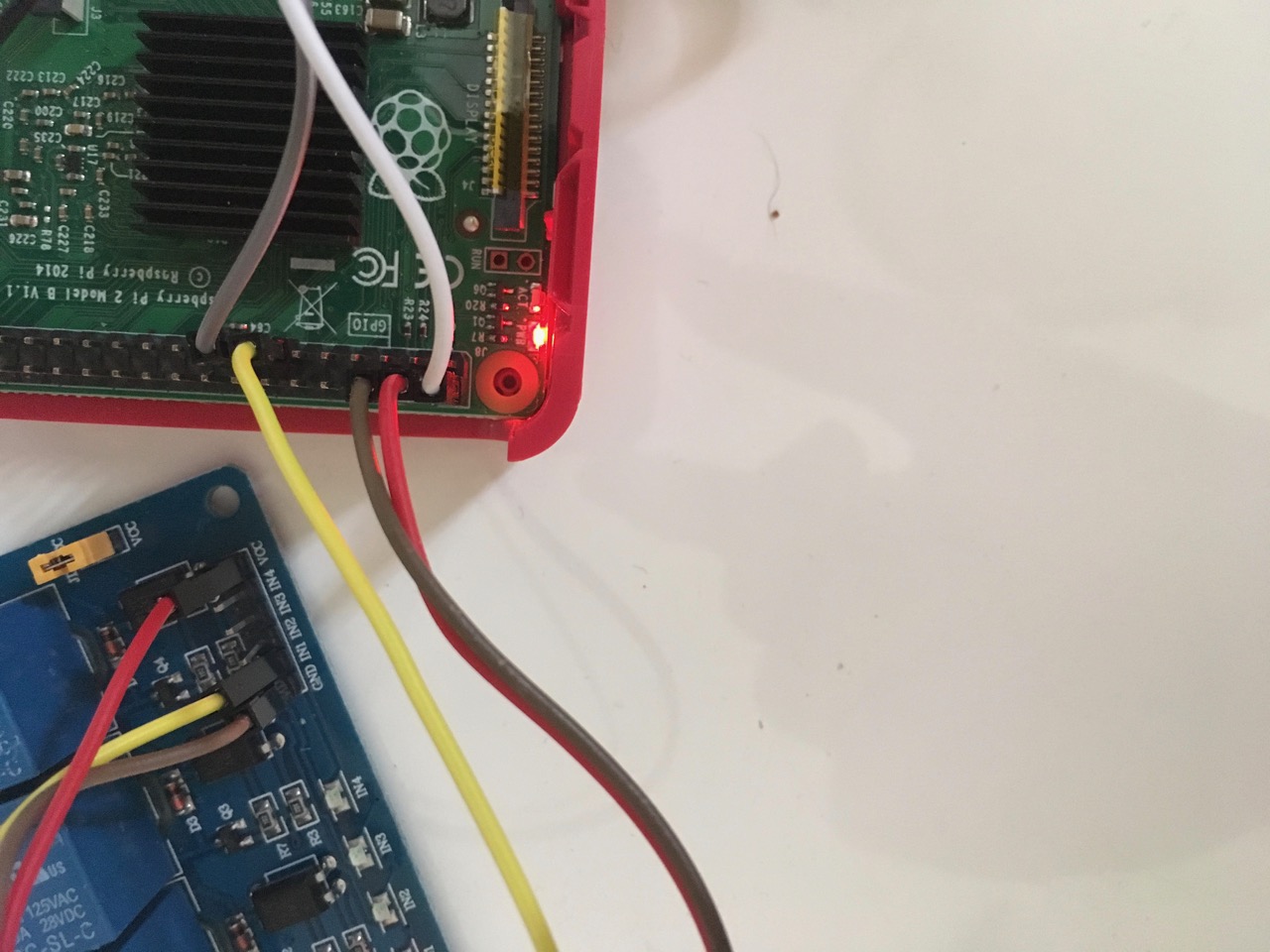
      In the script the BCM pin 22 is used for the PIR. This is GPIO 3 and physically it is pin 15.

      Please check if your pir is connected correctly.

      Edit:

      Oh, and take a look at your PIR. u can set the delay time from 0.3seconds up to 5 minutes. Maybe its set very high.
      For using the soloutions of this tutorial the PIR adjust time should be set very low, as u can set the time within the script :)
      https://www.mpja.com/download/31227sc.pdf

      posted in Tutorials
      cruunnerrC
      cruunnerr
    • RE: One more change hopefully

      i am not sure because i just know what i needed by myself yet ^^, but try this:

      header {
          color: #fff;
          font-size: 30px;
      }
      

      take a look at the main.css
      U can see all variables and maybe put them together to your custom.css as u wish :)

      https://github.com/MichMich/MagicMirror/blob/master/css/main.css

      posted in General Discussion
      cruunnerrC
      cruunnerr
    • RE: show integer logs from python script as diagram in MM ?

      @doubleT

      Hey mate,

      tried your module and it works :D

      So atm i am using the python script to write the results to the mysql database. 2 minutes later runs a node app, which creates a JSON file and put that to my NAS.
      Your module grabs this JSON every hour and shows the results on my mirror :)
      For me the next step is to let the python script directly write a JSON file, but i need to find a solution for that.

      I appreciate with your ToDo list.
      It would be cool to set more things in the default config part. Things like refreshTime, high and width and if the chart will show dynamically or static. Last thing means, if the chart will show on the left side the scale from fix points (e.g. min. 0 Litre and max. 3000 Litre) or if it will show the scale depending on the last datas from the JSON (like atm).
      Just a thought… ^^

      And a very cool killer feature would be, to calculate the date, when the tank will be totally empty depending on the consumption from the last 100 days or something like that. But i think that would be too much. :D

      Anyhow i am just brainstorming. U did a great work, which i can directly use for my mirror and you have my greatest respect. Thank you and please let me know when i can help u with your ToDo list ^^

      So now i will take a look on your codes and try to understand what you did XD

      posted in Requests
      cruunnerrC
      cruunnerr
    • RE: {HowTo} turn on/off your monitor (Time based, PIR/Button, App)

      again one step closer :D

      put in the content and save with “ctrl+x” and “y”

      try everything agin and report if u got trouble again :)

      edit:

      oh sorry. Aren’t we using “screen_on/off”?? :D

      so try

      sh screen_off.sh should show a black screen (not turning HDMI off)
      sh screen_on.sh should disable the black screen.

      posted in Tutorials
      cruunnerrC
      cruunnerr
    • RE: Modifying Magic Mirror for a gift...

      In my opinion the most user friendly way is a PIR sensor ^^
      Or u just install a button :)

      posted in Troubleshooting
      cruunnerrC
      cruunnerr
    • RE: My First Mirror... until now ^^

      @doubleT said in My First Mirror... until now ^^:

      The rest is a little bit too much “screen” (as opposed to mirror) for me, but I can see the appeal.

      i know what you mean ^^
      But since i found out how many things can be shown with the MM, i couldn’t let it be :D
      Maybe the background is “too much”, but i like it anyhow XD
      but if i turn on the room lights, its bright enough to use it as a mirror :P

      posted in Show your Mirror
      cruunnerrC
      cruunnerr
    • RE: Basic Core System of Magicmirror

      @yours.mukul said in Basic Core System of Magicmirror:

      As i have to explain it to my teacher

      I am very sure that the community would answer specifically question, if u have some. But to do your homework, i think that is too much.
      As i couldn’t explain you how all that works, i am pretty sure the explanation would be much too long and no one would sacrifice his free time for that.

      Sorry bro

      posted in Tutorials
      cruunnerrC
      cruunnerr
    • RE: Mirror turning black after a while

      @retroflex

      the wifi on the RPi 3 is not the best. So i installed an automatically wifi_rebooter here. U could try that as well: http://alexba.in/blog/2015/01/14/automatically-reconnecting-wifi-on-a-raspberrypi/

      in my case my Pi pings my router address every 3 minutes and when it cannot reach it, it reboots it’s wifi itself.

      For your other problem u could try “nmon”.

      sudo apt-get install nmon

      start it by simply typing nmon

      when it starts u can type letters to choose what u want it to show. with “t, l, m, c” it will show u “top processes”, “long therm CPU usage”, “memory usage” and “actual CPU usage”

      posted in Troubleshooting
      cruunnerrC
      cruunnerr
    • 1 / 1