
MagicMirror Forum
    • Recent
    • Tags
    • Unsolved
    • Solved
    • MagicMirror² Repository
    • Documentation
    • 3rd-Party-Modules
    • Donate
    • Discord
    • Register
    • Login
    1. Home
    2. KirAsh4
    3. Posts
    A New Chapter for MagicMirror: The Community Takes the Lead
    Read the statement by Michael Teeuw here.
    Offline
    • Profile
    • Following 0
    • Followers 26
    • Topics 32
    • Posts 773
    • Groups 1

    Posts

    Recent Best Controversial
    • RE: Really NOOB Question. Stopping Magic Mirror App

      Alternatively, rather than working ON the Raspberry Pi itself, consider using a different computer (like the one you’re sitting at now, to post questions on the forum) to remotely SSH into the Raspberry Pi. Then you don’t have to worry about needing to get back to the desktop on the rPi to do anything. You can trigger everything remotely.

      My rPi is setup so that MagicMirror will come up automatically when it reboots (please read the installation instructions on how to do this.) It does not have neither a keyboard nor mouse that are active on it (with that I mean, the wireless dongle is plugged in, but the keyboard and mouse are turned off, I don’t need them.) If I need to restart the process, or update files, from my windows machine, I use a program called SecureCRT to remotely log into the rPi with SSH. You can use something else, like PuTTY. Note that this is text-only, not a graphical interface. Once logged in, I can do anything/everything from the command line that I would do if I was logged onto the rPi itself with its keyboard and mouse.

      If you really want a desktop environment (I really don’t know why), you can setup VNC on the rPi, and use that to connect. On the Windows side, you can use a free version of RealVNC client to connect to the rPi and you have a desktop.

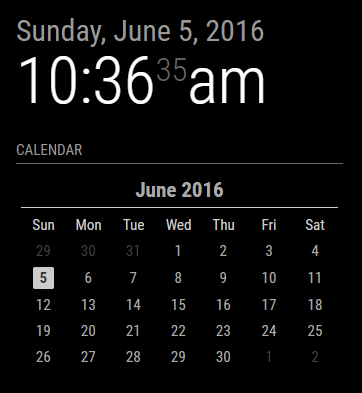
      Side note: having the rPi on the same network means that together with the display that’s connected on the rPi, I can also launch another instance of MagicMirror on my Windows machine simply by going to 'http://myrpi_address:MM_port', for example, 'http://10.0.0.1:8080' (assuming the rPi is at that address.) This allows me to write code and hit refresh on my browser which instantly refreshes, as opposed to constantly restarting the actual process on the rPi. It also allows me to compare. The instance running on the rPi is completely unaffected by the refreshes done on the local browser. So I can make a change, refresh locally, and compare the two, one local, and the other on the rPi’s display. Works great.
      posted in Troubleshooting
      KirAsh4K
      KirAsh4
    • RE: NPM ERR!

      From here, you need to follow the configuration section: https://github.com/MichMich/MagicMirror#configuration

      You can start by simply renaming the file from 'config.js.sample' to 'config.js' and restart the MagicMirror process. After that, you can start playing with the config file, disabling or (re)enabling modules, adding new ones … this is what you get to play with it.

      posted in Troubleshooting
      KirAsh4K
      KirAsh4
    • Prereqs on your Raspberry Pi!

      I’m seeing several posts where folks say they are new to programming, or new to the hardware. I see errors that indicate software may be out of date … All in all, it’s essential that we all keep the Raspberry Pi itself up to date. With that in mind, some house chores everyone should perform every once in a while - I do it once a week, others do it more often:

      Keeping your Raspberry Pi distribution up to date - also applicable for those setting up their Raspberry Pis for the first time!
      Please note, this is entirely separate from MagicMirror itself! This is strictly maintenance on the Raspberry Pi itself!
      To update the actual operating system and the various software packages that are installed, run the following commands:
      'sudo apt-get update' followed by 'sudo apt-get upgrade' (or you can combine both into one as 'sudo apt-get update; sudo apt-get upgrade')
      The first one updates the mirror list of where those packages are on the internet. Each maintainer will have their own repository, so the list has to be updated before you attempt to run an upgrade. The upgrade command then lists all of the packages that need to be upgraded. It does this by comparing what version you have, and what version the current released one is. Unless you see errors, it will ask if it’s ok to download and install the updates. You would want to say yes. :) Why do we want to do this? Most package updates are due to some fault, error, or security issue discovered after it was originally released. So you want to stay up to date.

      Another command to follow up with is 'sudo rpi-update'. This updates the core firmware on the Raspberry Pi. In some cases, when you perform an 'apt-get upgrade', it will trigger the 'rpi-update' as well, however that’s not always the case. I make it a habit to run it every time (and so far, every time I did so, there was firmware that needed upgrading.) The firmware is specific to the actual hardware itself. You want to do this.

      Occasionally when you run the upgrade command, you might see a note about packages no longer needed which you can remove by typing in 'sudo apt-get autoremove' after the upgrade is done. This will remove software packages that aren’t needed anymore. It happens …

      After this, you’ll want to restart your Raspberry Pi with a short and easy 'sudo reboot' command. It will restart, refresh its core files, and boot back up like it normally would. Life is good.

      Make it a habit to do this on a regular basis. Whether once a week, once every other week, just make a habit of checking every so often.

      Keeping your MagicMirror installation up to date with the current releases
      Every once in a while, a new version will get pushed out onto GitHub. A post will be made on the forum with the CHANGELOG comments of what has been added, fixed, enhanced, and hopefully never broken, although I have seen that happen. When a new release gets pushed out, you’d want to update your local installation.

      First, log into your Raspberry Pi. Change to the MagicMirror folder: 'cd MagicMirror', and then type in 'git pull'. This will compare your local installation with the master repository and download any new files into your installation. If all goes well, you can issue the command 'pm2 restart <YOUR_MM_TASKNAME>' and your MagicMirror will restart with the updated files.

      DISCLAIMER: We are not responsible if you light your house on fire because your Raspberry Pi decided to go BOOM. :) Honestly, I’ve never had any of my micros do that in the years that I’ve been working with them … treat them right, keep them updated and happy, and they last for ages.

      NOW GO PLAY!

      posted in Hardware
      KirAsh4K
      KirAsh4
    • RE: NPM ERR!

      If you’re running this while logged in to the rPi (through the console), then you don’t need the 'DISPLAY=:0' part. However, something to note: if you are logged into the rPi from the console (so you have a keyboard connected that you are logging in to it), the moment you run 'npm start' and it successfully starts MM, you lose the ability to use anything else. There are keyboard shortcuts that you can hit to get back to the console but someone else will have to tell you those as I don’t know them off the top of my head.

      Ideally you would be connected to the rPi through a different machine on the same network. So you would SSH into the rPi, log in as the 'pi' user, and then you DO need to set the display: 'DISPLAY=:0' portion - note that it’s case specific!

      So, to recap, yes to what you listed above, with the small caveat on #3.

      posted in Troubleshooting
      KirAsh4K
      KirAsh4
    • RE: NPM ERR!

      A couple of things are standing out from that screen grab:

      • You need to update your Raspbian installation by running 'sudo apt-get update ; sudo apt-get upgrade'
      • You appear to have an installation already for MagicMirror. If this was your failed one, go ahead and delete it and start over. All you need to do is run the automatic installer which takes care of checking and installing missing packages
      • At the bottom of your screen, where it says 'no such file or directory, open /home/pi/package.json', that’s because you are trying to start MM outside of its folder. You need to do that inside of it.

      My recommended steps:

      • Remove the current MagicMirror folder that you have: 'sudo rm -rf MagicMirror'
      • Run the automatic installer script, 'curl -sL https://raw.githubusercontent.com/MichMich/MagicMirror/master/installers/raspberry.sh | bash'
      • When that finishes, change folder into the MagicMirror one: 'cd MagicMirror'
      • Try running it from there: 'npm start'

      If that fails, try running an 'npm install' in case, for some weird reason, something didn’t install. When that’s done running, try running 'npm start' again. At this point, either MM will come up telling you that you need to create a configuration, or it will, once again, fail. If it’s the latter, capture the screen and post it.

      posted in Troubleshooting
      KirAsh4K
      KirAsh4
    • RE: Getting rid of compliments randomizer

      You’ll have to write your own code. The compliments module only does random.

      posted in Troubleshooting
      KirAsh4K
      KirAsh4
    • RE: Monthly Calendar View

      It won’t be the “default” style, but the config will set it as 'default'. The reason is because the actual 'styleDefault.css' file needs to be clean and not have anything in it other than setting the proper margin, padding, and table/cell views for the calendar and it gets included always. Custom CSS files are pulled in on top of that. That way, the user doesn’t need to set any of that themselves, but rather just over ride what they want with their own styles. So I can have a 'styleMichMich' [*] that I can set as the default style to have today highlighted in a white box.

      [*] actual name to be determined still …

      Never mind, went a slightly different route …

      posted in Requests
      KirAsh4K
      KirAsh4
    • RE: Weatherforecast Wunderground module question

      There shouldn’t be any reason to edit 'defaultmodules.js', that’s only specific to the default modules that MM comes with. Any modules that you install does not go in the default folder, but simply in MagicMirror/modules/<module_name> …

      posted in Development
      KirAsh4K
      KirAsh4
    • RE: Monthly Calendar View

      Oh I suppose …
      0_1465144698937_block.png

      Keep in mind that the styling can be changed by the user to whatever they want it to look like. The sky isn’t the limit … it’s their imagination. :)

      posted in Requests
      KirAsh4K
      KirAsh4
    • RE: Monthly Calendar View

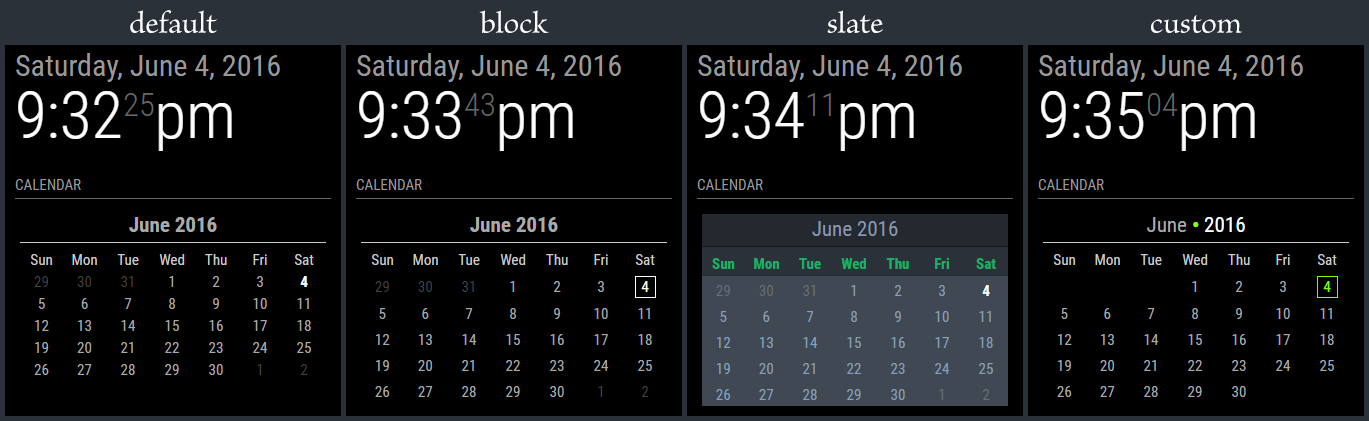
      I can spend days coming up with style ideas, but I think I’m done fiddling with this. It’s time to move on to the next step in the process. I’m cleaning up the branches on GitHub and getting ready to open the flood gates. In the mean time, here’s the 4 styles that I’m including. Note that the ‘slate’ style is really meant for people who have a mirror-less display as the colors probably won’t show very well through a 2-way mirror.

      • The calendar is language aware, meaning it will translate to your language setting.
      • The calendar will automatically start on either Monday or Sunday depending on your language setting.
      • The header (month and year) can be suppressed (not shown) if desired.
      • Customization can be done through the custom CSS file
      • Current day is highlighted through CSS styling.
      • Probably more stuff I forget at the moment … I’ll have it all written out in the README file, including the full styling tree.

      0_1465100367184_calStyles.png

      posted in Requests
      KirAsh4K
      KirAsh4
    • 1
    • 2
    • 54
    • 55
    • 56
    • 57
    • 58
    • 77
    • 78
    • 56 / 78