MagicMirror Forum
    • Recent
    • Tags
    • Unsolved
    • Solved
    • MagicMirror² Repository
    • Documentation
    • 3rd-Party-Modules
    • Donate
    • Discord
    • Register
    • Login
    A New Chapter for MagicMirror: The Community Takes the Lead
    Read the statement by Michael Teeuw here.

    Default Weather Module Icon Position

    Scheduled Pinned Locked Moved Solved Troubleshooting
    38 Posts 4 Posters 14.7k Views 4 Watching
    Loading More Posts
    • Oldest to Newest
    • Newest to Oldest
    • Most Votes
    Reply
    • Reply as topic
    Log in to reply
    This topic has been deleted. Only users with topic management privileges can see it.
    • S Offline
      svenpisa
      last edited by

      Hey guys, me again. I’m currently trying to soak up everything in the forum but can’t quite get any further.
      I’ve already worked through the forum entry https://forum.magicmirror.builders/topic/7227/changing-icons-of-the-modules-current-weather-and-weather-forecast/24?page=3 but I’m making a mistake somewhere.
      An entry in Config.js looks like this:

      		{
      			module: "weather",
      			//  classes: "forecast",
      			position: "top_right",
      			header: "Wettervorschau",
      			config: {
      				weatherProvider: "openweathermap",
      				type: "forecast",
      				location: "Hamburg",
      				locationID: "29112xx", //ID from http://bulk.openweathermap.org/sample/city.list.json.gz; unzip the gz file and find your city
      				apiKey: "c64bb3321848fe4e7616335xxxxxxx"
      			}
      		},
      		{
      			module: "weather",
      			//  classes: "wetter",
      			position: "top_center",
      			config: {
      				weatherProvider: "openweathermap",
      				type: "current",
      				location: "Hamburg",
      				locationID: "29112xx", //ID from http://bulk.openweathermap.org/sample/city.list.json.gz; unzip the gz file and find your city
      				apiKey: "c64bb3321848fe4e7616335xxxxxxx"
      			}
      		},
      

      Additionally my entries in the Custom.css

      .weather .weathericon {
      position: absolute;	// absolute
      z-index: 0;
      height: 200px;
      right: 180px;
      margin-top: -65px; 
      padding-left: 60px;
      padding-top: 30px;
      height: 50px;
      }
      
      .weather .wi-day-sunny {
      content: url("/css/icons/day.svg");
      }
      
      .weather .wi-day-cloudy {
      content: url("/css/icons/cloudy-day-1.svg");
      }
      
      .weather .wi-rain {
      content: url("/css/icons/rainy-6.svg");
      }
      
      .weather .wi-night-clear {
      content: url("/css/icons/night.svg");
      }
      
      .weather .wi-night-cloudy {
      content: url("/css/icons/cloudy-night-2.svg");
      padding-right: 15px;
      padding-top: 10px;
      }
      
      .weather .wi-cloudy {
      content: url("/css/icons/cloudy.svg");
      }
      
      .weather .wi-showers {
      content: url("/css/icons/rainy-7.svg");
      }
      
      .weather .wi-thunderstorm {
      content: url("/css/icons/thunder.svg");
      }
      
      .weather .wi-snow {
      content: url("/css/icons/snowy-6.svg");
      }
      
      .weather .wi-cloudy-windy {
      content: url("/css/icons/cloudy-day-3.svg");
      }
      
      .weather .wi-night-rain {
      content: url("/css/icons/rainy-6.svg");
      }
      
      .weather .wi-night-snow {
      content: url("/css/icons/snowy-6.svg");
      }
      
      .weather .wi-night-thunderstorm {
      content: url("/css/icons/thunder.svg");
      }
      
      .weather .wi-night-showers {
      content: url("/css/icons/rainy-7.svg");
      }
      
      .weather .wi-fog {
      content: url("/css/icons/cloudy.svg");
      }
      
      .weather .wi-night-alt-cloudy-windy {
      content: url("/css/icons/cloudy-night-1.svg");
      }
      
      /* Aenderungen Wettervorhersage */
      
      .weather .weathericon {
      position: absolute;	/absolute
      left: 35px;
      z-index: 1;
      margin-top: -30px;	
      }
      	
      .weather .wi-day-sunny {
      content: url("/css/icons/day.svg");
      padding-left: 6px;
      padding-top: 5px;
      height: 50px;
      }
      
      .weather .wi-day-cloudy {
      content: url("/css/icons/cloudy-day-1.svg");
      }
      
      .weather .wi-rain {
      content: url("/css/icons/rainy-6.svg");
      padding-left: 8px;
      padding-top: 5px;
      height: 45px;
      }
      
      .weather .wi-night-clear {
      content: url("/css/icons/night.svg");
      }
      
      .weather .wi-night-cloudy {
      content: url("/css/icons/cloudy-night-2.svg");
      height: 50px;
      padding-left: 5px;
      padding-top: 7px;
      }
      
      .weather .wi-cloudy {
      content: url("/css/icons/cloudy.svg");
      }
      
      .weather .wi-showers {
      content: url("/css/icons/rainy-7.svg");
      }
      
      .weather .wi-thunderstorm {
      content: url("/css/icons/thunder.svg");
      }
      
      .weather .wi-snow {
      content: url("/css/icons/snowy-6.svg");
      }
      
      .weather .wi-cloudy-windy {
      content: url("/css/icons/cloudy-day-3.svg");
      height: 45px;
      padding-left: 8px;
      padding-top: 7px;
      }
      
      .weather .wi-night-rain {
      content: url("/css/icons/rainy-6.svg");
      padding-left: 8px;
      padding-top: 5px;
      height: 45px;
      }
      
      .weather .wi-night-snow {
      content: url("/css/icons/snowy-6.svg");
      }
      
      .weather .wi-night-thunderstorm {
      content: url("/css/icons/thunder.svg");
      }
      
      .weather .wi-night-showers {
      content: url("/css/icons/rainy-7.svg");
      }
      
      .weather .wi-fog {
      content: url("/css/icons/cloudy.svg");
      }
      
      .weather .wi-night-alt-cloudy-windy {
      content: url("/css/icons/cloudy-night-1.svg");
      height: 50px;
      padding-left: 5px;
      padding-top: 7px;
      }
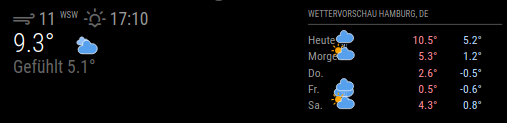
      

      d06de720-b1df-4a8c-bef1-d6181d6637bf-image.png

      I mean that I customized the icons in wether.css (I don’t think you’re supposed to do that, are you?)

      1. what do I have to change so that the icons are nicely arranged in the right row and exactly in the middle between the days and the temperature? (and for “Current” nice beside temperature)
        1. how can I separate the Forecast and Current icons? So what should the entry in Custom.css look like?
      2. I would have guessed the following
      .weather .current .weathericon 
      

      (is not currently entered in the css)

      1. and I would also like the icon size of “Current” to be larger than that of “forecast”
        I would be happy if you could take me by the hand and help me here

      And last question: I started the developer mode as described in the documentation https://forum.magicmirror.builders/topic/6808/css-101-getting-started-with-css-and-understanding-how-css-works
      How can I close this developer mode again so that the MM is displayed on my external monitor?
      For information: I have the MM with a Raspi on an external monitor and access it via remote desktop. If I start the developer mode and then just close it I have the MM on my laptop monitor. But I would like to have it on my external monitor again…

      Phew… so many questions…

      S 2 Replies Last reply Reply Quote 0
      • S Offline
        sdetweil @svenpisa
        last edited by sdetweil

        @svenpisa last question

        to close the dev console is the same keyboard as opening ctrl-shift-i, it’s a toggle…

        also if u can see it, there is a close button top right on the developers window

        never modify the module or mm files. it will break updates…

        so, now separate the css changes back into custom.css,

        and then restore the original file

        cd ~/MagicMirror
        git checkout modules/default/weather/weather.css
        

        you need some unique identifier. was easy when the modules were different names…but still easy

        you can Assign an arbitrary string to be associated with a module, by using the classes property.

        module: "...",
        classes:"current", 
        

        classes is a space separated list of tokens that will be added to the class setting for the module content, and then you can use that in custom.css

        .current  /* note the dot meaning class */
        

        Sam

        How to add modules

        learning how to use browser developers window for css changes

        S 1 Reply Last reply Reply Quote 0
        • S Offline
          sdetweil @svenpisa
          last edited by sdetweil

          @svenpisa developers window.

          you can only close it on the browser it is showing on.

          so, don’t start mm w it open
          you don’t need to remote desktop in, just use a browser to the IP address and port

          use developers window there til you get what you want in custom.css on that browser (just refresh the browser page after editing the file)

          then restart the mm system so it’s page will show the updates

          to get remote browser to work, need to allow remote systems to connect

          in config.js

          address:"0.0.0.0",
          ipWhitelist:[],
          

          by default mm is setup to be on the wall, self contained, no external incoming access.

          Sam

          How to add modules

          learning how to use browser developers window for css changes

          1 Reply Last reply Reply Quote 0
          • S Offline
            svenpisa @sdetweil
            last edited by

            I have reset the weather.css again. Fits so far.
            I think I have also understood the module and classes.
            So if I have the following

            			module: "weather",
            			classes: "forecast",
            

            then I would have to enter it in the custom.css as follows?

            .weather .forecast

            Unfortunately, I have not yet understood how to access it via browser.
            Exactly! The MM should hang on the wall, but if I want to make changes, I want to access the Raspi / MM via WLAN and make the changes via my laptop and since I am not a programmer and like to have everything visually, I would like to mirror the MM or the OS on my laptop screen and preferably make the changes via the “Geany” tool.
            How exactly should I enter it in the browser?
            I have tried it with IP and port, but only get an error message. I have also tried with the WLAN IP and port, but also without success.

            	address: "0.0.0.0",
            	port: 8080,
            

            Thanks in advance

            S 3 Replies Last reply Reply Quote 0
            • S Offline
              sdetweil @svenpisa
              last edited by

              @svenpisa said in Default Weather Module Icon Position:

              then I would have to enter it in the custom.css as follows?
              .weather .forecast

              no… just

              .forecast
              

              that overrides .weather

              Sam

              How to add modules

              learning how to use browser developers window for css changes

              1 Reply Last reply Reply Quote 0
              • S Offline
                sdetweil @svenpisa
                last edited by

                @svenpisa said in Default Weather Module Icon Position:

                address: “0.0.0.0”,
                port: 8080,

                ok, and ipWhitelist:[], too, right?? this restricts incoming request to JUST the addresses listed… by default this was JUST the loopback address (localhost), again ONLY inside this machine…

                so, the first two mean,

                listen for incoming connections on all network interfaces (image ethernet and wifi active, you can restrict to just one by using the actual ip address assigned, OR allow connections on BOTH without having to know the assigned addresses)…

                and the the port 8080…

                you used remote connection to the PI… use the same address in the browser

                http://pi_ip_address(or name):8080
                

                on my current mac connecting to raspberry pi 5
                I can use

                http://raspberrypi5:8080 
                

                or

                http://192.168.12.121:8080
                

                Sam

                How to add modules

                learning how to use browser developers window for css changes

                S 1 Reply Last reply Reply Quote 0
                • S Offline
                  sdetweil @svenpisa
                  last edited by sdetweil

                  @svenpisa said in Default Weather Module Icon Position:

                  Exactly! The MM should hang on the wall, but if I want to make changes, I want to access the Raspi / MM via WLAN and make the changes via my laptop and since I am not a programmer and like to have everything visually, I would like to mirror the MM or the OS on my laptop screen and preferably make the changes via the “Geany” tool.

                  i strongly recommend installing Winscp or Bitvise ssh clients on your windows machine. (both free)

                  these will give you BOTH the ssh window (for commands, installing updates and modules) AND a file manager window over the PI files (for editing files). Then you can double click to edit ON YOUR PC, with your PC EDITOR, and auto save back to the pi…

                  bitvise ALSO provides a window for drag/drop to copy files in either direction
                  great for copying log files from the pi…

                  i use notepad++ on my windows machine for editing but you can use visual studio code or whatever text editor you like… they don’t know the file is over ssh…

                  I NEVER edit ON the pi itself… only over ssh, and use one of the visual tools when I need to …

                  Sam

                  How to add modules

                  learning how to use browser developers window for css changes

                  S 1 Reply Last reply Reply Quote 0
                  • S Offline
                    svenpisa @sdetweil
                    last edited by

                    Thanks @sdetweil
                    It works… Was my mistake… i took a / instead of : between ip and port…
                    Looks great now.
                    Last question for that… Have you got a link for a tutorial how to use the developer mode?

                    S 1 Reply Last reply Reply Quote 0
                    • S Offline
                      svenpisa @sdetweil
                      last edited by

                      @sdetweil i installed Bitvise now. The first view looks good… i will try it the next days!

                      1 Reply Last reply Reply Quote 0
                      • S Offline
                        sdetweil @svenpisa
                        last edited by sdetweil

                        @svenpisa learn developers window

                        see
                        https://forum.magicmirror.builders/post/90135

                        and a little here
                        https://forum.magicmirror.builders/topic/7227/changing-icons-of-the-modules-current-weather-and-weather-forecast/290?_=1707252488912

                        Sam

                        How to add modules

                        learning how to use browser developers window for css changes

                        1 Reply Last reply Reply Quote 0
                        • Z Offline
                          ZiggidyZ
                          last edited by

                          Personally I use putty and do everything over command line. On my PC I use Notepad++ for working on files as well, then will copy and paste over to the ssh session.

                          S 1 Reply Last reply Reply Quote 0
                          • S Offline
                            sdetweil @ZiggidyZ
                            last edited by

                            @ZiggidyZ yeh, I used to do that too.

                            then I have 10 systems I work on, got to be too much copying.

                            Sam

                            How to add modules

                            learning how to use browser developers window for css changes

                            1 Reply Last reply Reply Quote 0
                            • S Offline
                              svenpisa
                              last edited by

                              Thank you guys for your tips and help. Now I only have one issue left.

                              How do I get the icons in the right place?
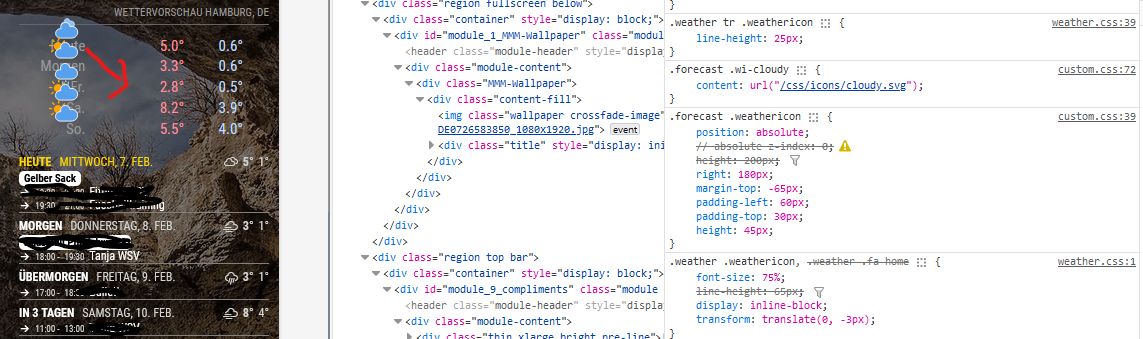
                              9fd7ed16-6ef7-47a5-84d6-29b73b951ab6-image.png

                              S 1 Reply Last reply Reply Quote 0
                              • S Offline
                                sdetweil @svenpisa
                                last edited by

                                @svenpisa I don’t understand. you have mmm-wallpaoer selected, but weather icons in class list

                                Sam

                                How to add modules

                                learning how to use browser developers window for css changes

                                S 1 Reply Last reply Reply Quote 0
                                • S Offline
                                  svenpisa @sdetweil
                                  last edited by

                                  @sdetweil I had taken the section to see the Custom.css and weather.css on the right side. Shouldn’t the wallpaper actually be displayed?

                                  S 1 Reply Last reply Reply Quote 0
                                  • S Offline
                                    sdetweil @svenpisa
                                    last edited by

                                    @svenpisa as I said, confused.

                                    in custom.css do

                                    html {
                                       cursor: default;
                                    }
                                    

                                    to turn on the mouse pointer over the mm content

                                    then easier to see to select correct content

                                    Sam

                                    How to add modules

                                    learning how to use browser developers window for css changes

                                    S 1 Reply Last reply Reply Quote 0
                                    • S Offline
                                      svenpisa @sdetweil
                                      last edited by

                                      @sdetweil said in Default Weather Module Icon Position:

                                      html {
                                      cursor: default;
                                      }
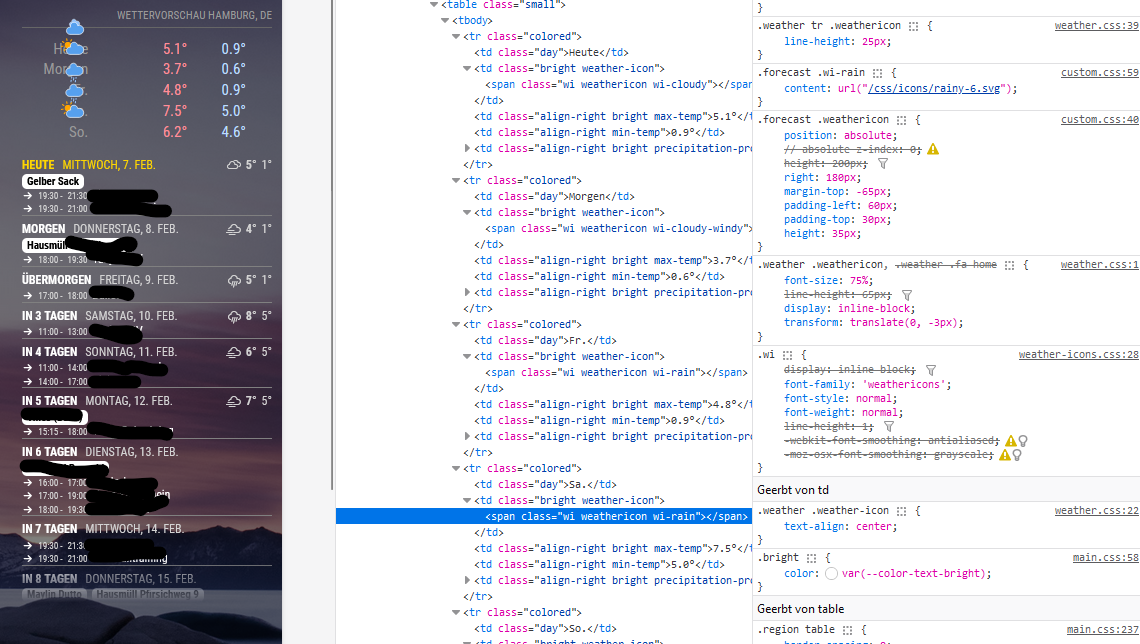
                                      9e5c80d4-5f63-48e4-a5b4-1149ff8a8384-image.png

                                      Is the screenshot better?

                                      S 1 Reply Last reply Reply Quote 0
                                      • S Offline
                                        sdetweil @svenpisa
                                        last edited by

                                        @svenpisa yes, better.

                                        so that stuff for .weathericon from custom.css, I would click off each and see the effect.

                                        as you mouse over the settings in the right column a checkbox will appear, that u can check to disable a setting

                                        note .weather-icon applies to ALL of the icons.

                                        the css selector clause (stuff before the {) WILL ALWAYS match every such item on the page. you can make it more specific to get fewer elements.

                                        Sam

                                        How to add modules

                                        learning how to use browser developers window for css changes

                                        1 Reply Last reply Reply Quote 0
                                        • S Offline
                                          svenpisa
                                          last edited by

                                          Thank you very much for your help.
                                          I first had to read through your messages at my leisure and at the same time I tried to understand the messages parallel to the developer tool.

                                          And lo and behold, it worked.

                                          0e90df8a-da41-4c3f-b2b7-c4d7e5436f24-image.png

                                          I have now split the weather module into two classes.

                                          		{
                                          			module: "weather",
                                          			classes: "forecast",
                                          			position: "top_right",
                                          			header: "Wettervorschau",
                                          			config: {
                                          				weatherProvider: "openweathermap",
                                          				type: "forecast",
                                          				location: "Hamburg",
                                          				locationID: "2911xxx", //ID from http://bulk.openweathermap.org/sample/city.list.json.gz; unzip the gz file and find your city
                                          				apiKey: "c64bb3321848fe4e76163xxxxxxxxxc"
                                          			}
                                          		},
                                          		{
                                          			module: "weather",
                                          			classes: "wetter",
                                          			position: "top_center",
                                          			config: {
                                          				weatherProvider: "openweathermap",
                                          				type: "current",
                                          				location: "Hamburg",
                                          				locationID: "2911xxx", //ID from http://bulk.openweathermap.org/sample/city.list.json.gz; unzip the gz file and find your city
                                          				apiKey: "c64bb3321848fe4e76163xxxxxxxxx"
                                          			}
                                          		},
                                          

                                          You could then play around really well with each class in the developer tool and then find the right position.

                                          For those who are interested. I have now made the following entries in the Custom.css so that it looks like this:

                                          .forecast .weathericon {
                                          position:absolute;	// absolute
                                          z-index: 0;
                                          height: 200px;
                                          right: 120px;
                                          margin-top: -65px; 
                                          padding-left: 60px;
                                          padding-top: 50px;
                                          height: 35px;
                                          }
                                          
                                          .forecast .wi-day-sunny {
                                          content: url("/css/icons/day.svg");
                                          }
                                          
                                          .forecast .wi-day-cloudy {
                                          content: url("/css/icons/cloudy-day-1.svg");
                                          }
                                          
                                          .forecast .wi-rain {
                                          content: url("/css/icons/rainy-6.svg");
                                          }
                                          
                                          forecast .wi-night-clear {
                                          content: url("/css/icons/night.svg");
                                          }
                                          
                                          .forecast .wi-night-cloudy {
                                          content: url("/css/icons/cloudy-night-2.svg");
                                          padding-right: 15px;
                                          padding-top: 10px;
                                          }
                                          
                                          .forecast .wi-cloudy {
                                          content: url("/css/icons/cloudy.svg");
                                          }
                                          
                                          .forecast .wi-showers {
                                          content: url("/css/icons/rainy-7.svg");
                                          }
                                          
                                          .forecast .wi-thunderstorm {
                                          content: url("/css/icons/thunder.svg");
                                          }
                                          
                                          .forecast .wi-snow {
                                          content: url("/css/icons/snowy-6.svg");
                                          }
                                          
                                          .forecast .wi-cloudy-windy {
                                          content: url("/css/icons/cloudy-day-3.svg");
                                          }
                                          
                                          .forescast.wi-night-rain {
                                          content: url("/css/icons/rainy-6.svg");
                                          }
                                          
                                          .forecast .wi-night-snow {
                                          content: url("/css/icons/snowy-6.svg");
                                          }
                                          
                                          .forecast .wi-night-thunderstorm {
                                          content: url("/css/icons/thunder.svg");
                                          }
                                          
                                          .forecast .wi-night-showers {
                                          content: url("/css/icons/rainy-7.svg");
                                          }
                                          
                                          .forecast .wi-fog {
                                          content: url("/css/icons/cloudy.svg");
                                          }
                                          
                                          .forecast .wi-night-alt-cloudy-windy {
                                          content: url("/css/icons/cloudy-night-1.svg");
                                          }
                                          
                                          /* Aenderungen Wettervorhersage */
                                          .wetter .weathericon {
                                          position: absolute;
                                          z-index: 1;
                                          margin-top: -33px;
                                          padding-top: 20px;
                                          left: 60px;	
                                          }
                                          	
                                          .wetter .wi-day-sunny {
                                          content: url("/css/icons/day.svg");
                                          padding-left: 6px;
                                          padding-top: 5px;
                                          height: 50px;
                                          }
                                          
                                          .wetter .wi-day-cloudy {
                                          content: url("/css/icons/cloudy-day-1.svg");
                                          }
                                          
                                          .wetter .wi-rain {
                                          content: url("/css/icons/rainy-6.svg");
                                          padding-left: 8px;
                                          padding-top: 5px;
                                          height: 45px;
                                          }
                                          
                                          .wetter .wi-night-clear {
                                          content: url("/css/icons/night.svg");
                                          }
                                          
                                          .wetter .wi-night-cloudy {
                                          content: url("/css/icons/cloudy-night-2.svg");
                                          height: 50px;
                                          padding-left: 5px;
                                          padding-top: 7px;
                                          }
                                          
                                          .wetter .wi-cloudy {
                                          content: url("/css/icons/cloudy.svg");
                                          }
                                          
                                          .wetter .wi-showers {
                                          content: url("/css/icons/rainy-7.svg");
                                          }
                                          
                                          .wetter .wi-thunderstorm {
                                          content: url("/css/icons/thunder.svg");
                                          }
                                          
                                          .wetter .wi-snow {
                                          content: url("/css/icons/snowy-6.svg");
                                          }
                                          
                                          .wetter .wi-cloudy-windy {
                                          content: url("/css/icons/cloudy-day-3.svg");
                                          height: 45px;
                                          padding-left: 8px;
                                          padding-top: 7px;
                                          }
                                          
                                          .wetter .wi-night-rain {
                                          content: url("/css/icons/rainy-6.svg");
                                          padding-left: 8px;
                                          padding-top: 5px;
                                          height: 45px;
                                          }
                                          
                                          .wetter .wi-night-snow {
                                          content: url("/css/icons/snowy-6.svg");
                                          }
                                          
                                          .wetter .wi-night-thunderstorm {
                                          content: url("/css/icons/thunder.svg");
                                          }
                                          
                                          .wetter .wi-night-showers {
                                          content: url("/css/icons/rainy-7.svg");
                                          }
                                          
                                          .wetter .wi-fog {
                                          content: url("/css/icons/cloudy.svg");
                                          }
                                          
                                          .wetter .wi-night-alt-cloudy-windy {
                                          content: url("/css/icons/cloudy-night-1.svg");
                                          height: 50px;
                                          padding-left: 5px;
                                          padding-top: 7px;
                                          }
                                          

                                          We can therefore close the entry here

                                          Thanks all again

                                          S 1 Reply Last reply Reply Quote 0
                                          • S Offline
                                            sdetweil @svenpisa
                                            last edited by

                                            @svenpisa awesome! thanks for the feedback.

                                            Sam

                                            How to add modules

                                            learning how to use browser developers window for css changes

                                            1 Reply Last reply Reply Quote 0

                                            Hello! It looks like you're interested in this conversation, but you don't have an account yet.

                                            Getting fed up of having to scroll through the same posts each visit? When you register for an account, you'll always come back to exactly where you were before, and choose to be notified of new replies (either via email, or push notification). You'll also be able to save bookmarks and upvote posts to show your appreciation to other community members.

                                            With your input, this post could be even better 💗

                                            Register Login

                                            • 1
                                            • 2
                                            • 1 / 2
                                            • First post
                                              Last post
                                            Enjoying MagicMirror? Please consider a donation!
                                            MagicMirror created by Michael Teeuw.
                                            Forum managed by Sam, technical setup by Karsten.
                                            This forum is using NodeBB as its core | Contributors
                                            Contact | Privacy Policy