@wizz
It’s automatic and already there! Try it and you’ll see.
Icons are selected based on mode of transport, it’s going to be one of bus, metro, rail or ferry.
A New Chapter for MagicMirror: The Community Takes the Lead
Read the statement by Michael Teeuw here.
Read the statement by Michael Teeuw here.
 Offline
Posts
-
RE: MMM-ResRobot - Public transport information for Sweden
-
RE: MMM-ResRobot - Public transport information for Sweden
@Advokaten
Do you mean that the name of the bus stop is misnamed on screen? Then you have to contact ResRobot to change it. -
RE: MMM-ResRobot - Public transport information for Sweden
@Advokaten
Strange, my mirror is running flawlessly. I’ll put in your config and see what happens. -
RE: MMM-ResRobot - Public transport information for Sweden
@MobbareKurtZ
By adding them as a comma-separated list, e.g.from: "12345,12346,12347", to: "54321,64321,74321"where each from and to pair specify an id for the departure and destination stops. If destination is not needed for a departure station, simply leave it empty like this:
from: "12345,12346,12347", to: "54321,,74321" -
RE: MMM-ResRobot - Public transport information for Sweden
@MobbareKurtZ
It all depends on the underlying ResRobot API but it sounds reasonable that ResRobot needs to know in what direction you are travelling.As the module only shows departures there is no need to specify a destination unless you want to limit the displayed departures to the ones going in that specific direction. In that case I would suggest to enter not the ultimate destination but rather the next “logical” stop such as point of transit between modes of transport.
-
RE: 3 tries 3 fails Raspberry b+
@infamoustiggr
I didn’t fiddle that much with the mirror pi. But ahead of that I’ve been doing quite some fiddling with Pis in general so I didn’t start from scratch.To help you with troubleshooting:
After installing DietPi and rebooting you are presented with the dietpi-software screen:
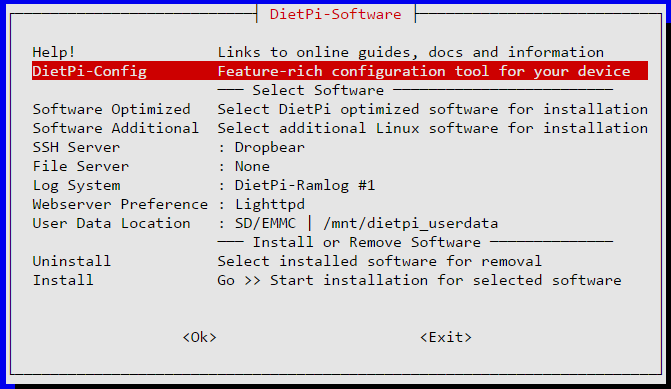
Look under “Software Optimized” and “Software Additional” and make sure that NONE of the options are selected, you want an install that is as clean as possible.
Under DietPi-Config make sure that Autostart is set to option 0 (default):
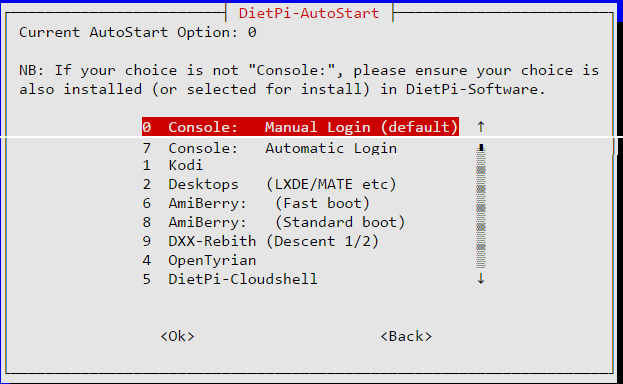
Change directory to /root and install MagicMirror according to instructions in the README.
Following my instructions above to install all systemd scripts and their helpers. My /root contains the following:
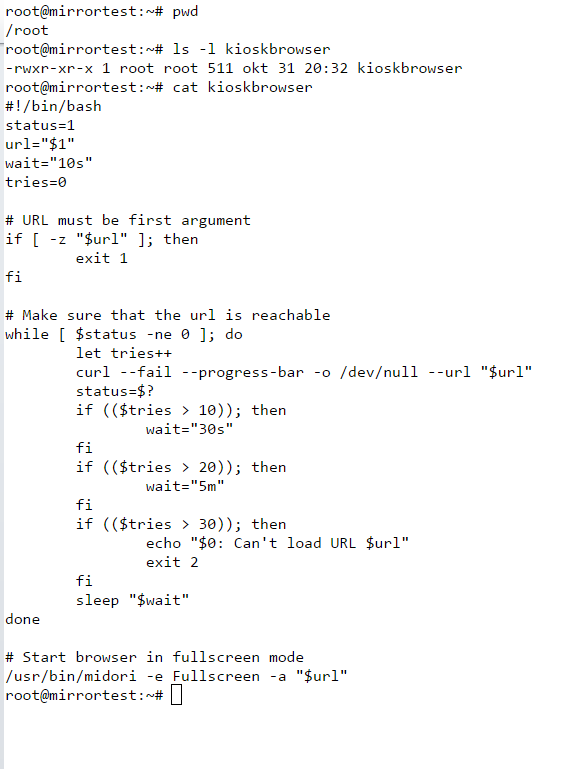
Stop magicmirror service (just to make sure it isn’t running) with the command:
systemctl stop magicmirror.serviceStart the magicmirror interactively by running
node serveronlyfrom the MagicMirror directory. You should see something similar to this:root@mirrortest:~/MagicMirror# node serveronly Starting MagicMirror: v2.1.1 Loading config ... Loading module helpers ... No helper found for module: alert. Initializing new module helper ... Module helper loaded: MMM-Remote-Control No helper found for module: clock. Initializing new module helper ... Module helper loaded: calendar Initializing new module helper ... Module helper loaded: MMM-WunderGround Initializing new module helper ... Module helper loaded: newsfeed Initializing new module helper ... Module helper loaded: MMM-ResRobot Initializing new module helper ... Module helper loaded: MMM-NetworkScanner All module helpers loaded. Starting server op port 80 ... Server started ... Connecting socket for: MMM-Remote-Control Starting node helper for: MMM-Remote-Control Connecting socket for: calendar Starting node helper for: calendar Connecting socket for: MMM-WunderGround MMM-WunderGround helper started ... Connecting socket for: newsfeed Starting module: newsfeed Connecting socket for: MMM-ResRobot Starting node_helper for module: MMM-ResRobot Connecting socket for: MMM-NetworkScanner Starting module: MMM-NetworkScanner Sockets connected & modules started ... Ready to go! Please point your browser to: http://localhost:80If any errors are shown, investigate them.
Now that MagicMirror is running it’s time to move on to the browser part.
Stop MagicMirror with ctrl+C and start the service withsystemctl start magicmirror.service.Make sure browser and matchbox are stopped by running the commands:
systemctl stop kioskbrowser.service
systemctl stop matchbox.service
Start matchbox with the command
systemctl start matchbox.service. Check that it started ok withsystemctl status matchbox.service. If not investigate.Once you get this far the “only” thing left to check is the midori browser. As you don’t have an X Display on the console it is slightly trickier. Let me know if/when you made it this far and we’ll take it from there.
-
RE: 3 tries 3 fails Raspberry b+
@johnnyboy
That’s technology development for you. Of course, in this case @infamoustiggr has the luxury of having someone with the exact same equipment already having the solution running.As to the speed issue, apart from taking a few extra seconds on boot, I have no issues whatsoever with speed for functionality on my Pi 1. But I must admit it took me a number of tries to get there! Doing it with little to no experience with Linux is really tough.
-
RE: 3 tries 3 fails Raspberry b+
@johnnyboy
Of course you could always buy a Pi 3 and not worry, but what’s the fun in that? It’s much more rewarding to make it run on a Pi 1! :-)@infamoustiggr
The first rule of troubleshopting is to eliminate all things that ARE working! What’s left must be the error.I would start with running all commands from the shell, i.e. do not create the systemd scripts, rather run the respective commands from the shell bybtyping them in, that way you will get feedback from each command.
The error messages you post do not have any context so it’s hard to know when they occur. From where did you cut the errors?
When installing raspbian or dietpi you should NOT install X or any desktop environment, the relevant packages will be installed when you install the other components.
-
RE: MMM-ResRobot - Public transport information for Sweden
@albertc
Not right now. This was a conscious decision on my part as the mirror updates fairly seldom. relative departure times would be showing the wrong info after one minute. -
RE: MMM-ResRobot - Public transport information for Sweden
One thing popped into my mind: the Pi 1 is much slower than a Pi 3 and loading all the modules takes quite some time. Could it be that you are trying to open midori before MagicMirror has loaded all the modules and therefore is refusing connections? That in itself was the reason I had to go with a script that checked that midori was listening before launching MagicMirror.
Have you checked with journalctl that magicmiror is ready for action?