MagicMirror Forum
    • Recent
    • Tags
    • Unsolved
    • Solved
    • MagicMirror² Repository
    • Documentation
    • 3rd-Party-Modules
    • Donate
    • Discord
    • Register
    • Login
    A New Chapter for MagicMirror: The Community Takes the Lead
    Read the statement by Michael Teeuw here.

    Trouble getting it to start

    Scheduled Pinned Locked Moved Troubleshooting
    23 Posts 5 Posters 17.9k Views 4 Watching
    Loading More Posts
    • Oldest to Newest
    • Newest to Oldest
    • Most Votes
    Reply
    • Reply as topic
    Log in to reply
    This topic has been deleted. Only users with topic management privileges can see it.
    • P Offline
      PhilsterM9 @in_a_days
      last edited by

      @in_a_days I’m not sure how to test it as I said before that I am fairly new to this.

      in_a_daysI 1 Reply Last reply Reply Quote 0
      • in_a_daysI Offline
        in_a_days @PhilsterM9
        last edited by in_a_days

        @PhilsterM9

        No worries, I did the same thing on my first install!

        If you made it this far you should be able to put a fresh copy of Raspbian on your SD Card. Once done, go to the terminal and:

        curl -sL https://raw.githubusercontent.com/MichMich/MagicMirror/master/installers/raspberry.sh | bash
        

        for a clean install of MM.

        Before it’s going to run, you need to rename/copy the config.js file. Hit the terminal and

        cd MagicMirror/config
        cp config.js.sample config.js
        

        That config.js file is going to be very important in customizing your mirror. Next:

        cd ..
        DISPLAY=:0 nohup npm start
        

        If your mirror software pops up without issue you’re in the clear and can proceed with the Configuration and Auto-Start stuff. But if you’ve got any issues at this point, it ought to be troubleshot before continuing with system changes.

        What ship would bear me ever back across so wide a Sea?

        P 3 Replies Last reply Reply Quote 0
        • P Offline
          PhilsterM9 @in_a_days
          last edited by

          @in_a_days I’ll clear my sd card and restart the process using your instructions here. I will let you know what happens, thanks!

          1 Reply Last reply Reply Quote 0
          • P Offline
            PhilsterM9 @in_a_days
            last edited by

            This post is deleted!
            1 Reply Last reply Reply Quote 0
            • P Offline
              PhilsterM9 @in_a_days
              last edited by

              @in_a_days Could you explain how to do the
              “cd MagicMirror/config
              cp config.js.sample config.js”
              I can’t get it to work because I don’t know how to do it

              in_a_daysI 1 Reply Last reply Reply Quote 0
              • in_a_daysI Offline
                in_a_days @PhilsterM9
                last edited by in_a_days

                @PhilsterM9

                You need to launch the Terminal to get to the command prompt. Same place from which you launched the MM installer. If you type:

                cd MagicMirror/config

                you should see that you’ve changed directories. Then type:

                cp config.js.sample config.js

                That’s it. MM should be ready to launch.

                What ship would bear me ever back across so wide a Sea?

                P 1 Reply Last reply Reply Quote 0
                • P Offline
                  PhilsterM9 @in_a_days
                  last edited by

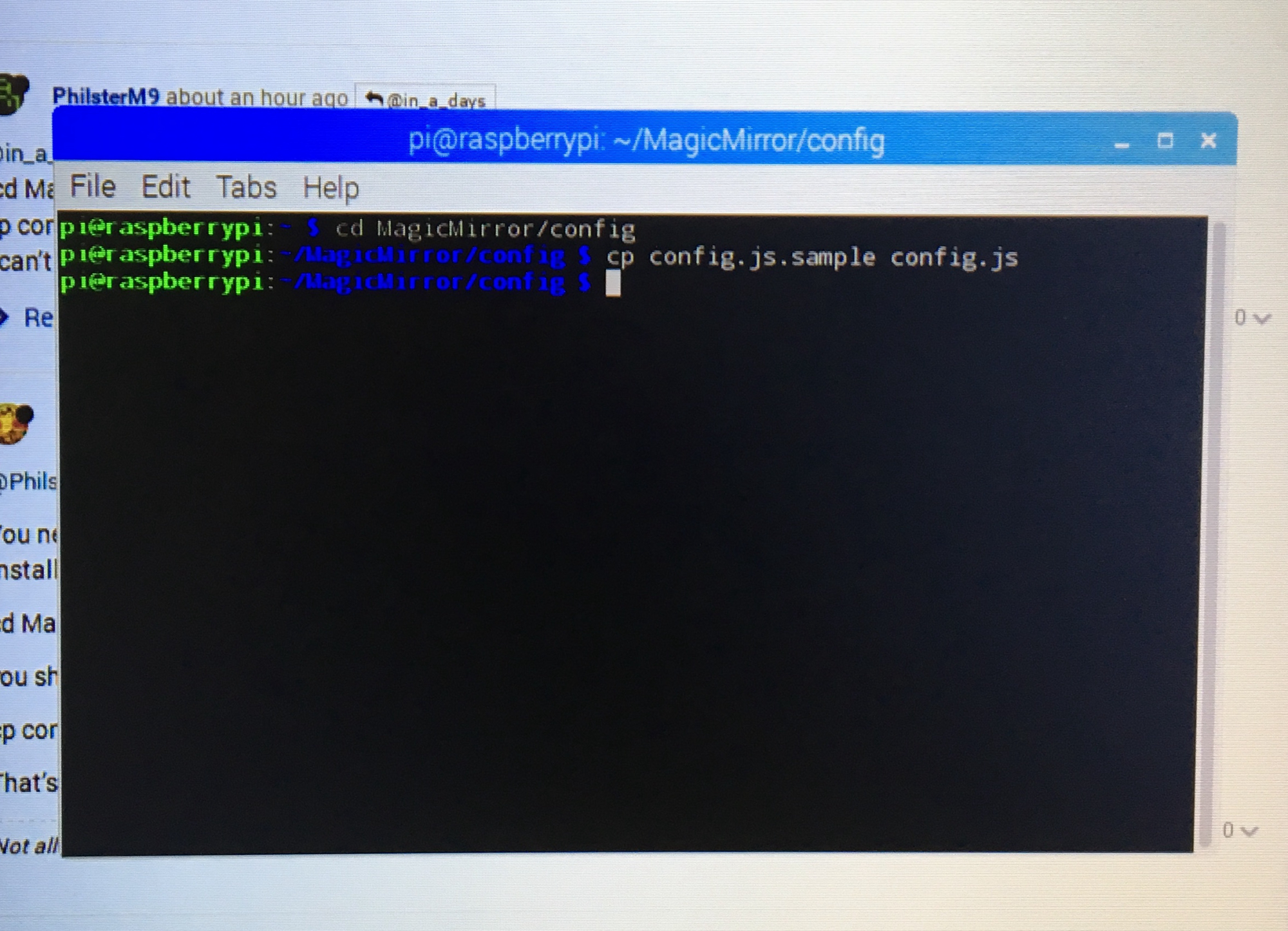
                  @in_a_days As I did as you said, this is what happened which I am not sure if it is supposed to happen0_1484639345331_Photo 17-1-17, 5 30 29 pm.jpg

                  in_a_daysI yawnsY 2 Replies Last reply Reply Quote 0
                  • in_a_daysI Offline
                    in_a_days @PhilsterM9
                    last edited by in_a_days

                    @PhilsterM9

                    Yes! From that screen type:

                    cd ..
                    

                    So you see

                    pi@raspberrypi: /MagicMirror $

                    then type

                    DISPLAY=:0 npm start

                    What ship would bear me ever back across so wide a Sea?

                    P 1 Reply Last reply Reply Quote 0
                    • yawnsY Offline
                      yawns Moderator @PhilsterM9
                      last edited by

                      @PhilsterM9 said in Trouble getting it to start:

                      I am not sure if it is supposed to happen!

                      Just as a side note: This is linux. No news is good news. By default there is no feedback like “1 file copied”.
                      If you don’t feel comfortable with the shell you can work on your raspberry directly using the file explorer

                      1 Reply Last reply Reply Quote 1
                      • P Offline
                        PhilsterM9 @in_a_days
                        last edited by

                        @in_a_days I tried it and it turned on. But when I reboot it, it doesn’t open the magic mirror like it should, even though I did all the pm2 steps. Also how do I change some of the settings of the magic mirror? (eg. timezone etc.)

                        in_a_daysI 1 Reply Last reply Reply Quote 0
                        • in_a_daysI Offline
                          in_a_days @PhilsterM9
                          last edited by

                          @PhilsterM9

                          That is weird! If you are able to launch the mirror software with

                          DISPLAY=:0 npm start

                          PM2 should definitely work :(

                          If you want to modify system settings like timezone, go to your terminal command line and

                          sudo raspi-config

                          This will allow you modify a LOT of system settings including time zone and keyboard layout. If you’re looking to modify the configuration of modules on your mirror software you need to edit your config.js file. In a new Terminal session:

                          cd MagicMirror/config
                          nano config.js

                          This will allow you to edit your MM config file which holds the specific configuration options for your MM modules.

                          What ship would bear me ever back across so wide a Sea?

                          bheplerB P 2 Replies Last reply Reply Quote 0
                          • bheplerB Offline
                            bhepler Module Developer @in_a_days
                            last edited by

                            @in_a_days

                            That is weird! If you are able to launch the mirror software with
                            DISPLAY=:0 npm start
                            PM2 should definitely work :(

                            Don’t forget, you told him to re-flash his SD card. That would have wiped the PM2 installation.

                            @PhilsterM9 You’re almost there. Your original mistake was that you told PM2 to run the mm.sh script twice (and then 3 times). Let’s make sure that you have PM2 installed, now that you’ve reflashed your SD card.

                            Run this: pm2 status. If you get the table, great. Let us know how many entries are in it. If you get the No command 'pm2' found, did you mean: line, go back to the tutorial and follow the steps again, starting with sudo npm install -g pm2.

                            If you do have more than one line in the table when you check PM2 status, you’ll want to remove all of the extraneous ones. pm2 delete 1 and possibly pm2 delete 2 if there are three entries. Get it to where there is only one entry in the list when you run pm2 status. Then save the pm2 state: pm2 save.

                            Okay, once you have saved the pm2 configuration, pm2 will make sure that your mirror is running. You don’t need to tell it start ever again. Hopefully. You should be able to reboot your Pi and then run pm2 status and see that the mm process is running all by itself.

                            in_a_daysI 1 Reply Last reply Reply Quote 1
                            • in_a_daysI Offline
                              in_a_days @bhepler
                              last edited by

                              @bhepler

                              Most definitely! I inferred from

                              “even though I did all the pm2 steps”

                              that @PhilsterM9 had gone through the pm2 install process after re-flash - but your directions should definitely help cross the finish line.

                              What ship would bear me ever back across so wide a Sea?

                              1 Reply Last reply Reply Quote 0
                              • P Offline
                                PhilsterM9 @in_a_days
                                last edited by

                                @in_a_days So I did what @bhepler had written and now works on boot! Now I can’t access the terminal to add some configurations? How do I get around this?

                                J in_a_daysI 2 Replies Last reply Reply Quote 0
                                • J Offline
                                  johaness_00 @PhilsterM9
                                  last edited by

                                  @PhilsterM9 press the alt key. It will bring up the menu. Hit file, quit then open terminal and enter pm2 stop mm. Sometimes it takes more than once to get it typed in and hit enter before mm starts up again

                                  1 Reply Last reply Reply Quote 0
                                  • in_a_daysI Offline
                                    in_a_days @PhilsterM9
                                    last edited by in_a_days

                                    @PhilsterM9

                                    If you have a keyboard plugged into your Pi you should be able to use the ‘Windows’ key to pull the start menu up on top of MM, from which you can select Accessories > Terminal. Not sure what the equivalent key would be for a non-Windows system keyboard. You can also Alt + F4 to close the MM program - but you’ll have to act fast because the pm2 software is going to automatically re-load it. Either method should allow you to get into the Terminal.

                                    After that, as previously suggested

                                    pm2 stop mm

                                    will shut down the MM program and stop it from re-loading until your next boot up.

                                    I suspect most people prefer to access their Terminal over SSH from a different system. It’s pretty easy to enable on your Pi, and though the process varies depending on your OS, it’s pretty easy to figure out. I can give some pointers if you can’t figure it out from available documentation.

                                    What ship would bear me ever back across so wide a Sea?

                                    P 2 Replies Last reply Reply Quote 0
                                    • P Offline
                                      PhilsterM9 @in_a_days
                                      last edited by

                                      @in_a_days Thank you Thank you Thank you Thank you Thank you

                                      1 Reply Last reply Reply Quote 0
                                      • P Offline
                                        PhilsterM9 @in_a_days
                                        last edited by

                                        @in_a_days How do I change some of these settings (It looks confusing to me and I’m not sure if there is more to change than just the city name in weather for example)

                                        bheplerB 1 Reply Last reply Reply Quote 0
                                        • bheplerB Offline
                                          bhepler Module Developer @PhilsterM9
                                          last edited by

                                          @PhilsterM9 You change the settings by modifying the config.js file. Traditionally, you use the nano editor by typing nano ~/MagicMirror/config/config.js.

                                          If you go to the GitHub page for MagicMirror, there’s an entire section on configuration.

                                          1 Reply Last reply Reply Quote 0

                                          Hello! It looks like you're interested in this conversation, but you don't have an account yet.

                                          Getting fed up of having to scroll through the same posts each visit? When you register for an account, you'll always come back to exactly where you were before, and choose to be notified of new replies (either via email, or push notification). You'll also be able to save bookmarks and upvote posts to show your appreciation to other community members.

                                          With your input, this post could be even better 💗

                                          Register Login

                                          • 1
                                          • 2
                                          • 1 / 2
                                          • First post
                                            Last post
                                          Enjoying MagicMirror? Please consider a donation!
                                          MagicMirror created by Michael Teeuw.
                                          Forum managed by Sam, technical setup by Karsten.
                                          This forum is using NodeBB as its core | Contributors
                                          Contact | Privacy Policy