Read the statement by Michael Teeuw here.
Can´t rotate my display
-
I have just reinstalled my MMM. Everything is fine except the last step.
I am trying to rotate my display 90 degrees clockwise. To do this, I have added
/boot/firmware/config.txtI commented out the line following line
# dtoverlay=vc4-kms-v3dand added the line
display_hdmi_rotate=1underneath
But by commenting the line out, the Raspi no longer starts correctly. Only a black screen appears.
The operating system is already started. I can still access it via SSH. But I can see only a black screen.
As soon as I uncomment the line
dtoverlay=vc4-kms-v3dagain, the Raspi starts correctly. But then the screen is not rotated, even though I have not deleted the line
display_hdmi_rotate=1It would be great if you could help me again.
Than in advance
Klinge -
@Klinge which version of the OS did you install??
with the Wayland compositor
or the latest with the LabWC compositorthey are different on how to rotate than the old X11
-
@sdetweil I use
Raspberry Pi OS with desktop
Release date: November 19th 2024
System: 64-bit
Kernel version: 6.6
Debian version: 12 (bookworm)and a Raspberry 3 Model b+
-
-
@sdetweil I got the following infos
pi@raspi-mm-bad:~ $ ps -ef | grep labwc pi 645 619 42 16:50 ? 00:35:55 /usr/bin/labwc -m pi 714 645 0 16:50 ? 00:00:00 /usr/bin/ssh-agent /usr/bin/labwc-pi pi 33729 32904 25 18:15 pts/0 00:00:00 grep --color=auto labwc -
@Klinge if you use the os desktop menu top left, preferences, last entry i think is display configuration, you can rotate there
-
@sdetweil Oh! So simple? It is like at Windows. Only with mouse configuration. I found it under Screen configuration - > orientation
Thank you again for your help. You are my little hero 😉 -
K Klinge has marked this topic as solved on
-
@sdetweil Is it still possible to rotate the screen via the command line? Or must it be done using the desktop? (having the same issue, with the same labwc output, so thought best not to start a new topic)
-
@robertybob i do not know
-
@robertybob google search found this
To rotate the display using the command line on a Raspberry Pi with the LabWC compositor, you can use the wlr-randr command, specifying the output and desired rotation (e.g., wlr-randr --output HDMI-A-1 --rotate right). Here's a more detailed breakdown: 1. Identify your output: Determine the name of your display output. You can find this using wlr-randr without any arguments, which will list the available outputs. Example: wlr-randr Look for an output like HDMI-A-1 or DSI-0. 2. Rotate the display: Use the wlr-randr command with the --output and --rotate options. Example (rotate 90 degrees clockwise): wlr-randr --output HDMI-A-1 --rotate right Example (rotate 90 degrees counter-clockwise): wlr-randr --output HDMI-A-1 --rotate left Example (rotate 180 degrees): wlr-randr --output HDMI-A-1 --rotate 180 Example (rotate to normal orientation): wlr-randr --output HDMI-A-1 --rotate normal 3. Make the rotation permanent (optional): You can add the wlr-randr command to an autostart file to make the rotation persistent after a reboot. Find the autostart file: ~/.config/labwc/autostart Add your command: Open the file in a text editor (e.g., nano ~/.config/labwc/autostart) and add the wlr-randr command at the end of the file. Example: @wlr-randr --output HDMI-A-1 --rotate right Note: The @ symbol is important for autostart scripts. 4. Troubleshooting: -
@robertybob yes, screen rotation is still possible via CLI/terminal…
edit “/usr/share/dispsetup.sh”
eg:sudo nano /usr/share/dispsetup.shthere you will find an if clause at the beginning:
if ! raspi-config nonint is_pi || raspi-config nonint is_kms ; then
if xrandr --output HDMI-1 --primary --mode 2560x1440 --rate 59.951 --pos 0x0 --rotate left --dryrun>
xrandr --output HDMI-1 --primary --mode 2560x1440 --rate 59.951 --pos 0x0 --rotate left
the word after “rotate” defines the rotation :-)
NO rotation = “normal”, rest is obvious.
You must change this in both occurances.In same statement you define the resolution for the screen, as well - after “mode”(given example 2560x1440)
HTH
Regards,
Ralf -
-
@sdetweil The code has seemingly changed
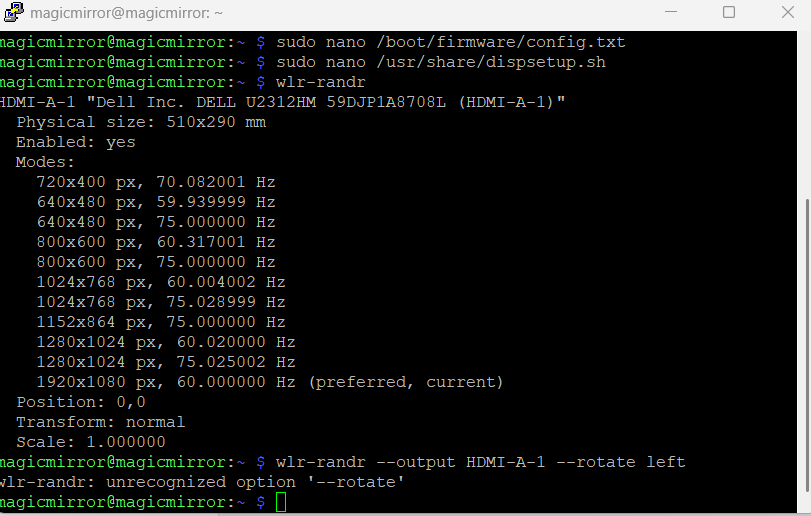
That didn’t work, but
wlr-randr --output HDMI-A-1 --transform 90does! Except… when I reboot, the screen goes back to the way it was
-
@robertybob did you see the section on autostart? as the
wlr-randr is not persistent -
@sdetweil Ah, I couldn’t find the folder as it’s not in /.config/labwc/autostart but instead appears to be /usr/share/labwc
I’ll give that a go! Thank you :D
-
@robertybob .config is usually in the user folder (note the . in front)
-
@robertybob said in Can´t rotate my display:
Mine looks a little different :(
OK, that’s bad…
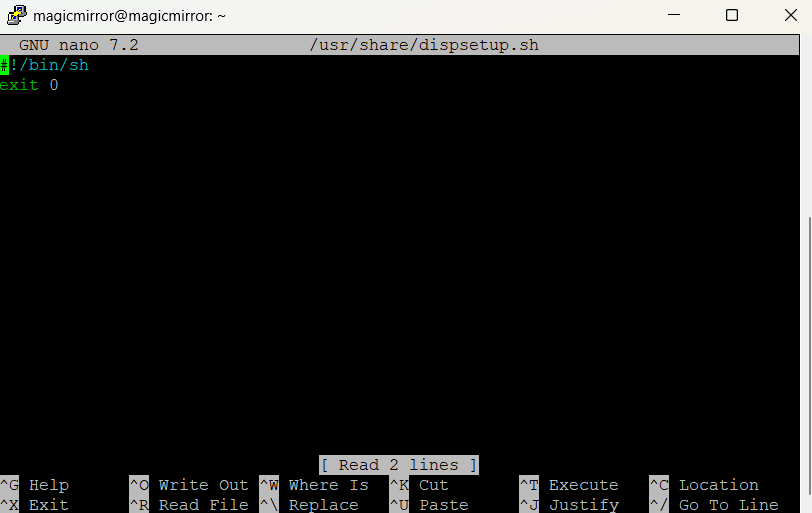
(It’s a Pi5, right?).The complete content of my dispsetup.sh is as follows:
#!/bin/sh
if ! raspi-config nonint is_pi || raspi-config nonint is_kms ; then
if xrandr --output HDMI-1 --primary --mode 2560x1440 --rate 59.951 --pos 0x0 --rotate left --dryrun>
xrandr --output HDMI-1 --primary --mode 2560x1440 --rate 59.951 --pos 0x0 --rotate left
fi
fi
if [ -e /usr/share/tssetup.sh ] ; then
. /usr/share/tssetup.sh
fi
if [ -e /usr/share/ovscsetup.sh ] ; then
. /usr/share/ovscsetup.sh
fi
exit 0
If I interpret your line correctly, you are using the Wayland-Window-Manager?
(wlandr => wayland … ???).
My box is a Pi4B, no wayland.
I’ve seen elsewhere that the Pi5 can be forced to use X11 again - than the above should work directly.
Otherwise you may give it a try to put your code into the dispsetup.sh?Here I found the description of your commandlines above. Unfortunately there is no description how to get this pesistent…
In Addition I just found a hint in Raspberry-Forum
There a guy stated:sudo nano .config/wayfire.ini -> scrolled down and changed the output section as below: [output:HDMI-A-1] mode = 1920X1080@60000 position = 0,0 transform = 90May this is the right way with wayland…
Regards,
Ralf -
@rkorell Ah, sorry, I’m using a Raspberry Pi 3 :)
Nothing I’ve tried has worked so far, even ChatGPT is failing me :( -
@robertybob go back the x11 in raspi-config
-
@robertybob said in Can´t rotate my display:
Raspberry Pi 3 :)
May this in combination with bookworm?
Sam acknowledged my assumption a posting above…- back to X11 …
Regards,
Ralf
Hello! It looks like you're interested in this conversation, but you don't have an account yet.
Getting fed up of having to scroll through the same posts each visit? When you register for an account, you'll always come back to exactly where you were before, and choose to be notified of new replies (either via email, or push notification). You'll also be able to save bookmarks and upvote posts to show your appreciation to other community members.
With your input, this post could be even better 💗
Register Login