@choffmann - nice module.
Here’s a similar one I put together last year - https://github.com/ianperrin/MMM-YouTubeChannelStats
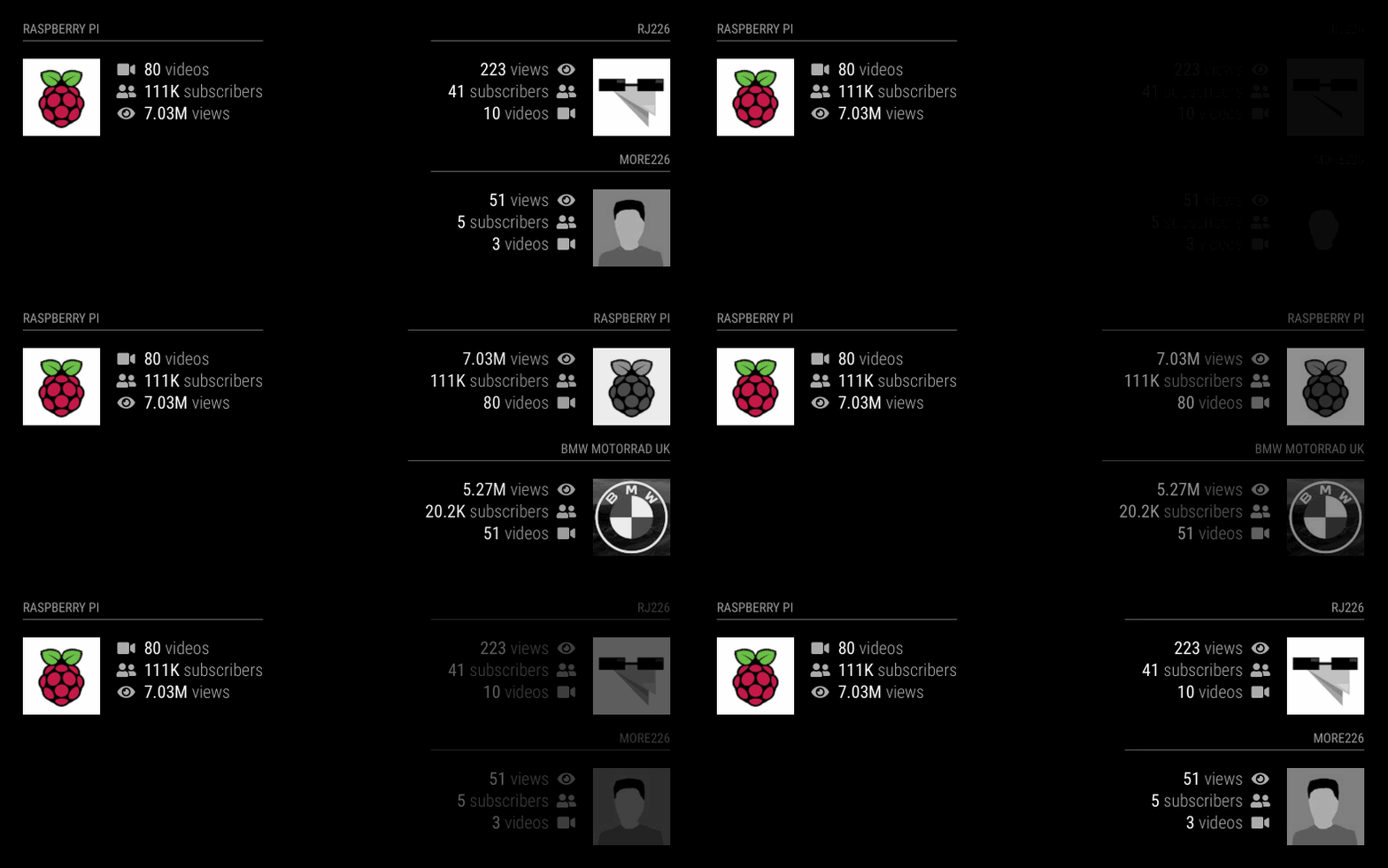
@choffmann - nice module.
Here’s a similar one I put together last year - https://github.com/ianperrin/MMM-YouTubeChannelStats
There is a (currently undocumented) debug config option in the module which minimises the logging. By default it should be set to false, but you can explicitly set it yourself
i.e. debug: false,
In earlier versions it had little effect, but in the latest commit, it should significantly reduce the volume of logging.
See how it goes
@Alvinger interesting, I’ll check it out.
You may also be interested in taking a look at MMM-Remote-Control. It contains a heap of functions to control your mirror (including turning the monitor off and on, rebooting the pi, restarting the MM process etc) remotely.
I’ve been working with @Jopyth to expose this functionality via the use of sendNotification.
This should allow schedules like:
notification_schedule: [
    {notification: 'REMOTE_ACTION', schedule: '30 9 * * *', payload: {action: 'MONITOROFF'}},
    {notification: 'REMOTE_ACTION', schedule: '30 18 * * *', payload: {action: 'MONITORON'}}
]
Check out the repository on GitHub - the latest code includes this capability
You could also consider making the icon configurable via the options,
First add the default values for the options
	defaults: {
		max: 5,
		format: false,
		types: {
			INFO: "dimmed",
			WARNING: "normal",
			ERROR: "bright"
		},
		icons: {
			INFO: "info",
			WARNING: "exclamation",
			ERROR: "exclamation-triangle"
		}
	},
Then change the code to create the icon (and for bonus points, set class for the icon to the same as the message.
		var iconCell = document.createElement("td");
		var icon =  document.createElement("i");
		if(this.config.icons.hasOwnProperty(this.messages[i].type)){
			icon.classList.add("fa", "fa-" + this.config.icons[this.messages[i].type]);
		} else {
			icon.classList.add("fa", "fa-question");
		}
		if(this.config.types.hasOwnProperty(this.messages[i].type)){
			icon.classList.add(this.config.types[this.messages[i].type]);
		}
		iconCell.appendChild(icon);
		callWrapper.appendChild(iconCell);
Warning - this code was entered directly here in the comment so may contain TyoPs ;)
Did you restart the mirror after the upgrade?
Are there any errors in the browser console?
What happens if debug is set to true?
@MichMich - some great ideas, keep them coming.
I’ve created issues (or rather enhancements) for these on GitHub - https://github.com/ianperrin/MMM-ModuleScheduler/issues. Feel free to review, comment etc.
Hi @dominic
The simplest approach would be to add a “br” element between the temperature and humidity.
However, I would consider putting them in an unordered list and take advantage of the inbuilt layout controls within FontAwesome. E.g.
getDom: function() {
	var wrapper = document.createElement("div");
	if(this.dataFile){

		var humidityRegExp = /Humidity = (.*?) %/ig;
		var humidity = humidityRegExp.exec(this.dataFile)[1];

		var temperatureRegExp = /Temperature = (.*?) *C/ig;
		var temperature = temperatureRegExp.exec(this.dataFile)[1];

		var list = document.createElement("ul");
		list.classList.add("fa-ul");

		// add temperature
		var temperature_item = document.createElement("li");
		var temperature_symbol =  document.createElement("i");
		temperature_symbol.classList.add("fa", "fa-li", "fa-home");
		temperature_item.appendChild(temperature_symbol);
		temperature_item.appendChild(document.createTextNode(" " + temperature + "°C"));
		list.appendChild(temperature_item);

		// add humidity
		var humidity_item = document.createElement("li");
		var humidity_symbol =  document.createElement("i");
		humidity_symbol.classList.add("fa", "fa-li", "fa-tint");
		humidity_item.appendChild(humidity_symbol);
		humidity_item.appendChild(document.createTextNode(" " + humidity + "%"));
		list.appendChild(humidity_item);

		wrapper.appendChild(list);

	} else {
		wrapper.innerHTML = "No data";
	}
	return wrapper;
},
@zdenek the module currently only supports font awesome 4 so try video-camera.
Unfortunately, raspberry-pi is only available in font awesome 5 so you won’t be able to use it just yet. However, once the fix to an issue with font awesome compatibility has been released, which is expected in version 2.7, you should be able to use all font awesome 5 free icons
@Mitchfarino said in MMM-ModuleScheduler:
@cowboysdude @ianperrin how would would I implement a schedule so that a module appeared for 5 minutes, then disappear and reappear in 5 minutes time?
Try this
module_schedule: {from: '0/10 * * * *', to: '5/10 * * * *'},
Which should equate to the module being
@dominic - there’s no functionality within MagicMirror out of the box to achieve this, but I can think of two options
and also take a look at https://github.com/MichMich/MagicMirror/blob/develop/modules/default/weatherforecast/weatherforecast.js#L142 - this is where the MMM-soccer fade functionality was derived from
credits to @MichMich and the MM team :)
@Mitchfarino said in MMM-ModuleScheduler:
@ianperrin cheers mate!
I’ll have a look tonight!
Fantastic module by the way
Thank you and no worries.
Unfortunately, I’ve just done a quick test with the expressions I posted above and they didn’t work. :(
If you check the cron expressions i suggested using crontab.guru, it would appear they are non-standard. Therefore, I suspect they are not supported by the node cron module.
Not to worry, there’s always a solution! crontab.org states that step values can be used in conjunction with ranges. So the expressions I believe you require are as follows:
module_schedule: {from: '0-59/10 * * * *', to: '5-59/10 * * * *'},
@lkthomas okay, a couple of things to check
config.js file.With the config above place at the end of modules section you should see the following lines in the log.
MMM-ModuleScheduler is removing all scheduled jobs
MMM-ModuleScheduler received CREATE_GLOBAL_SCHEDULE
MMM-ModuleScheduler is creating a global schedule for all modules using "0 6 * * *" and "0 22 * * *" with dim level 20
MMM-ModuleScheduler has created the global schedule for all modules
MMM-ModuleScheduler will next show all modules at Sun Jan 13 2019 06:00:00 GMT+0000 (UTC)
MMM-ModuleScheduler will next dim all modules at Sat Jan 12 2019 22:00:00 GMT+0000 (UTC)
Whilst testing, you could use the following config to toggle the brightness more frequently (i.e. every two minutes):
        {
            module: 'MMM-ModuleScheduler',
            config: {
                global_schedule: {from: '0-59/4 * * * *', to: '2-59/4 * * * *', dimLevel: '20' },
            }
        },
Let us know how you get on.
@Squawk09 - it is not a requirement to log when receiving notifications, but it can be useful when debugging. To prove you are receiving the notification, change the line to Log.log('The current temperature is ' + this.temp); and look in the browsers console and you should see the temperature displayed when it is sent from the current weather module.
Once you have confirmed that your module is receiving the notifications, you can then move on to displaying the temperature.
The trick is to understand the sequence of events that occur and how they affect your module. In your case the functions in your modules are currently fired in the following order:
ALL_MODULES_STARTED)DOM_OBJECTS_CREATED)Temperature)The result is that your getDom function is called before the Temperature notification is received, so this.temp hasn’t been set yet.
Since you cannot control the order in which the modules are loaded, or when the Temperature notification is sent by the current weather module, you need to tell your module to call the getDom function again, after the Temperature notification has been received.
To do this, change your notificationReceived function to
notificationReceived: function(notification, payload, sender) {
    if (notification === 'Temperature' && sender.name === 'currentweather') {
        var currentweather = payload;
        if ( currentweather && currentweather.hasOwnProperty('temperature') ) {
            this.temp = currentweather.temperature;
            this.updateDom();
            Log.log('The current temperature is ' + this.temp);
        }
    }
},
Check out the wiki for documentation, and of course keep asking questions here in these forums :)
@strawberry-3.141 yes,
Though I was thinking aliasing the IP addresses with distinct device config labels such as rpi2 and rpi3 and even my_ipad and lounge_tv
However, there’s is a use case to allow one device configuration to be applied to multiple devices so the tv’s IP address would be assigned large, iPad would be medium and rpi’s could be small
To do:
[card:ianperrin/MMM-NetworkScanner]
After a long time in the wilderness, I have found a little time to review the state of this module. Given other commitments, I’m not able to make any promises that everything will be fixed, but I’d like to see what can be done and at least restore broken functionality.
To kick off, I have pushed a series of updates to the repository as an initial attempt to introduce some fixes. Please feel free to pull these changes and test in your mirror. Due to the state of the current codebase (did I really write this?), it’s possible further issues may be introduced, do please bear with me.
So, here’s a request. If you use the module, but have issues, can you create (or add to an existing) issue on GitHub. Please provide as much info as possible, including a description of the problem, what you were expecting to happen, the config for the module and any errors from the log and/or browser console.
If you’re interesting in helping (re)develop this module - this would be much appreciated - send me a direct message.
@bjoern - a common way of scheduling activity is use cron expressions which give an enormous amount of flexibility for defining when things should happen.
I would think this is a better way to tackle the solution rather than try to create custom scheduling logic.
I’ve built the basis of the module which hides and shows other modules based on the config options, but will need a little time to add and test the scheduling. Give me a day or so.
Ian
@cowboysdude - During my testing of the global scheduling feature, I identified an issue which meant the initial state of the modules may not have been correct. I’ve committed a potential fix for this which may fix your issue too so please feel free to git pull again and test.
If it doesn’t work, can you let me know what is output in the logs pm2 logs mm - you should see something like the following for each of your global schedules
MMM-ModuleScheduler is creating a global schedule for scheduler_mfm modules using '50 6 * * *' and '0 9 * * *' with dim level undefined
MMM-ModuleScheduler is hiding scheduler_mfm modules
MMM-ModuleScheduler has created the global schedule for scheduler_mfm modules
MMM-ModuleScheduler will next show scheduler_mfm modules at Tue Nov 01 2016 06:50:00 GMT+0000 (UTC)
MMM-ModuleScheduler will next hide scheduler_mfm modules at Tue Nov 01 2016 09:00:00 GMT+0000 (UTC)
The second line in the above log example will only appear if the schedule means that the modules affected it should be initially hidden
@lavolp3 I found that the only way to create an SVG via the DOM was to use document.createElementNS. There’s a helper function (poorly named getNode) in the current master branch which supports the creation of an SVG tag with attributes (e.g. getNode("svg", {width: 115, height: 68, class: 'chart'})
However, I’ve recently been implementing new authentication flow in the develop branch. Alongside that, I’ve switched to using nunjucks templating. There’s quite a few changes, including the chart mode now supporting the period option (i.e. recent, ytd) and the ability to add multiple instances of the module to the mirror which could (should?) make implementing new views easier.
My suggestion would be to add a new mode (progress) to the module along with a new template (templates\MMM-Strava.progress.njk) and start from there.
Let me know how you get on and I can assist where possible.