@Fonfon - You’re welcome. Peace. :peace:
A New Chapter for MagicMirror: The Community Takes the Lead
Read the statement by Michael Teeuw here.
Read the statement by Michael Teeuw here.
 Offline
Posts
-
Is there a way . . .
. . . to change the margins for the entire screen? If, for instance, I wanted to make the margins around the entire screen 20 pixels so that the modules would all move to the margins, how would I do that? I think it’s in one of the css files, but which one? And what code would I be looking for to edit?
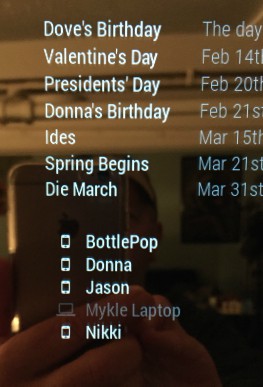
And, if you are feeling very generous, how would align these two modules? Notice how the Calendar module is a bit further left than the NetworkScanner module below it?
Many thanks to all those that have already given me assistance. I’ve been trying to repay your kindness by helping others that are newer than me and are asking the questions that I asked just a few weeks ago
-
RE: Bad question
@Fonfon said in Bad question:
how you manage your pie when it is in the mirror ??
This is how I do/did it:
Go to your Pi Application Menu, scroll down to Preferences, scroll down to Raspberry Pi Configuration. In the window that opens click the Interfaces button. Enable VNC. Click OK. Your done with the Pi.
On the computer that you want to manage your Pi from, go to https://www.realvnc.com/download/viewer/windows/ (In this case it’s for Windows. Choose your platform). Download VNC Viewer. This will allow you to remotely administer your Pi, and your MM, without having to take your mirror down or bring a mouse and keyboard to your mirror. I was doing that for a while until I learned this.
There might be other ways but this is the way I do it.
Peace
-
RE: How HOT Does it Get?
@AAPS said in How HOT Does it Get?:
How long does the new static IP address last if it isn’t permanent?
I tried to find out how long the lease lasts for but I was unable to discover that information. The word “temporary” appeared somewhere when I was doing the initial search for assigning static IP’s. That is why I noted that the change wasn’t permanent.
Worst case scenario if the leases expire: Go back to that one page in your router. A few clicks. Leases renewed.
Best case scenario: They don’t expire (or last a very long time)
-
RE: MMM-NetworkScanner
@ianperrin said in MMM-NetworkScanner:
I am looking at it but please bear with me
Shhhhh! Quiet! Genius at work!
I am completely serious. I think you are a brilliant young man.
Much success to you. :thumbsup_tone1:
-
RE: MMM-NetworkScanner
@slametps Yes, at first the same thing happened to me.
This might seem obvious but did you change your config.js to ipAddress instead of macAddress?
-
RE: MMM-NetworkScanner
This worked for me. If you have FIOS you might want to try it. If not, if you have the ability to set static ip addresses in your own system, you could try that
I went into my FIOS router and assigned a “static lease” on the IP addresses of the devices that would not show in NetworkScanner with their MAC addresses. Went back into my config.js and changed the macAddress to ipAddress for each device and put in the static IP addresses I just assigned in the router.
It’s working now, all except for the machine I am working on now (my desktop). It doesn’t show as active, even with a static lease on the IP address. That’s sort of alright, as I really just wanted the cell phones to appear, which they do, but odd,For those with FIOS that want to try:
Sign in to Verizon router. Click Advanced tab (almost top right). Click yes to proceed. Click IP Address Distribution bottom right. Click Connection List almost in the middle. On the left, find the device that you want to assign a static lease IP address to. On the right, in the Action column, click the Edit icon. Tick the Static Lease Type box. Click Apply. That is now a static IP address. GO back one page and look in the Lease Type column. It will show you the Static designation.
Peace -
RE: MMM-NetworkScanner help needed
@slametps I think so too. I could not get it to work with MAC addresses. Assigning static IP addresses is the only way I could get it to work, and even that was not perfect, as it would not show my desktop as active , even with a static ip address
-
RE: MMM-NetworkScanner help needed
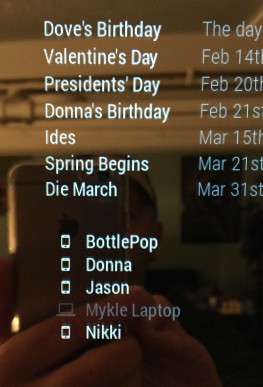
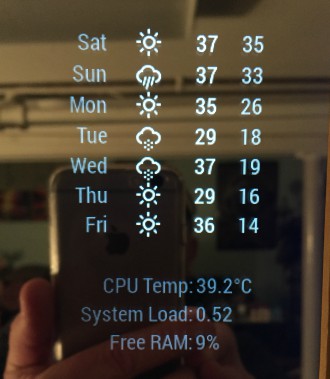
After I assigned static IP addresses via my FIOS router the scanner started working, somewhat. Then I rearranged my mirror, somewhat.
-
RE: How HOT Does it Get?
@AAPS said in How HOT Does it Get?:
Can you just do that on the router’s webpage?
You sure can. Here, I’ll save you some searching around:
Sign in to Verizon router. Click Advanced tab (almost top right). Click yes to proceed. Click IP Address Distribution bottom right. Click Connection List almost in the middle. On the left, find the device that you want to assign a static lease IP address to. On the right, in the Action column, click the Edit icon. Tick the Static Lease Type box. Click Apply. That is now a static IP address. GO back one page and look in the Lease Type column. It will show you the Static designation.
Peace