Read the statement by Michael Teeuw here.
New and confused.
-
@Mykle1 Damn…you’re a genius :-))))))))))))))))))))))))))
-
@mickyas said in New and confused.:
what’s config.bak???
What @cowboysdude means is this:
When you have a working config.js file and BEFORE you’re going to edit it (ex adding another module) you should make a backup of that config.js file. Then you do your edit. If something goes awry, you have your backup file that you KNOW is working.Simply: Go to your working config.js file. Right click on it. Choose Copy. Right click somewhere else in that same window. Choose Paste. Rename the copy to config.bak as @cowboysdude instructed. Click Rename.
So now you’ve have a file named config.bak. If something goes wrong with your working config.js file, you can delete it and rename your backup to config.js. So, make a backup every time you successfully make additions to your config.js so you don’t have to start from square one.
I hope you’re writing this down. ;-)
-
@mickyas said in New and confused.:
Damn…
Oh, hey Mick,
When you want help with your config.js file you really should copy and paste it here so that we can look at it as @cowboysdude and I have both advised. Surely you know how to copy and paste! :-)
-
@Mykle1 said in New and confused.:
@mickyas said in New and confused.:
Damn…
Oh, hey Mick,
Surely you know how to copy and paste! :-)
I do, but since i haven’t worked out how to tether my laptop o my PI…it’s a slow laborious process :-))))))))))))))
Well, got my calendar and newsfeed changed and both up and running, just working on my weathermap. I’ll try and sort out copying it here :-))) thanks for the step by step, it worked perfectly first time :-)))
Mick -
ok here goes…this is what i have for the weathermap…
,
module: “currentweather”,
position: “top_right”,
config: {
location: “”,
locationID: “8224783”, //ID from http://www.openweathermap.org/help/city_list.txt
appid: “my api i.d. here”
}
},
{
In the location i had written “stanley” but it made no difference. the above is the same for module “weatherforecast”
mick -
Assuming your location ID is correct, and that your API key is valid and that you enter your API key precisely, inside the quotes, this will work for you. The location doesn’t matter as it is overridden by the locationID. Refer to the guide on adding a module. You can copy and paste what I’ve entered below.
{ module: "currentweather", position: "top_right", config: { location: "", locationID: "8224783", //ID from http://www.openweathermap.org/help/city_list.txt appid: "my api i.d. here" } }, -
@Mykle1 MINT…worked a treat, :-)))))))))))))) I don’t know what i had different, as i never changed anything else in the module other than the location i.d. and the api key!!! anyhoo, all up and running…next stop changing the ‘compliments’ :-)))) I owe you a pint :-)) (although i do have some home grown cider on the go ;-))
Mick -
@mickyas said in New and confused.:
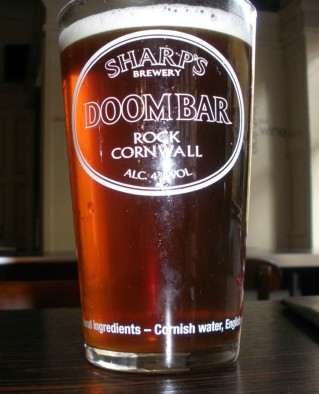
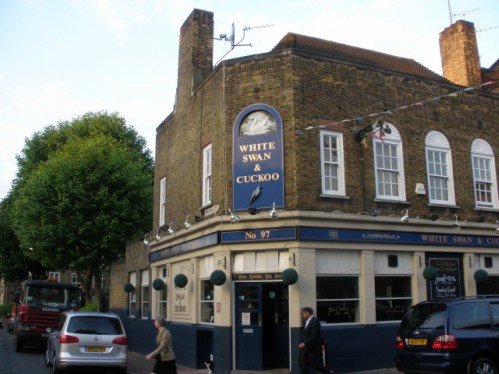
I owe you a pint :-))
My favorite pint and my favorite pub to drink it in. Unfortunately, it’s 3,459 miles away from where I live, on the other side of the pond.
-
@Mykle1 Just a couple of questions…
- I noticed a previous post from you about the colour weather module you installed, is it available to clone???
- Can i have multiple modules running at once, or do i have to switch between them…i.e the Magic mirror, Alexa, remote control (which i’d really like to try) etc?
Thanks
Mick
This is crazy…the more i search, the more confused i become and the more i get distracted by the umpteen modules i’d like to have :-)))…first off is using my laptop to access the pi3 (its annoying trying to pull up pages etc on the pi).
P.S. just done it using VNC all working so far :-))) -
@mickyas said in New and confused.:
I noticed a previous post from you about the colour weather module you installed, is it available to clone???
I’m pretty sure you mean WunderGround. That’s what I use. Here is the link.
https://github.com/RedNax67/MMM-WunderGround
Also, @j-e-f-f has done some remarkable things with some weather modules. Look around/search for his work.
Can i have multiple modules running at once, or do i have to switch between them…i.e the Magic mirror, Alexa, remote control (which i’d really like to try) etc?
Not sure what you mean here. Yes, you can have many modules running at the same time. Didn’t you start out with a clock, and a calendar, and a newsfeed, all at the same time?
I think everyone goes through that, including me. I wanted to LOAD UP on as many modules as I could fit on the mirror. Ultimately, I chose the ones that I like the most, with a few of my own. You’ll have to decide what you want at some point. It doesn’t hurt to try them all to decide what you want.
Yes, I use VNC also. I haven’t touched the actual mirror in months. I just sit at my dev machine and work on the mirror from there
-
@mickyas said in New and confused.:
I noticed a previous post from you about the colour weather module you installed, is it available to clone
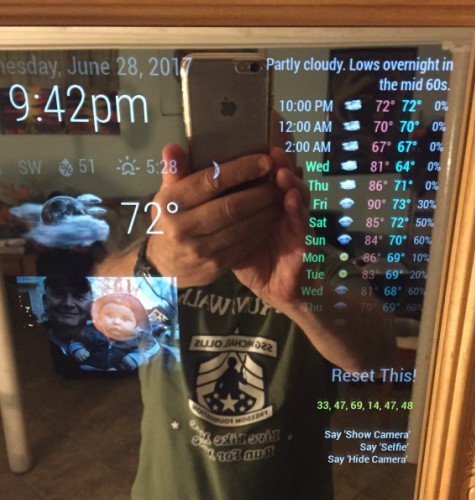
Is this the weather you mean? See the link above
-
This post is deleted! -
@Mykle1 said in New and confused.:
Not sure what you mean here. Yes, you can have many modules running at the same time. Didn’t you start out with a clock, and a calendar, and a newsfeed, all at the same time?
Ah, there’s my confusion…i thought the magic mirror (date, weather, calendar etc) was one module. :-))
I was wondering if it is possible to have the magic mirror 2 running on the screen with Alexa ‘asleep’ in the background to be woken with a ‘wake’ word and say, a music app playing etc.Yes, the WunderGround is the one i was looking at…very nice.
MickHeeds battered…how do i use the wunderground module ??? i have opened the magic mirror config js file i have copied and pasted the block of code (using git clone etc) but it comes up with an error telling me to ‘Please create a config file’ ??? (tried the 3 back-tick rule for code, but this is how it came out)
port: 8080, ipWhitelist: ["127.0.0.1", "::ffff:127.0.0.1", "::1"], // Set [] to allow all IP addresses. language: "en", timeFormat: 24, units: "metric", modules: [ { module: 'MMM-WunderGround', position: 'top_right', config: { apikey: 'my api i.d. here', // private; don't share! pws: 'pws:DH9 6PA', //England hourly: '1', fctext: '1', fcdaycount: "5", fcdaystart: "0", hourlyinterval: "3", hourlycount: "2", alerttime: 10000, alerttruncatestring: "english:", roundTmpDecs: 1, UseCardinals: 0, layout: "horizontal", sysstat: 0 } }; ] modules: [ { module: "alert", }, { module: "updatenotification", position: "top_bar"``` -
@mickyas said in New and confused.:
‘top_right’
Well my guess would be that you copied the config from one place to another … replace all of these ` [backtick] with this ’ [single quote]
Then retry ;)
-
@mickyas said in New and confused.:
how do i use the wunderground module ???
Well, the instructions should be in the README file that came with the module. At this point, you should be making entries without a problem. :-)
I can tell you that the
pws: 'pws:DH9 6PA',you are using is no good. I just tried it in mine, with and without the space, which drew my attention.So, try this when posting code with back-ticks:
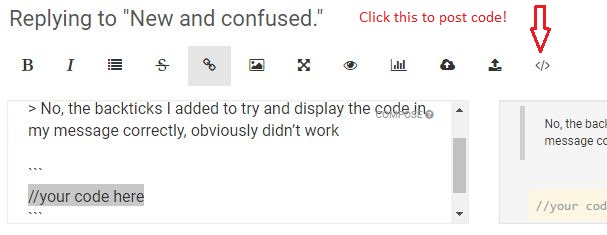
Put 3 backticks on a new line and Enter
Post your code under the backticks and Enter
Put 3 backticks on a new line and Enter
And, just in case, NO backticks in your config.js file
-
@mickyas said in New and confused.:
I was wondering if it is possible to have the magic mirror 2 running on the screen with Alexa ‘asleep’ in the background to be woken with a ‘wake’ word and say, a music app playing etc.
You could start a new topic on Alexa, or do a search here on the forum. Other people have integrated Alexa with their mirrors. I have never used it so I won’t be able to help you with that.
-
@cowboysdude said in New and confused.:
@mickyas said in New and confused.:
‘top_right’
Well my guess would be that you copied the config from one place to another … replace all of these ` [backtick] with this ’ [single quote]
Then retry ;)
No, the backticks I added to try and display the code in my message correctly, obviously didn’t work 😊😊😊.
-
@mickyas said in New and confused.:
No, the backticks I added to try and display the code in my message correctly, obviously didn’t work
-
WHY NOT?LOL -
@cowboysdude :-)))))))))))))))))))))))))))))))))))))))))))))))

Hello! It looks like you're interested in this conversation, but you don't have an account yet.
Getting fed up of having to scroll through the same posts each visit? When you register for an account, you'll always come back to exactly where you were before, and choose to be notified of new replies (either via email, or push notification). You'll also be able to save bookmarks and upvote posts to show your appreciation to other community members.
With your input, this post could be even better 💗
Register Login