Read the statement by Michael Teeuw here.
Electron CPU usage
-
- How can we check the video driver without using rapsi-conf?
in dmesg? in systemd journal? - How/where do you set the:
ELECTRON_FORCE_WINDOW_MENU_BAR=1. - What would be the easiest way for users to check electron version from command line?
- How can we check the video driver without using rapsi-conf?
-
@e3v3a
You can check it in the config.txtor just do a “tail /boot/config.txt | grep dtoverlay” to check what version is enabled
all the rest of my configuration is the default one after a fresh install from the current version of MM and Raspbian, I havent touched anything from electron
-
Omg, yes finally! :D
First I followed this installation guide: https://forum.magicmirror.builders/topic/236/complete-setup-tutorial/3
I had the electron CPU issue. So I downgraded to electron version 1.4.15. The CPU usage went down from 90% to 70%. It was still laggy as hell.
I then formatted the microSD card and followed that youtube guide: https://www.youtube.com/watch?v=0Q04SKvibik
Downgraded to 1.4.15 again and now it’s running great with a CPU usage of like 5% with spikes to 50%, when there is an animation on the screen.But I have one question.
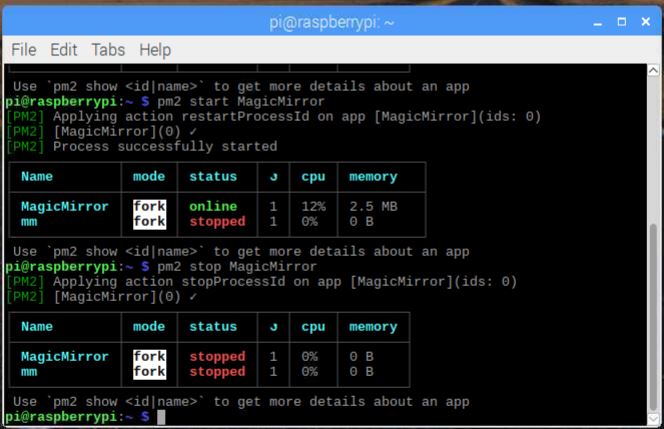
After I finished the youtube tutorial I have the “MagicMirror” and the “mm”. Both autostart when I boot the raspberry pi.
Which use has the “mm”? -
pm2 stop mm
pm2 delete mm
pm2 save
rm ~/mm.sh -
@cdelaorden I think you’ve found the issue! Awesome work!
For others please note that when you start raspi-config and go to “Advanced Options” > “GL Driver”, the top one will always be selected, no matter which one is active. After selecting one of the two top drivers (GL), it might solve the hi CPU load issue …
It solved it on a clean installed Pi 3 for me.
-
I added some info about the Open GL driver to the Wiki:
https://github.com/MichMich/MagicMirror/wiki/Configuring-the-Raspberry-Pi#enable-the-open-gl-driver-to-decrease-electrons-cpu-usage -
I seem to be running into some kind if trouble. My SD card failed, so I had to do a clean install. I decided to immediately go for the full KMS driver.
“$ tail /boot/config.txt | grep dtoverlay” results in “dtoverlay=vc4-kms-v3d”.The CPU usage is alright, but “/home/pi/.pm2/logs/mm-error-o.log” states:
libGL error: MESA-LOADER: failed to retrieve device information
MESA-LOADER: failed to retrieve device information
MESA-LOADER: failed to retrieve device information
I am having trouble with the monitor. I am using MMM-Remote-Control.
“MONITOROFF” results in “/home/pi/.pm2/logs/mm-error-o.log”:Powering off HDMI“MONITORON” results in “/home/pi/.pm2/logs/mm-error-o.log”:
Powering on HDMI with preferred settings

[E] Failed to power on HDMI with preferred settings

{ Error: Command failed: tvservice --preferred && sudo chvt 6 && sudo chvt 7
[E] Failed to power on HDMI with preferred settings

    at ChildProcess.exithandler (child_process.js:217:12)
    at emitTwo (events.js:106:13)
    at ChildProcess.emit (events.js:194:7)
    at maybeClose (internal/child_process.js:899:16)
    at Process.ChildProcess._handle.onexit (internal/child_process.js:226:5)
  killed: true,
  code: null,
  signal: 'SIGTERM',
  cmd: 'tvservice --preferred && sudo chvt 6 && sudo chvt 7' }
Powering off HDMI
I may be wrong but I feel this is related to the Full KMS driver.
Can anyone confirm? Does anyone have a solution?
I am way out of my depth here… -
@Hein-Jan I got the same issue.
A few minutes, the monitor could be controlled, but then “tvservice -p” fails to power on the monitor. -
Please use the fake kms driver instead “dtoverlay=vc4-fkms-v3d”
it its known that the full kms driver isnt compatible with tvservice plus other restrictions
EDIT:
Also with the fake KMS you can rotate the display from /boot/config.txt so I suggest @michmich using it as the preferred method in the wiki -
@cdelaorden said in Electron CPU usage:
the full kms driver isnt compatib
hy now i use the fake kms driver, everything is working fine and realy fast.
but i have the problem that the mirror will go to a black screen after some hours.only a pm2 restart mm helps in this case -.-
-
@schmo90 mmm havent had that problem, everything its working fine
Have you deactivated the screensaver as its shown in the wiki?
Also, are you using a module like MMM-Remote-Control to turn off the screen?
If you see a black screen and the mouse but nothing else you are probably missing “sudo chvt 6 && sudo chvt 7” in your statement after turning hdmi back on. You can test it in ssh after forcing the issue.
Also if you are concatenating commands like Hein-Jan did with “tvservice --preferred && sudo chvt 6 && sudo chvt 7” have in mind that commands after && are only executed if no errors are found. So maybe “tvservice -p” its working correctly but its giving some feedback and things after && aren’t executed.
You could force it by using ; as a separator instead of && so it doesn’t look for an answear
-
hy i didnot turn off the hdmi,
i will turn off the lcd with the gpio’s
screen is turning on normal but electron browser is showing a black screen (mous appears at moving)
-
adding another flavour:
As my Foscam FI9900P got an ONVIF-Update lately and is now capable of RTSP-streaming I installed MMM-RTSPStream.- activated fake (or full) OpenGL Desktop driver:
omxplayer crashes - activated non-GL desktop driver:
omxplayer runs
So, as I see it, the omxplayer problem doesn’t concern MagicMirror - is there another way to reduce Electron CPU usage - except using an Open-GL dekstop driver?
PS: activating fake KMS reduced CPU usage as recommended in this thread - but I’d like to have the video-stream of my cam on the MM (unfortunately it doesn’t provide MJPEG)
- activated fake (or full) OpenGL Desktop driver:
-
hi @binderth
the fake-kms was created for keeping omxplayer compatibility but you need to add the “–no-osd” flag to the omxplayer command lineyou might want to try it
dont bet on it, but changing line 101 of node_helper.js to
var args = ["--no-osd", "--live", "--video_queue", "4", "--fps", "30",might do the trick
-
MM 2.4.1 - if anyone is trying to look for it while searching for forums. Apologies if it has already been stated
So i’ve done it both ways:
dtoverlay=vc4-kms-v3d
I noticed that my CPU temp is well into the 60-70 degree Celsius with CPU loads mostly in the 1.x, 2.x, and sometimes 3.x rangesWhen i try the other way :
dtoverlay=vc4-fkms-v3d
CPU is much lower in temp under 50 degrees Celsius and CPU load rarely goes above 1.x
and i am able to use the tvservice -o and tvservice -p to schedule my monitor to go on and off at certain timesHopefully this helps anyone searching for this issue on new installs like myself
-
So i ran into this issue as well. I started MM stuff 2-3 weeks ago.
When everything was working my logs show:
- I had the previous mm version ( probably 2.3.1)
- Enable the Open GL driver, fake KMS (via raspi-config)
- Disabling the screensaver https://www.raspberrypi.org/forums/viewtopic.php?t=57552
- Autohiding the Mouse Pointer
- rotate screen 270deg(CW),
display_rotate=3at /boot/config.txt - I also had the
dtoverlay=vc4-fkms-v3dline there - I was getting this error though (thru
npm start):
libGL error: MESA-LOADER: failed to retrieve device information
MESA-LOADER: failed to retrieve device information
MESA-LOADER: failed to retrieve device information
Anyway I messed something on my modules and had to reinstall the Raspbian. Same as before, Stretch 7/-18
- Rotate screen at /boot/config.txt
- installed the MM 2.4.1 and tried it straight away default config and modules. It was working alright
- Disabling the screensaver https://www.raspberrypi.org/forums/viewtopic.php?t=57552
- Autohiding the Mouse Pointer
- I think I added the
dtoverlay=vc4-fkms-v3dline…- and boom animations started lagging (+high CPU)
- also
npm start devdidnt work. It launched but no mirror was shown and if i had mm running it would stop refreshing.
Any way I figured out that taking that commenting out that
# dtoverlay=vc4-fkms-v3deverything works flawlessy. I dont get the “libGL”-error
and I also updated npm 5.6.0 → 6.2.0sudo npm i -g npmandnpm start devstarted working (dev or no dev).My Rpi temperature is under 50C when mm is running (no heatsink).
Hope this helps out someone!
-
@vinp and @jaffons WOW! Thank you for your comments… Made a huge difference.
After some months I needed to reinstall from scratch (now also hosting octoprint and a remote desktop simultaneously). I thought MM animations were just generally slow, but this made a huge difference compared to the more orthodox setup.
I don’t see why this configuration shouldn’t be preferred over the normal Pi configuration, and the OpenGL driver was also much trickier to get working. -
Is it just me, that after the most recent rpi firmware update display_rotate/display_hdmi_rotate is not working with the fkms driver?
I found the following in the official documentation:
If using the VC4 FKMS V3D driver (this is the default on the Raspberry Pi 4), then 90 and 270 degree rotations are not supported. The Screen Configuration utility provides display rotations for this driver.
Unfortunately I have no clue how to run the screen configuration utility. There’s always a black screen even if I run
pm2 stop mm.
Hello! It looks like you're interested in this conversation, but you don't have an account yet.
Getting fed up of having to scroll through the same posts each visit? When you register for an account, you'll always come back to exactly where you were before, and choose to be notified of new replies (either via email, or push notification). You'll also be able to save bookmarks and upvote posts to show your appreciation to other community members.
With your input, this post could be even better 💗
Register Login