Read the statement by Michael Teeuw here.
3 tries 3 fails Raspberry b+
-
Ah. Am I right in thinking the tutorial for the pi 0 will do it? Might get out of bed and have a play…
-
Does everything install correctly?
What do you mean you can’t get it to start? What happens?
-
I’ve followed the guide from
http://blog.dylanjpierce.com/raspberrypi/magicmirror/tutorial/2015/12/27/build-a-magic-mirror.htmlAnd
http://michaelteeuw.nl/post/83916869600/magic-mirror-part-vi-production-of-the
And neither work I’m afraid. No error messages, nothing notes a file/programme missing, nada. Just get to the point where it should “work” and nothing happens.
I’ll try the pi 0 tutorial and see how that goes. It’s just that I have a spare pi b and all parts, and it’s a shame I can’t get it to go…
-
@infamoustiggr Well that’s because you need to do this way…
https://github.com/MichMich/MagicMirror
The instructions are in full and easy to follow there ;) The other places may not be up-to-date. The instructions in the link above are for this mirror exactly …
There’s two ways:
Automatic Installer (Raspberry Pi Only!)
or
Manual Installation -
Yup, cowboydude is absolutely right. I went with the Automatic installer on my Raspberry Pi 3
Worked perfectly, and the directions are damn good
-
I know, but I’ve got a Pi 1 model b. Unfortunately the easy install option is unavailable…
I’ve got as far as the npm install, but it’s throwing up lots of error in a log file… Any hints?
-
This is from the main installation page at https://github.com/MichMich/MagicMirror#manual-installation
Raspberry Pi Support
Electron, the app wrapper around MagicMirror², only supports the Raspberry Pi 2 & 3. The Raspberry Pi 1 is currently not supported. If you want to run this on a Raspberry Pi 1, use the server only feature and setup a fullscreen browser yourself.
Server Only:
In some cases, you want to start the application without an actual app window. In this case, execute the following command from the MagicMirror folder: node serveronly. This will start the server, after which you can open the application in your browser of choice.
I hope this helps
-
@Mykle1 ho there! I had read this bit too, but, being as I am to programming what a brick is to top flight springboard diving, I’m getting stuck on what parts of the instructions apply to me and which don’t. For example, the npm install comes up with a horrific number of errors, but I don’t know if I actually need it…
Once I’ve got this working I’ll write it up… I’m sure there’s a while bunch of people who bought the Pi 1 b and have since upgraded!
-
Hi all,
I’m running my mirror on an original Pi B 256MB with no issues at all!The Raspbian version I use is DietPi which is really great on a 256MB Pi. Note that the standard user in DietPi is “root” rather than “pi”. If you use standard Raspbian just replace all occurences of “root” with “pi” in the scripts below.
As the documentation states you start off with installing the Server Only option. If I remember correctly I had to manually install many of the node module dependencies as they weren’t installed correctly otherwise
I use matchbox as the window manager because it suited my needs best. It uses less resources which again is great for a 256MB Pi.
I’m using systemd scripts rather than pm2 as I think they work better. My scripts:
magicmirror.service:
[Unit]
Description=Node.js Magic Mirror Server

[Service]
ExecStart=/usr/bin/node /root/MagicMirror/serveronly/index.js
WorkingDirectory=/root/MagicMirror
Restart=always
RestartSec=20
StandardOutput=syslog
StandardError=syslog
SyslogIdentifier=nodejs-magicmirror
Environment=NODE_ENV=production PORT=1337

[Install]
WantedBy=multi-user.target
matchbox.service:
[Unit]
Description=X11
After=X.service

[Service]
Environment=DISPLAY=:0.0
ExecStart=/usr/bin/matchbox-window-manager -use_titlebar no -use_cursor no
User=root
Restart=on-failure

[Install]
WantedBy=multi-user.target
Kioskbrowser.service:
[Unit]
Description=Kiosk Browser
After=matchbox.service magicmirror.service
Requires=magicmirror.service

[Service]
WorkingDirectory=/root/MagicMirror
User=root

Environment=DISPLAY=:0.0

# Don't activate screensaver
ExecStartPre=/usr/bin/xset s off

# Disable DPMS (Energy Star) features
ExecStartPre=/usr/bin/xset -dpms

# Don't blank the video device
ExecStartPre=/usr/bin/xset s noblank

ExecStart=/root/kioskbrowser http://localhost
Restart=on-failure

[Install]
WantedBy=multi-user.target
Note that the kioskbrowser service relies on a user script called /root/kioskbrowser. This script has some extra logic to avoid the initial white screen when midori has loaded but not fetched any magic mirror content. The script perform a curl call to see if the magic mirror module is responding. If not it waits for a few seconds and then tries again. Once the magic mirror responds it starts midori in fullscreen mode.
/root/kioskbrowser:
#!/bin/bash
status=1
url="$1"
wait="10s"
tries=0

# URL must be first argument
if [ -z "$url" ]; then
  exit 1
fi

# Make sure that the url is reachable
while [ $status -ne 0 ]; do
  let tries++
  curl --fail --progress-bar -o /dev/null --url "$url"
  status=$?
  if (($tries > 10)); then
    wait="30s"
  fi
  if (($tries > 20)); then
  wait="5m"
  fi
  if (($tries > 30)); then
  echo "$0: Can't load URL $url"
    exit 2
  fi
  sleep "$wait"
done

# Start browser in fullscreen mode
/usr/bin/midori -e Fullscreen -a "$url"
Hope this helps.
-
Hi Alvinger,
That sounds exactly what I need thanks, with the only problem being that, being a complete learner, I don’t know what to do with it…Do I need to put the scripts into a particular file or just write them into the command line itself?
On the whole I’ve managed most projects independently thanks to the mighty google and suitable search terms, got my media centre and a pi in my van as a music/film hub, but this is the first thing that’s been a bit more complicated and I’ve failed miserably to this point…
I’ve been trying to learn this sort of thing for years and just never seem to have the time. I’m a physio by trade, so I don’t even have something close to this as my day job.
Thanks for your patience!
Nick
-
Installed packages
If you are running dietpi or Raspbian Jessie systemd should already be installed. Otherwise you need to install and enable it. Google is your friend.Midori should also be installed but Matchbox most likely isn’t. Install it with:
sudo apt-get install matchbox-window-managerSystemd
The systemd scripts are all located in /etc/systemd/system. To create magicmirror.service enter the following command (I’m using the editor nano):sudo nano /etc/systemd/system/magicmirror.servicePaste script from above and edit to suit your needs.
Make the script executable with the following command:
sudo chmod +x /etc/systemd/system/magicmirror.serviceRepeat these steps for the other scripts by replacing magicmirror.service with the appropriate name.
Custom script
For DietPi the scripts are located in /root and for Raspbian they are located in /home/pi. Change to the appropriate directory with cd.nano kioskbrowserPaste the code from above and save/exit
Make the script executable by running:chmod +x kioskbrowserMagicMirror config
Make sure that MagicMirror has the correct port set in config.js. (Look for “port”: in config/config.js and make sure it is set to 80. Otherwise modify kioskbrowser.service and change the url http://localhost to http://localhost:port where port is the port number of MagicMirror.)Scheduled on/off times
If you’re like me and do not want your mirror active during the night you can either use a module such as MMM-ModuleScheduler or a cron script that turns the monitor power on/off at set times. I use the latter. To do that you enter the command:crontab -eand paste the following lines
59 05 * * *     /usr/bin/vcgencmd display_power 1
09 23 * * *     /usr/bin/vcgencmd display_power 0
Exit and save.
The first line turns the monitor ON at 05:59 and the second line turns if OFF at 23:09. Modify according to needs.Reboot your pi and enjoy!
-
That is honestly amazing that you would take the time. Thanks!
-
@infamoustiggr, thanks!
Just make sure sure to pay it forward if you have the opportuniy to help someone else here in the forums. -
@Alvinger Really sorry! I’ve swapped to dietpi on fresh install and then follows your fine instructions a few times, clean install x3 at least, but keep getting same error:
Xinit: giving up
Xinit: unable to connect to X server: connection refused
Xinit: server errorThen it dumps me to the command line…
Any idea how I’ve screwed up your fine instructions?
Ta!
Nick -
This post is deleted! -
@johnnyboy
Of course you could always buy a Pi 3 and not worry, but what’s the fun in that? It’s much more rewarding to make it run on a Pi 1! :-)@infamoustiggr
The first rule of troubleshopting is to eliminate all things that ARE working! What’s left must be the error.I would start with running all commands from the shell, i.e. do not create the systemd scripts, rather run the respective commands from the shell bybtyping them in, that way you will get feedback from each command.
The error messages you post do not have any context so it’s hard to know when they occur. From where did you cut the errors?
When installing raspbian or dietpi you should NOT install X or any desktop environment, the relevant packages will be installed when you install the other components.
-
This post is deleted! -
@johnnyboy
That’s technology development for you. Of course, in this case @infamoustiggr has the luxury of having someone with the exact same equipment already having the solution running.As to the speed issue, apart from taking a few extra seconds on boot, I have no issues whatsoever with speed for functionality on my Pi 1. But I must admit it took me a number of tries to get there! Doing it with little to no experience with Linux is really tough.
-
I would go for the pi3 option, but it goes against my eco principles! Spare computer must have a job somewhere!
Thanks, I’ll try one line at a time and see how things go! Just out of interest though, how much fiddling did it take you? And how did you know the nodes hadn’t downloaded properly?
-
@infamoustiggr
I didn’t fiddle that much with the mirror pi. But ahead of that I’ve been doing quite some fiddling with Pis in general so I didn’t start from scratch.To help you with troubleshooting:
After installing DietPi and rebooting you are presented with the dietpi-software screen:
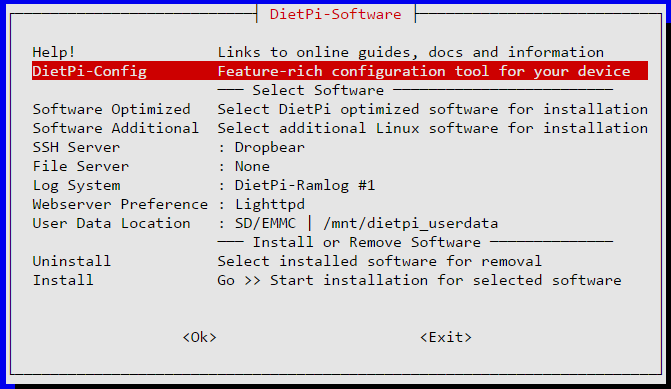
Look under “Software Optimized” and “Software Additional” and make sure that NONE of the options are selected, you want an install that is as clean as possible.
Under DietPi-Config make sure that Autostart is set to option 0 (default):
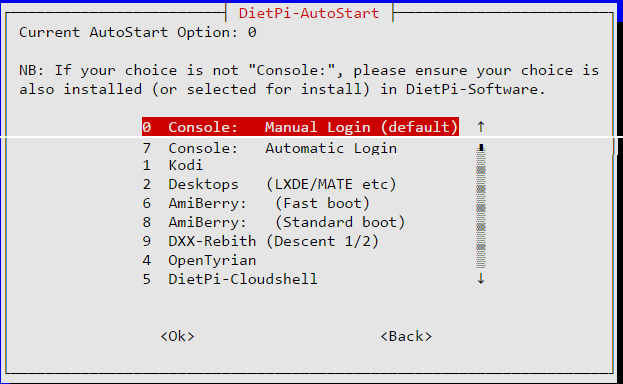
Change directory to /root and install MagicMirror according to instructions in the README.
Following my instructions above to install all systemd scripts and their helpers. My /root contains the following:
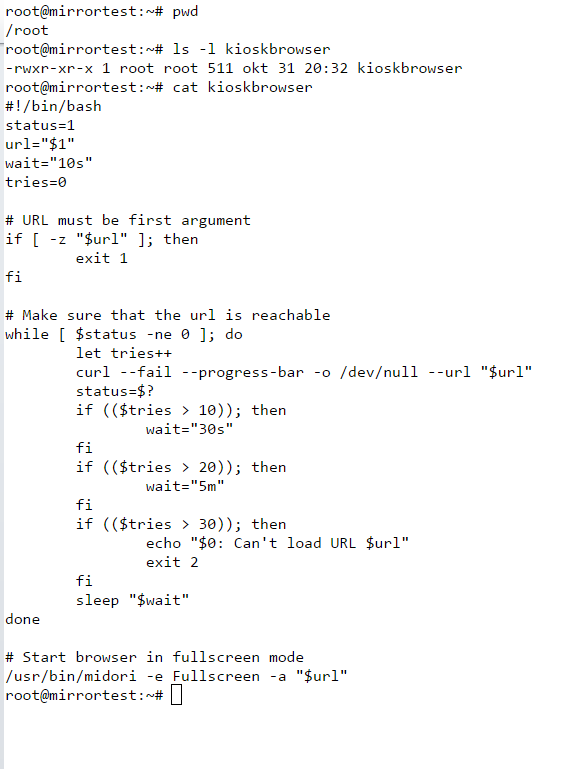
Stop magicmirror service (just to make sure it isn’t running) with the command:
systemctl stop magicmirror.serviceStart the magicmirror interactively by running
node serveronlyfrom the MagicMirror directory. You should see something similar to this:root@mirrortest:~/MagicMirror# node serveronly Starting MagicMirror: v2.1.1 Loading config ... Loading module helpers ... No helper found for module: alert. Initializing new module helper ... Module helper loaded: MMM-Remote-Control No helper found for module: clock. Initializing new module helper ... Module helper loaded: calendar Initializing new module helper ... Module helper loaded: MMM-WunderGround Initializing new module helper ... Module helper loaded: newsfeed Initializing new module helper ... Module helper loaded: MMM-ResRobot Initializing new module helper ... Module helper loaded: MMM-NetworkScanner All module helpers loaded. Starting server op port 80 ... Server started ... Connecting socket for: MMM-Remote-Control Starting node helper for: MMM-Remote-Control Connecting socket for: calendar Starting node helper for: calendar Connecting socket for: MMM-WunderGround MMM-WunderGround helper started ... Connecting socket for: newsfeed Starting module: newsfeed Connecting socket for: MMM-ResRobot Starting node_helper for module: MMM-ResRobot Connecting socket for: MMM-NetworkScanner Starting module: MMM-NetworkScanner Sockets connected & modules started ... Ready to go! Please point your browser to: http://localhost:80If any errors are shown, investigate them.
Now that MagicMirror is running it’s time to move on to the browser part.
Stop MagicMirror with ctrl+C and start the service withsystemctl start magicmirror.service.Make sure browser and matchbox are stopped by running the commands:
systemctl stop kioskbrowser.service
systemctl stop matchbox.service
Start matchbox with the command
systemctl start matchbox.service. Check that it started ok withsystemctl status matchbox.service. If not investigate.Once you get this far the “only” thing left to check is the midori browser. As you don’t have an X Display on the console it is slightly trickier. Let me know if/when you made it this far and we’ll take it from there.




Hello! It looks like you're interested in this conversation, but you don't have an account yet.
Getting fed up of having to scroll through the same posts each visit? When you register for an account, you'll always come back to exactly where you were before, and choose to be notified of new replies (either via email, or push notification). You'll also be able to save bookmarks and upvote posts to show your appreciation to other community members.
With your input, this post could be even better 💗
Register Login