MagicMirror Forum
    • Recent
    • Tags
    • Unsolved
    • Solved
    • MagicMirror² Repository
    • Documentation
    • 3rd-Party-Modules
    • Donate
    • Discord
    • Register
    • Login
    1. Home
    2. bhepler
    3. Best
    A New Chapter for MagicMirror: The Community Takes the Lead
    Read the statement by Michael Teeuw here.
    Offline
    • Profile
    • Following 2
    • Followers 9
    • Topics 21
    • Posts 1,117
    • Groups 2

    Posts

    Recent Best Controversial
    • RE: Motion Detection with RaspiCam, Non-Module version

      @bibi I haven’t tried it with a USB cam, but it should work. In the config file, there is a switch to throw if you’re using a USB cam (and different switches to throw if you’re using a network cam - which raises interesting possibilities).

      My camera is mounted above the monitor & behind the one-way acrylic. My monitor is smaller than my acrylic by about 2" on a side. This is good in that it’s a very clean installation and you don’t see a camera when you look at the mirror. It’s bad in that it cuts down on the light reaching the camera, preventing the facial recognition from working.

      posted in Tutorials
      bheplerB
      bhepler
    • RE: Hello-Lucy

      @dazza120 - Please use the Markdown features of the forum when posting code.

      posted in Fun & Games
      bheplerB
      bhepler
    • RE: Just installed magic mirror, now how do I change some things?

      @Crookedsoul The modules that come with the Magic Mirror software can be found in ~/MagicMirror/modules/default/[name of module] (assuming you ran through the tutorial and didn’t change anything).

      Any of the modules that you download from the community (Weatherbug, Instagram, Tides, etc.) need to be installed in their own folder in the modules folder. The positioning of any module is handled by the config.js script located at ~/MagicMirror/config/config.js. In addition to location information, you’ll also define most of the module’s configuration there as well. Think of it as configuration parameters that you’re passing into the module code, so you need to specify those parameters while you’re telling the Magic Mirror system to load up the module.

      posted in Troubleshooting
      bheplerB
      bhepler
    • RE: Motion Detector

      @DirkS Aha. You probably haven’t set it up yet. No worries. You normally start your mirror by going into ~/MagicMirror and entering npm start, right? Just append the dev switch and you should see both the mirror UI and the browser console on your mirror: npm start dev

      If you’re starting your mirror via SSH, prepend the command to send the output to the mirror’s display: DISPLAY=:0 npm start dev

      posted in Utilities
      bheplerB
      bhepler
    • RE: Attach the monitor with glue to the mirror?

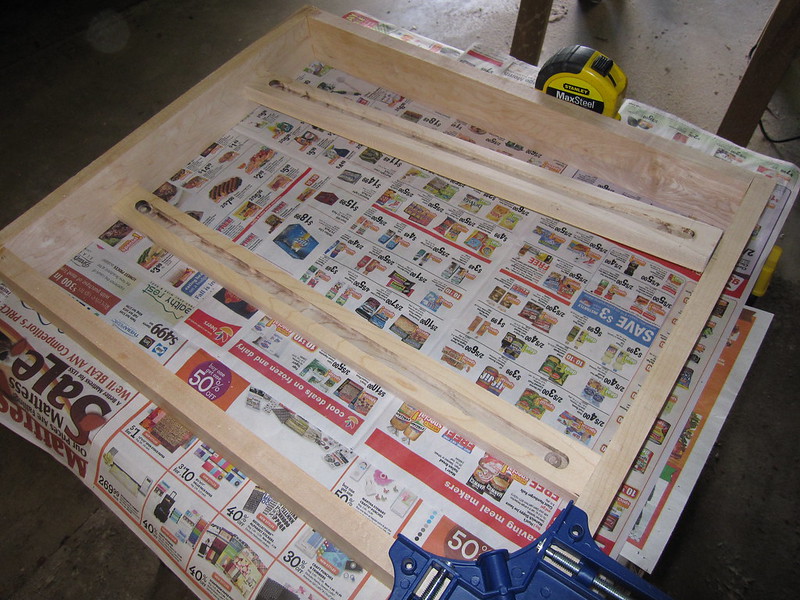
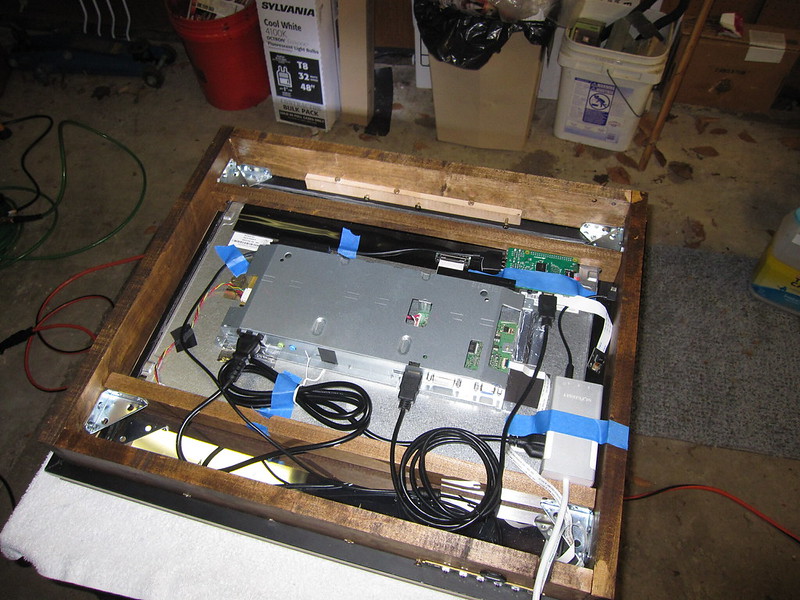
      I completed my box construction yesterday. My solution to the monitor-is-smaller-than-box problem was to build an internal bracing system using a couple of channels for the edge of the monitor. It sounds more complicated than it is.

      Monitor braces:
      Monitor braces

      Everything in place:
      Assembled

      posted in Hardware
      bheplerB
      bhepler
    • RE: Motion Detection with RaspiCam, Non-Module version

      I believe I have it cracked. The white screen was due to MMAL Motion crashing whilst writing a frame to disk. When Motion crashes, it apparently jacks up the video output.

      My current solution is to use PM2 to monitor the motion process and restart it when necessary. I’m testing now. If it works for a few more days I’ll report back.

      Adding motion to PM2: pm2 start motion. Be sure that the motion is not configured to run as a daemon (first option in config file).

      posted in Tutorials
      bheplerB
      bhepler
    • RE: MMM-SantaTracker

      @mmmallday - I don’t know why I’m not getting notifications from the forum but I’m just now seeing these replies to the thread.

      Thank you for your work in updating the module. I’ve merged your pull request into the baseline. I encourage everyone to update the module and check out the new features.

      posted in Fun & Games
      bheplerB
      bhepler
    • RE: Autostart & turning off powersave

      @deadherring said in Autostart & turning off powersave:

      What finally worked is this:
      In the terminal window type: “sudo apt-get install xscreensaver” .

      It will install a screen saver that you can then access from the menu. Go in and disable the blank screen.

      This is the only thing that worked for me and my screen has been on for an hour now.

      @deadherring Heh. I tried that. But then the screensaver activated and I got a lovely fiber optic flower on top of my my mirror interface. I’ll look into it again.

      Edited to add: Whoops. Never mind. I wasn’t looking in the right place. I tried setting “Blank After X minutes” and it wouldn’t let me set it to zero.
      0_1476205841539_screensaver.png

      posted in Troubleshooting
      bheplerB
      bhepler
    • RE: Motion Detector

      I’m still working this problem. To help with @paphko 's concern about processor utilization, I finally figured out how and where to put a delay in the main image comparison loop. @alexyak is using the RequestAnimationFrame feature to run the comparison as fast as the browser can render the UI.

      If you wish to include a delay, modify your motion.js file’s main function to read as such:

      function main(frequency) {
      	render();
      
      	if(rendering == true) {
      		setTimeout(function() {
      			raf(main.bind(this));
      		}, 500);
      	}
      }
      

      That last number (the 500) is the milliseconds between each image comparison. I think half a second between comparisons is enough to keep the CPU usage down and the effectiveness up.

      posted in Utilities
      bheplerB
      bhepler
    • RE: Building the Frame

      @Mitchfarino I did something similar with my mirror. I ended up routing a channel in two pieces that spanned in the interior of the box. The monitor edges fit in the channel and a couple of corner brackets secured each piece to the interior of the box. If you weren’t too concerned with visible screws on the outside of your box, you could skip the corner brackets for driving screws into the monitor supports from the outside.

      Monitor braces with channels

      posted in Hardware
      bheplerB
      bhepler
    • 1 / 1