MagicMirror Forum
    • Recent
    • Tags
    • Unsolved
    • Solved
    • MagicMirror² Repository
    • Documentation
    • 3rd-Party-Modules
    • Donate
    • Discord
    • Register
    • Login
    1. Home
    2. bhepler
    3. Best
    A New Chapter for MagicMirror: The Community Takes the Lead
    Read the statement by Michael Teeuw here.
    Offline
    • Profile
    • Following 2
    • Followers 9
    • Topics 21
    • Posts 1,117
    • Groups 2

    Posts

    Recent Best Controversial
    • Remote SSH Access to the Mirrors You Give Away

      I do love the mirrors I have created. My creations are like my children and like most children they eventually leave the nest and go forth to enjoy lives of their own. Except for Brad. Who is never going to amount to anything if he doesn’t get a job and move out of the basement. All he does is sleep and play Fortnite instead of… but I digress.

      This last mirror made me realize that I needed a way to connect to it after it was no longer in my physical control. My relatives aren’t very technical and it’s no fun for either of us to walk them through a troubleshooting session over the phone. It would be much easier if I could just remote into the mirror like I did when I was building it.

      It gets complicated when you realize that anyone with a WiFi network in their house is going to have a consumer-grade firewall in place. The usual solution is to get on the router and forward a port to the Pi, but that requires you to know the internal IP address of the Pi, the external IP address of the router, and your friends have to trust you with password to their router (which may not be configured to allow remote administration). And that’s just the start.

      My solution was to have the Pi reach out to a server that I control and establish a reverse SSH session. Because residential gateways allow any outbound connection by default, the Pi reaching out to the server is allowed without any extra configuration of the router. By connecting to a server outside of my home network, I didn’t have to worry about configuring my router to forward a port to my computer for the connection. And by choosing a cloud provider, I could spin the connection up & down as needed.

      I had several requirements for this project. I work in an internet security company, so it’s entirely possible that I went a bit overboard on my paranoia. But my goals were:

      • Secure remote access to the Pi via private/public key exchange
      • Connect to the Pi regardless of what kind of firewall was in place
      • No modification of target network firewalls
      • No modification of my network firewall
      • Portability of the mirror to different networks (Little Suzie takes the mirror with her to college and the enterprise-level gateways involved)
      • Self-healing connection that requires no intervention from mirror owner
      • Maximum use of open-source software, minimum use of black box code

      I’ve broken the process up into a handful of steps. Links to each portion are here:
      Generating Your Key Pairs
      Signing Up for the Cloud
      Configuring a Dynamic DNS to Your Server
      Connecting the Pi to Your Server
      Connecting to the Remote Pi
      posted in Tutorials
      bheplerB
      bhepler
    • RE: Clean installation... fails left and right

      @devinhedge said in Clean installation... fails left and right:

      Config info:

      RasPi 3b+
      8GB SD card
      Running on Rasbian Stretch Lite
      Attempting to run using sample config.js
      No other installed modules at this point
      Attempting to run as either server/client or server only

      Well, I think I’ve detected your problem. From the GitHub page for the Magic Mirror project:

      Note that you will need to install the latest full version of Raspbian, don’t use the Lite version.

      So. My advice is to pull your SD card and flash the full desktop version of Raspbian Stretch. I don’t think you need the “recommended software” version, but you do need the desktop.

      Edited to add: It seems others have similar problems with the latest version of Raspian. Apparently they changed something in the base images. Anyhow, follow this advice and you should be able to get back on track.

      posted in Bug Hunt
      bheplerB
      bhepler
    • RE: Trouble getting it to start

      @in_a_days

      That is weird! If you are able to launch the mirror software with
      DISPLAY=:0 npm start
      PM2 should definitely work :(

      Don’t forget, you told him to re-flash his SD card. That would have wiped the PM2 installation.

      @PhilsterM9 You’re almost there. Your original mistake was that you told PM2 to run the mm.sh script twice (and then 3 times). Let’s make sure that you have PM2 installed, now that you’ve reflashed your SD card.

      Run this: pm2 status. If you get the table, great. Let us know how many entries are in it. If you get the No command 'pm2' found, did you mean: line, go back to the tutorial and follow the steps again, starting with sudo npm install -g pm2.

      If you do have more than one line in the table when you check PM2 status, you’ll want to remove all of the extraneous ones. pm2 delete 1 and possibly pm2 delete 2 if there are three entries. Get it to where there is only one entry in the list when you run pm2 status. Then save the pm2 state: pm2 save.

      Okay, once you have saved the pm2 configuration, pm2 will make sure that your mirror is running. You don’t need to tell it start ever again. Hopefully. You should be able to reboot your Pi and then run pm2 status and see that the mm process is running all by itself.

      posted in Troubleshooting
      bheplerB
      bhepler
    • RE: MMM-BMW-DS (A different kind of weather module)

      I like this. It’s tight and conveys a lot of information in little real estate.

      posted in Utilities
      bheplerB
      bhepler
    • RE: Tips on powering the Pi

      I use one of these: NextGadget 3-Port USB Desk Charger. USB ports are powered strongly enough for the Pi, and it powers the monitor via the AC plug.

      Only downside: the cord itself is only about 4 feet long. So if your mirror isn’t going right over an electrical outlet, you may have to wire in an extension cord yourself.

      posted in Hardware
      bheplerB
      bhepler
    • RE: Loading compliments from external file

      Done. Thanks.

      posted in Requests
      bheplerB
      bhepler
    • RE: NFL Score Module

      @Shawnsully Double-check your commas and curly braces, specifically at the beginning of your module entry. You have:

      },
           module: 'MMM-NFL',
           position: ‘bottom_left’,
      ...
      

      You probably want:

      },
      {
           module: 'MMM-NFL',
           position: ‘bottom_left’,
          ...
      
      posted in Sport
      bheplerB
      bhepler
    • RE: No free space on SD-card

      @zdenek Did you delete all the stuff not used for a mirror? From the complete setup tutorial: sudo apt-get remove --purge idle3 java-common libreoffice* minecraft-pi scratch nuscratch penguinspuzzle python-minecraftpi python3-minecraftpi smartsim sonic-pi wolfram-engine

      posted in Troubleshooting
      bheplerB
      bhepler
    • RE: MMM-Humanize-Duration

      Congratulations upon reproducing!

      posted in Utilities
      bheplerB
      bhepler
    • RE: PI Camera

      @pepemujica I believe the MMM-MotionDetection module works with the Pi camera. Facial recognition and gesture control should also work with the Pi camera. You may need to flip a few switches.

      posted in Hardware
      bheplerB
      bhepler
    • RE: MMM-COVID19-SPARKLINE

      Thank you for this. Great work.

      posted in Health
      bheplerB
      bhepler
    • RE: Toothbrush integration

      A smart toothbrush? We truly do live in an age of wonders.

      posted in Requests
      bheplerB
      bhepler
    • RE: Lightdm.conf file blank

      @RE_Magic_Mirror The best way to keep your mirror running is to install a screensaver and then configure the screensaver to never run. Yeah, it’s a bit weird.

      Install the screensaver program: sudo apt-get install xscreensaver

      Once you do, start your Pi and get to the desktop. If you have already configured your Pi to start the Magic Mirror interface, click ctrl+q to exit. Open the menu by clicking on the Raspberry start button with your mouse, or clicking the special/window key on your keyboard. Go to Preferences and there should be a new entry called “Screen Saver”. Click/Press enter to activate the screen saver configuration.

      On the configuration screen, there is a drop-down box with options as to which screen saver you wish to run. I believe the default is “random screensaver”. Navigate to this drop down box and select “disable screensaver”. Close the screen saver configurations window.

      That’s it. That should keep your Pi from going black.

      posted in Troubleshooting
      bheplerB
      bhepler
    • MMM-WeasleyClock - A Clock The Shows Location Not Time

      Description:

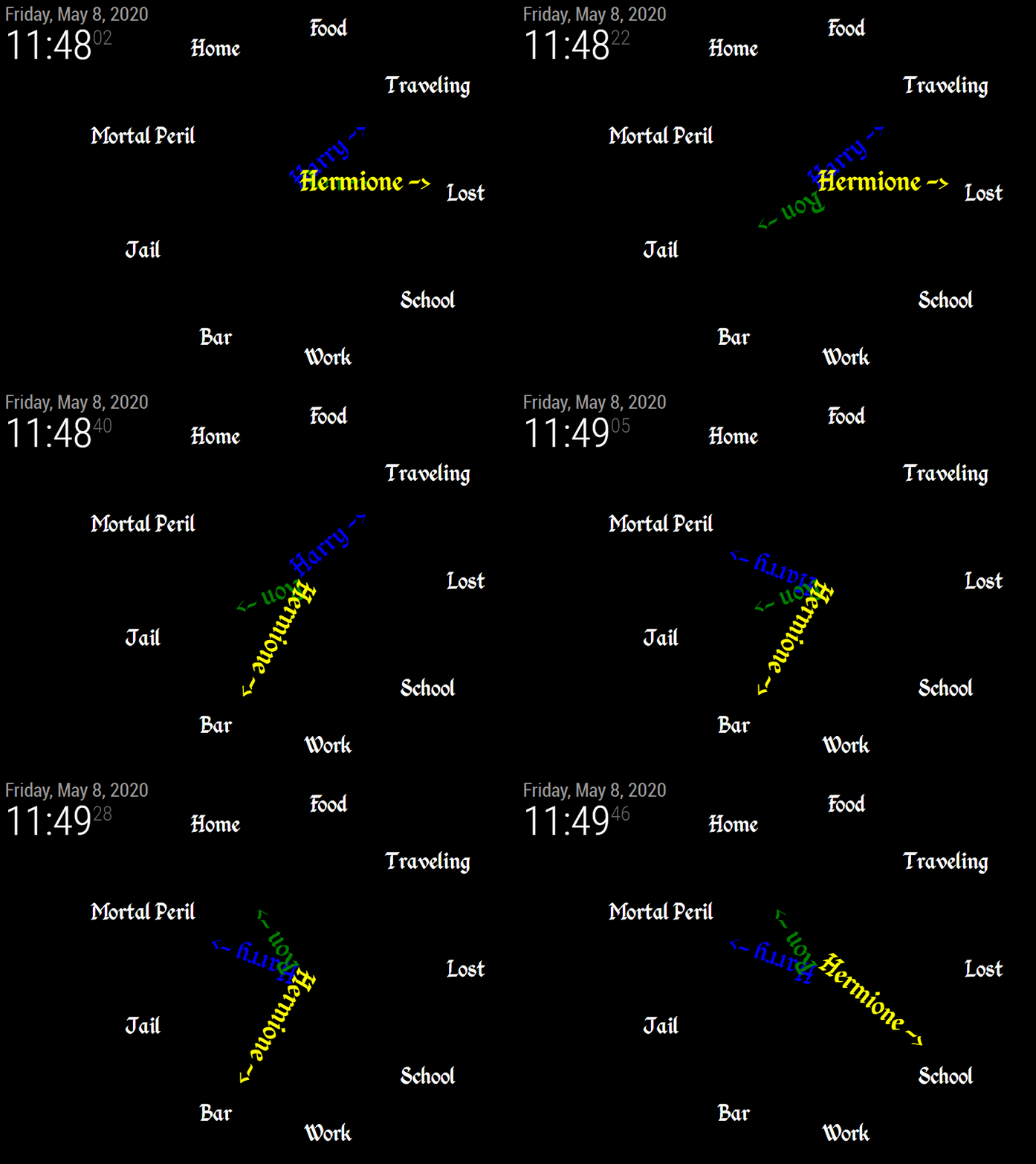
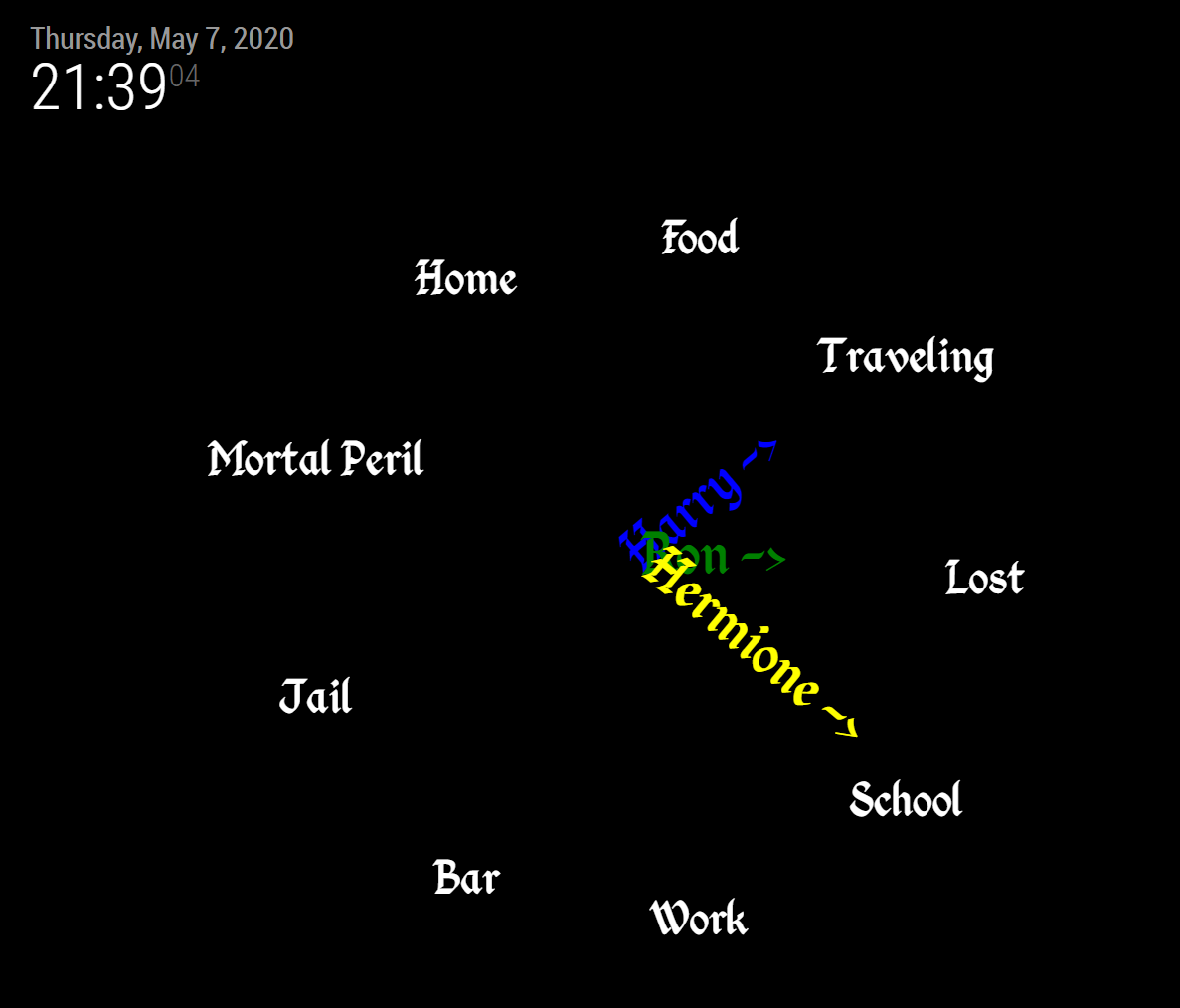
      Inspired by the location clock from the Harry Potter movies and a nifty Instructable, this module displays the location of your family members. Working with an open source location app on your phone, it will update your mirror to display where you are.

      If you haven’t seen the movies, there is a grandfather clock in a house that doesn’t tell time, but rather tells the viewer the location of each member of the household. Each hand represents a family member and the hand rotates as that member changes location.

      As your phone changes location, it will enter regions that you define and update the mirror. The module will then rotate the hand associated with that phone to point to the name of the region (and make a quiet “bong” noise). The module recognizes when you are traveling and if you lose connection. Locations can be different for each family member and locations are only limited by screen real estate (number of people is capped at seven)

      Screenshots:

      module1.png

      mmm-wc-demo2.gif

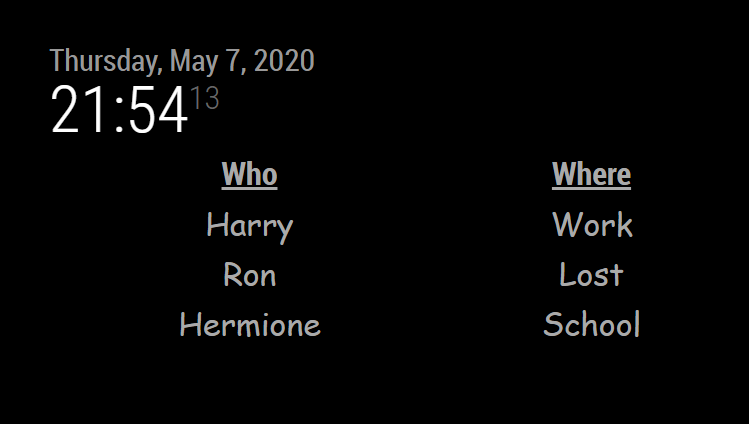
      There’s also a table mode if you don’t have a lot of space on your mirror.
      table_mode.png

      Download:

      [card:BrianHepler/MMM-WeasleyClock]

      Github Link

      Version 1.0.0

      • Initial Release
      • Configurable locations, people

      To Do

      • Configurable positioning of hands and locations
      • Better graphics on hands, locations. Optional clock face.
      • Configurable sounds
      • Push locations to phones
      • Third display style
      posted in Utilities
      bheplerB
      bhepler
    • RE: Cabinet speakers

      @twillster My suggestion is to look into portable Bluetooth speakers. Something thin with decent dynamic range. Either mount them in the cabinet or just keep them nearby. The Pi 3 has bluetooth onboard and you could use that instead of trying to rig up something hardwired.

      posted in Hardware
      bheplerB
      bhepler
    • RE: MMM-COVID19-SPARKLINE

      @Sparkie579 - UK can be specified by putting “United Kingdom” in the config. I don’t think there is one for the EU as a whole. But you can specify the countries in the EU.

      You can go to the Johns Hopkins page and see the list of countries that it tracks. Use those names in the left column if you need to look up particular spelling & variations (UK vs United Kingdom vs Britain vs England).

      posted in Health
      bheplerB
      bhepler
    • RE: Displaying Metrics from an Excel Sheet

      @robiv8 - Data in an excel spreadsheet is useful for calculating values and displaying them. The difficulty in using a Magic Mirror to display such values is that you now have to transfer the excel file to the Magic Mirror so it can be read by the module. (You can get around this by making the file available over the network and telling the mirror to look at a specific network path).

      You also have to write some sort of interpretation to pull the data out of Excel and display it on the screen. If you just wish to display a spreadsheet, this isn’t too difficult. Things get complicated when you want to extract only certain parts of that spreadsheet (such as computed totals). Excel doesn’t store total values in the cells, it stores formulas. Just displaying the contents on the mirror results in values that look like =$AE+SUM(B3..B14)

      The preferred way of doing these things is to make the computed data available via a web API and then use the Magic Mirror to query the API and display the values. That module has already been written.

      posted in Requests
      bheplerB
      bhepler
    • RE: Lightdm.conf file blank

      @RE_Magic_Mirror I don’t think there is a problem, no. I haven’t done any research on the topic, but I believe the lightdm.conf file was deprecated around the time the Wheezy version of the Raspian operating system was released. At least… changes to that file on Wheezy didn’t seem to have the desired effect. That continued on Jessie.

      posted in Troubleshooting
      bheplerB
      bhepler
    • RE: Internet Monitor

      Okay, I have completed my first pass at fixing the WiFi symbol. It works for me, so let’s see how it goes for you.

      If you’re not using my repository, you’ll have to switch by deleting your modules/internet-monitor folder, cloning from my repository at https://github.com/BrianHepler/internet-monitor and then installing like normal. You’ll have to cd internet-monitor and then npm install.

      If you’re already using my repository, just cd MagicMirror/modules/internet-monitor and git pull. It will probably tell you that you need to stash package-lock.json. Just delete that file and try again.

      Warning: The custom WiFi icon doesn’t work yet. I got the default one to show up, but I’m still working on the one with the custom colors. But right now I want to verify that you guys can at least see the WiFi icon.

      posted in Utilities
      bheplerB
      bhepler
    • RE: A Question About Power Cables

      Just FYI - I added a string of LEDs that are powered by a USB socket last night. Installed 'em under the edge of the frame, pointing towards the wall. My wife picked them up on sale for some reason. They plugged right in to the USB slot on the travel charger. Now they switch on along with the mirror.

      posted in Hardware
      bheplerB
      bhepler
    • 1 / 1