A New Chapter for MagicMirror: The Community Takes the Lead
Read the statement by Michael Teeuw here.
  • can't get the webcam to work

    6
    0 Votes
    6 Posts
    6k Views
    N
    @xela That’s a whitelist issue; the ipWhiteList controls which computers can connect to the MM server. address controls what the electron instance connects to. Have a look here for @mochman’s ipWhiteList config walkthrough. If you’re on an IPv6 network, it’s not altogether intuitive for those of us who grew accustomed to IPv4.
  • MMM-Remote-Control show error on start

    5
    0 Votes
    5 Posts
    3k Views
    J
    If it is in this line, then something is wrong when I get the fetch url. Maybe a module without any remote, but it somehow it not caught in the if statemate to catch errors? Maybe the result[0].refs does not necessarily have a fetch url?
  • MMM-Tabulator: How to port HTML JS imports to node JS imports? [solved]

    7
    0 Votes
    7 Posts
    4k Views
    E
    @ninjabreadman Thank you very much for trying to help. But I’m pretty sure I tried that as well…at some point, giving me a “double” path. (Perhaps a browser cache issue?). Anyway, this is resolved, and I have a new problem of a completely different sort in this thread.
  • Google Assistant won't register.

    2
    0 Votes
    2 Posts
    2k Views
    C
    @KRegan There are a fair number of missing details from the 3rd Party Module instructions, especially when it comes to registering the device. I ended up jumping over here: https://developers.google.com/assistant/sdk/guides/library/python/ and just going through the Google instructions in detail. Once you have the demo software working (audio only, without MM integration), it was fairly easy to sew them together and get it working on the mirror as well. I used my Jabraspeak USB speakerphone, which registered as card 1, device 0 on both the speaker and mic. Have a scratch pad of some sort handy (OneNote, Notepad, etc) to track the various keys you will generate along the way. Once you get everything onboard, the sequence is boot the Pi (I have pm2 set to autostart the Mirror), connect vis SSH then start the virtual environment (source env/bin/activate), drill down to the pi folder (cd MagicMirror/modules/MMM-GoogleAssistant/pi) and start the assistant.py file (python3 assistant.py). I took the better part of a weekend. ymmv.
  • Magic Mirror Modules Not Working

    9
    0 Votes
    9 Posts
    4k Views
    K
    @ninjabreadman https://github.com/ronny3050/phone-notification-mirror I used this module for push notification.
  • IFrame

    4
    -1 Votes
    4 Posts
    3k Views
    E
    @maxbachmann What does your browser’s Developer Tools log say?
  • Default Calendar Module Off by a Day

    1
    1
    0 Votes
    1 Posts
    1k Views
    T
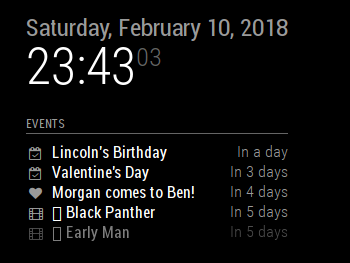
    [image: 1518324323215-119b0e09-c82d-4736-9d15-abacc5663e24-image.png] As you can see, everything is a day off. Any suggestions of how to fix this?
  • Notice for MMM-CalendarEXT and MMM-Assistant

    5
    5 Votes
    5 Posts
    2k Views
    cruunnerrC
    i freshly installed a MagicMirror with the newest version and the CalendarEXT works without any mods :)
  • Voice Controlled Wake/Sleep Function

    Unsolved voice control motion module troubleshoot
    9
    0 Votes
    9 Posts
    7k Views
    S
    Hey guys I’m pretty new to this whole magic mirror thing. I don’t want my mirror on all the time so I wanted to turn the display on and off with my voice. This is the only post I could find trying to accomplish that. So once i get the Voice Control module from alexyak working, how do I get this to work? I’m confused as to where to put the files.
  • Maximum File Size of ics FIle?

    10
    0 Votes
    10 Posts
    5k Views
    N
    @Stef That’s awesome, congrats. Thanks for letting us know! If anything, comment on @Beh’s post with any edits or additions you suggest to help others. Cheers!
  • This topic is deleted!

    1
    0 Votes
    1 Posts
    7 Views
  • Config Question to MMM-Wunderground

    5
    0 Votes
    5 Posts
    2k Views
    V
    @bhepler Setting this to 1 = > i have 1 hour forecast and 1 day forecast But i want to have 3 hourly forecasts and not daily forecast Thanks
  • MMM-Assistant not Installing

    1
    0 Votes
    1 Posts
    839 Views
    E
    hello , i am installing mmm-assistant following the instructions on the wiki exactly i get stuck in step 4 , you can see the console output here [image: H5LSWzg.png] https://pasteboard.co/H5LSWzg.png please help , i am fairly new to this, i have tried to do it a few times but always get stuck here thanks
  • MMM-Podcast error

    1
    0 Votes
    1 Posts
    868 Views
    foxF
    Thank you @PtrBld for the module. I installed MMM-Podcast but it shows me only the message module_0_MMM-Podcast Could you help me?
  • MMM-FHEM Problem after Update

    1
    0 Votes
    1 Posts
    736 Views
    S
    Hi Folks, I have the module MMM-Fhem. After i updated FHEM and MagicMirror there is no more Status from FHEM. All other Things works fine. But no Action with FHEM. I have no basicAuth in Fhem. any ideas? THX
  • This topic is deleted!

    4
    0 Votes
    4 Posts
    48 Views
  • Module Swapping very slow

    2
    0 Votes
    2 Posts
    1k Views
    L
    I’m sorry i got that wrong the time delay was because it waited till it logged out. But I still have a problem: When i start the Magicmirror all modules are shown eventough i didn’t mark them as default or everyone. It recognizes me (Hello User 1) but all modules appear wether they are marked for User 1 or User 2. so it seems it can not differ between the Users. Anyone familiar or does anybody knows where to troubleshoot? Snippet from config file: modules: [ { module: "alert", }, { module: "updatenotification", position: "top_bar" }, { module: "clock", position: "top_right", }, { module: 'MMM-germanwordclock', position: 'bottom_left', classes: 'User1', }, { module: 'MMM-ethereum', position: 'top_right', classes: 'User2', config: { updateInterval: 30000, exchange: "kraken", } }, { module: 'MMM-Facial-Recognition', config: { // 1=LBPH | 2=Fisher | 3=Eigen recognitionAlgorithm: 1, // Threshold for the confidence of a recognized face before it's considered a // positive match. Confidence values below this threshold will be considered // a positive match because the lower the confidence value, or distance, the // more confident the algorithm is that the face was correctly detected. lbphThreshold: 110, fisherThreshold: 250, eigenThreshold: 3000, // force the use of a usb webcam on raspberry pi (on other platforms this is always true automatically) useUSBCam: false, // Path to your training xml trainingFile: 'modules/MMM-Facial-Recognition/training.xml', // recognition intervall in seconds (smaller number = faster but CPU intens!) interval: 3, // Logout delay after last recognition so that a user does not get instantly logged out if he turns away from the mirror for a few seconds logoutDelay: 5, // Array with usernames (copy and paste from training script) users: ['User1', 'User2'], //Module set used for strangers and if no user is detected defaultClass: "default", //Set of modules which should be shown for every user everyoneClass: "everyone", // Boolean to toggle welcomeMessage welcomeMessage: true } },
  • node_helper and python communication

    3
    0 Votes
    3 Posts
    2k Views
    J
    @ninjabreadman yap python_start is called by an event from the modules (script is not complete) In the MMM-PIR-Sensor the GPIO is used. In my case I would like to use usb. So i should require node-serial port. That’s what one way I can try it. But I also thought of doing the complete logic, like switching on/off the screen, in my python script. So the only job of the module is to call python.
  • MMM-PIR-Sensor: "Welcome back" message

    2
    0 Votes
    2 Posts
    2k Views
    D
    I don’t have a PIR to test, but looking at the code, I’d suggest trying something like this: You need a DOM element to show the message in. You can borrow it from the default module helloworld and modify it: getDom: function() { var wrapper = document.createElement("div"); wrapper.setAttribute("id", "welcome-message"); wrapper.innerHTML = ""; return wrapper; } And then, based on self.sendSocketNotification("USER_PRESENCE", true); in the node_helper.js you add this to the MMM-PIR-Sensor.js : socketNotificationReceived: function(notification, payload) { if (notification === "USER_PRESENCE"){ this.sendNotification(notification, payload) // new: if (payload === true) { document.getElementById("welcome-message").innerHTML = "Welcome back!"; setTimeout(() => { this.removeMessage(); }, (1*60*1000); // = 60 seconds } }, removeMessage: function(payload) { document.getElementById("welcome-message").innerHTML = ""; } If you use it like this, the message is only shown for 1 * 60 * 1000 miliseconds = 60 seconds (set as desired) and then removed. This is all untested but hopefully gives you some clues where to look and work on the code.
  • MMM-MirrorOnTheWall

    1
    0 Votes
    1 Posts
    789 Views
    F
    Hello guys, i have a problem with this module MMM-MirrorOnTheWall i follow the instructions but after ./start.sh i get a error: Error: Cannot find module '/home/pi/MagicMirror/connect_device_package/node_modules/aws-iot-device-sdk/examples/device-example.js' can someone help me please?